Errors
When it comes to automated tasks, you can map out scenarios that are potential failure points and handle those failures accordingly.
Using the Errors feature, you can load information about an error when it occurs, so that support teams can act more effectively.
Snippet Generator
Error manipulation actions can be performed directly on the BotCity Orchestrator platform or via code, using the BotCity Maestro SDK or the BotCity Orchestrator API.
Explore the Snippet Generator button to get code examples that facilitate error manipulations using the BotCity Maestro SDK. Generate code snippets for the following actions: create a simple error and create a custom error.
The generated snippets may be available in the Python, Java, JavaScript and TypeScript languages.

Emit errors
Errors are emitted directly via code, and it is possible to trigger numerous errors in the same process, depending on the error handling implementation.
These errors are recorded in the BotCity Orchestrator, always linked to a specific task.
Maestro SDK
For more information on how to implement the error functionality in code, see the Maestro SDK Errors section.
View errors
There are two ways to view errors triggered in the BotCity Orchestrator.
Errors Menu
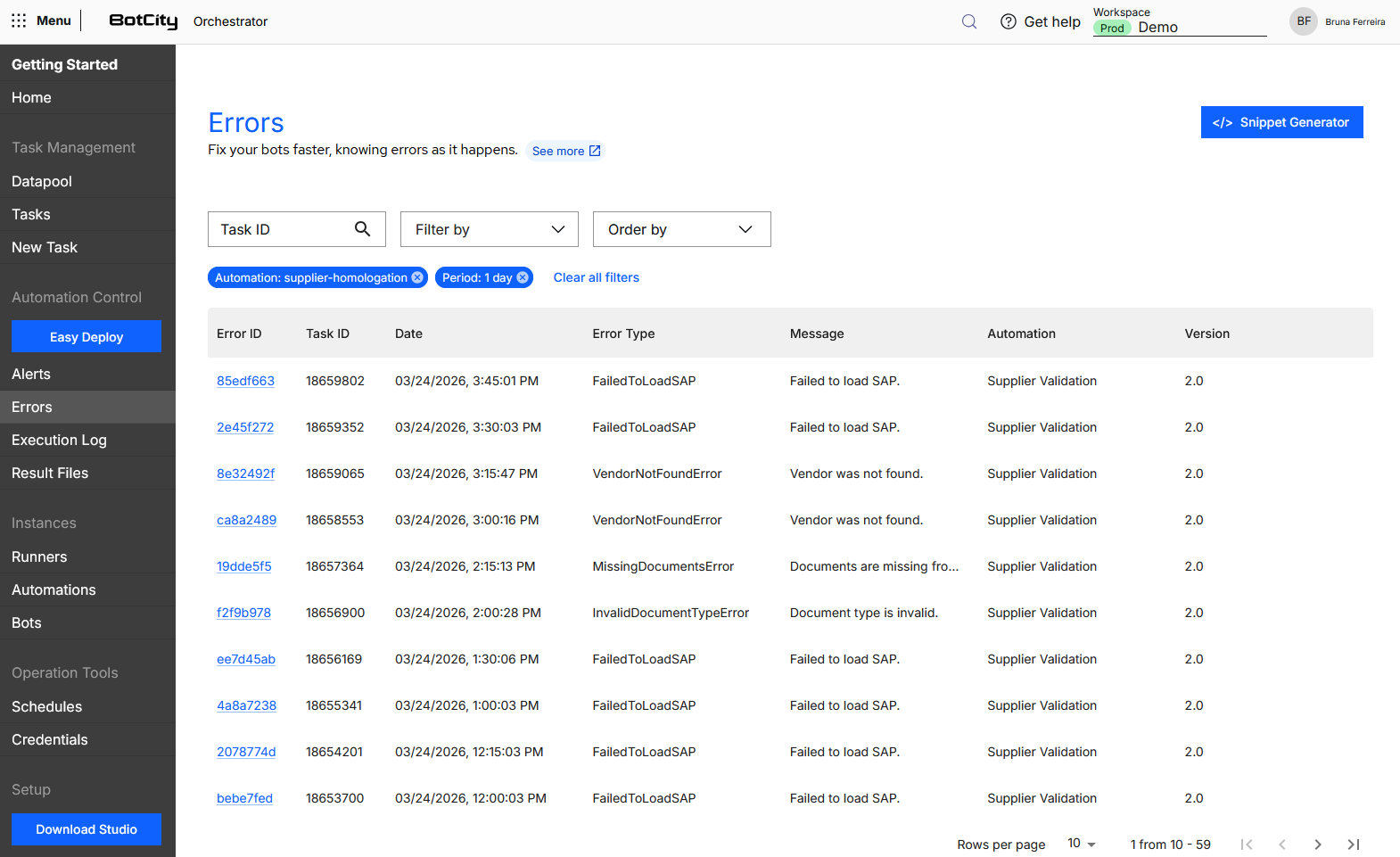
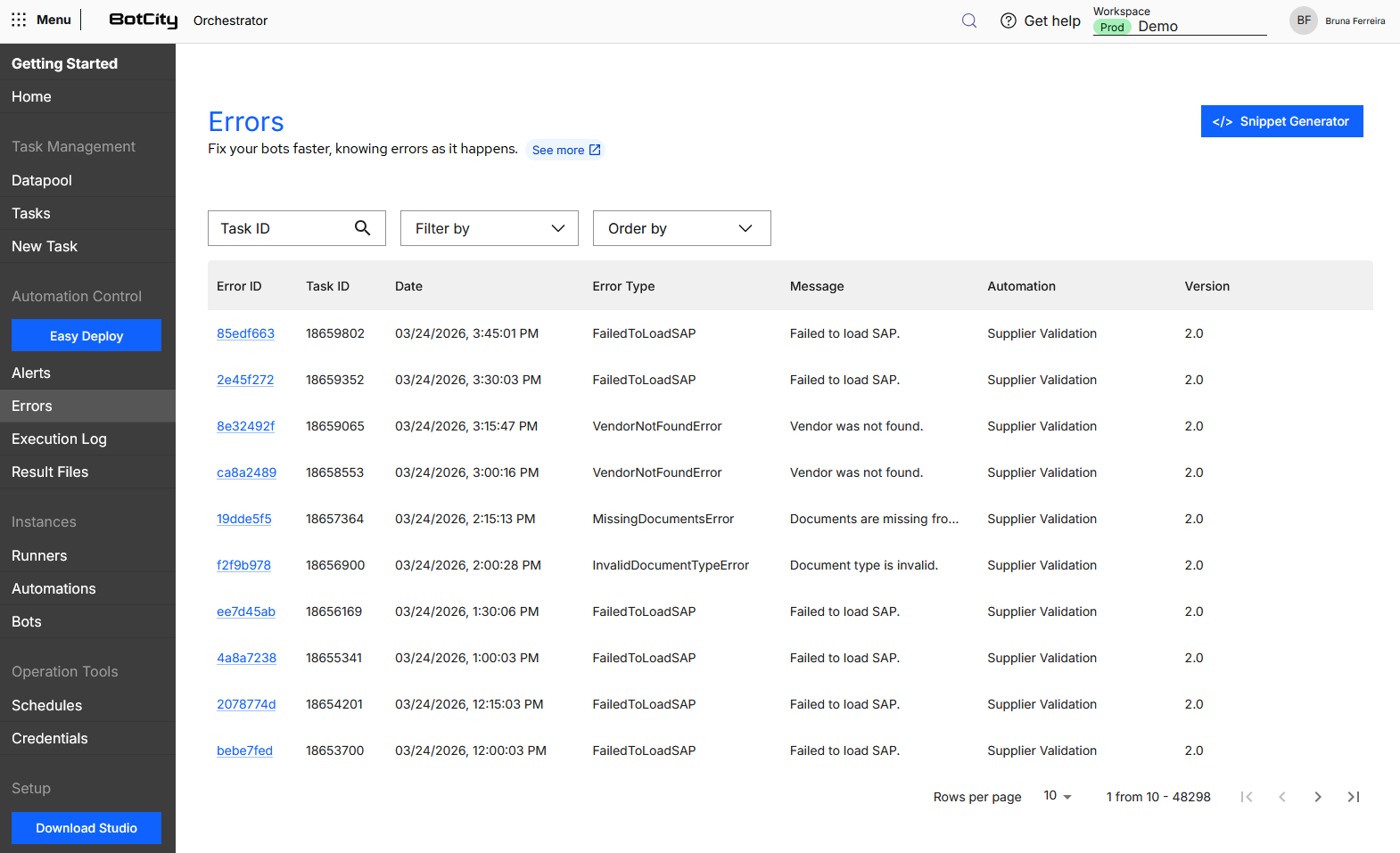
When accessing Errors in the side menu, you will find all errors triggered in the Orchestrator in table format.
You will find the following columns:
- Error ID: Error identification number as a link to access the error details.
- Task ID: Identification number of the task that triggered the error.
- Date: Date and time the error occurred.
- Error Type: Type of error returned by the exception.
- Message: Exception message related to the error that occurred.
- Automation: Name of the automation that triggered the error.
- Version: Version of the bot that executed the task.
Tasks Menu
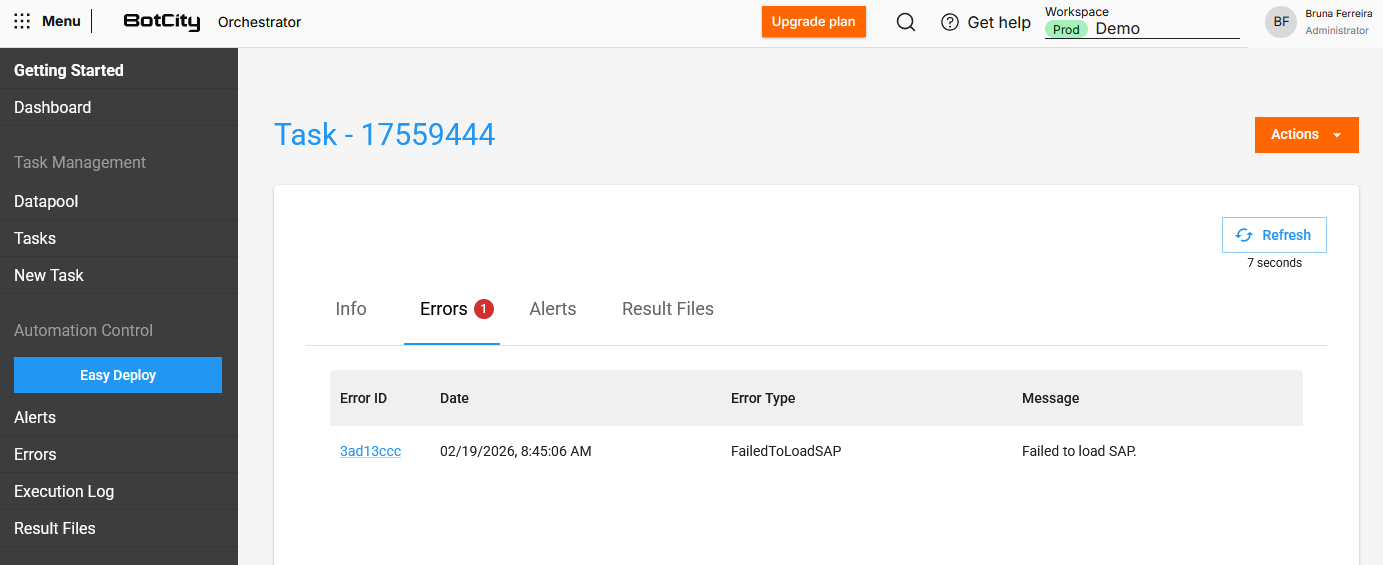
Errors can be accessed through the Tasks menu, by accessing the details of a task and navigating to the Errors tab.
You will find the following columns:
- Error ID: Error identification number as a link to access the error details.
- Date: Date and time the error occurred.
- Error Type: Type of error returned by the exception.
- Message: Exception message related to the error that occurred.
Error details
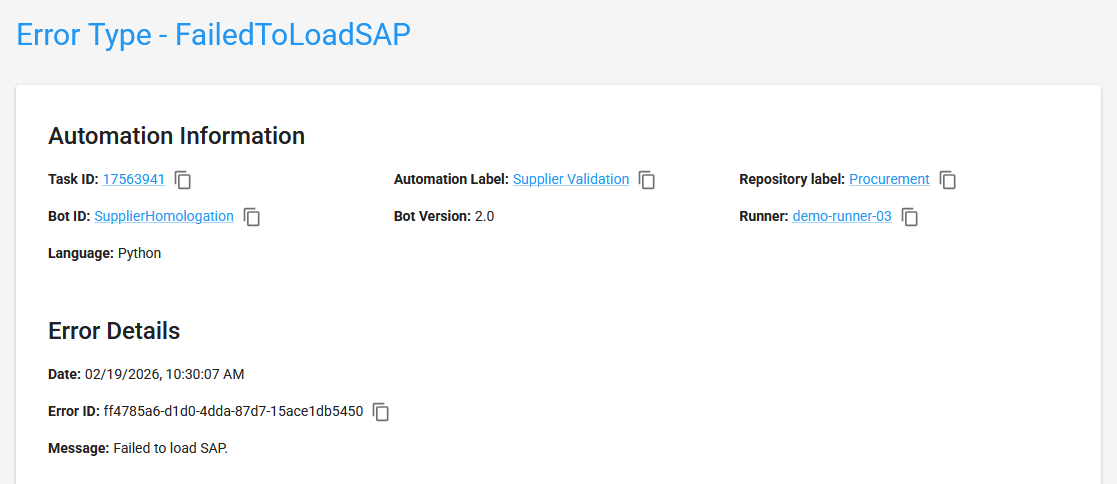
When accessing the details page of an error, you will find the following information blocks:
- Automation Information: Task ID, Automation, Repository, Bot ID, Version, Runner and Language.
- Error Details: Date, Error ID and the Message returned by the exception.
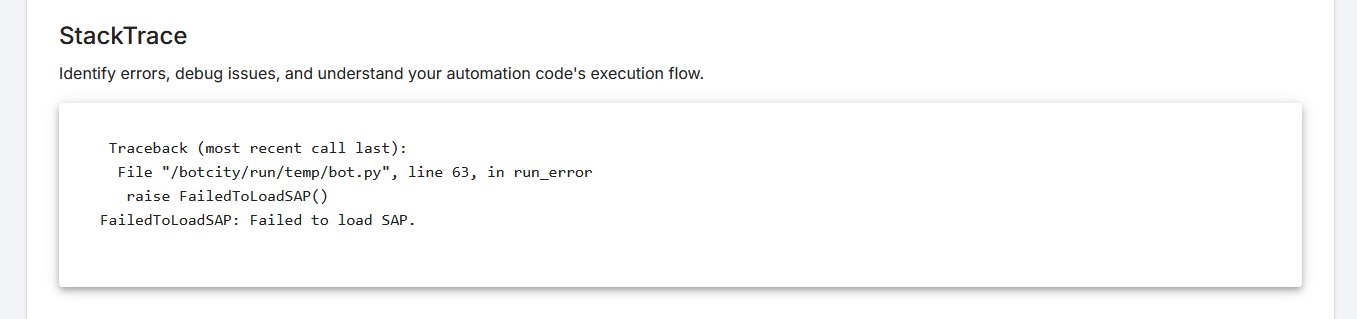
- StackTrace: Error trace in the code.
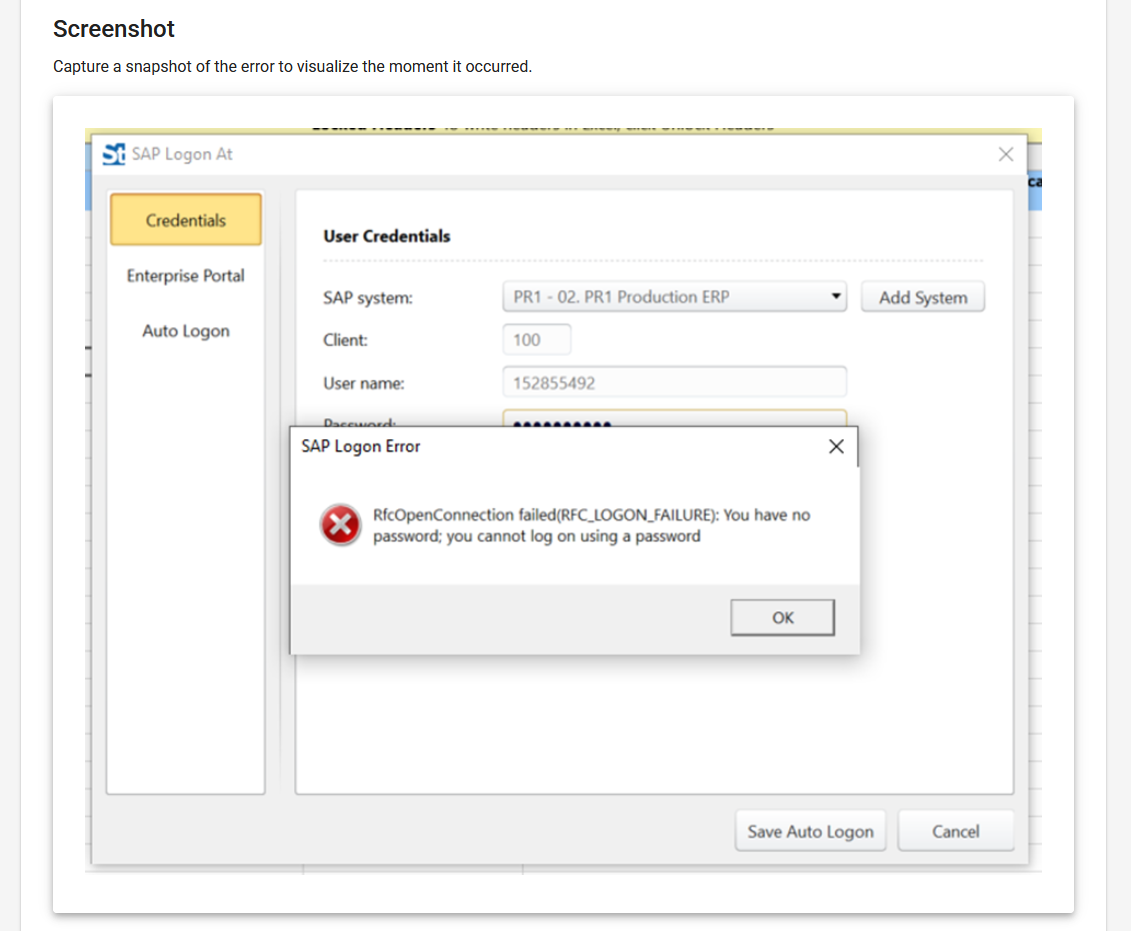
- Screenshot:
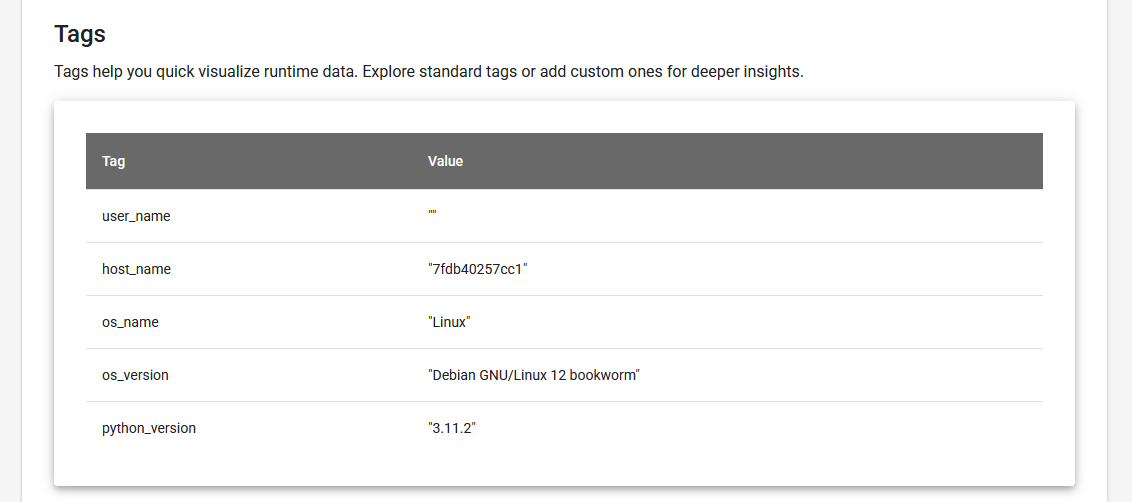
(optional)Screenshot at the time of the error. - Tags:
(optional)Runtime data. - Attachments:
(optional)Files in any format.
Detailed error
In the initial blocks, you will find general information about the automation and the error.
StackTrace
In this block, you will find the details of the error trace in the code, allowing you to analyze the exact line of code where the error occurred.
Screenshot
It is possible to load a screenshot at the moment the error occurs. This information is optional, but it is important for understanding what the environment looks like visually.
Tags
Tags provide a quick view of runtime data.
There are default tags for capturing information about the execution environment, and optional tags can be added with any text information that is relevant to understanding the error.
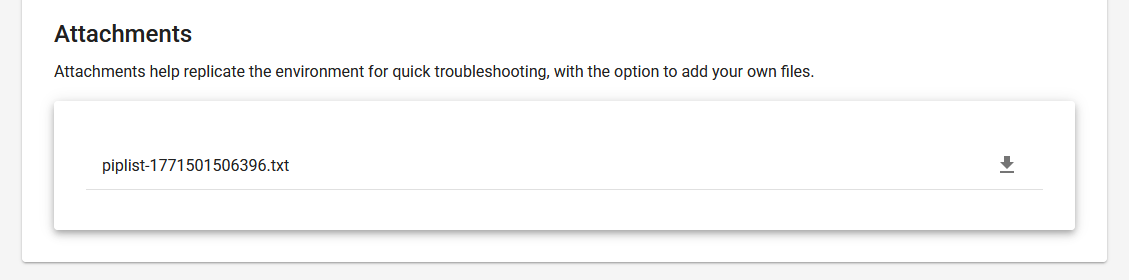
Attachments
In this block, you have access to all files attached at the moment the error occurs.
The default attachment helps replicate the environment for quick troubleshooting, and with the option to add your own files in any format, you can more easily understand what went wrong in the process.
Search and filters
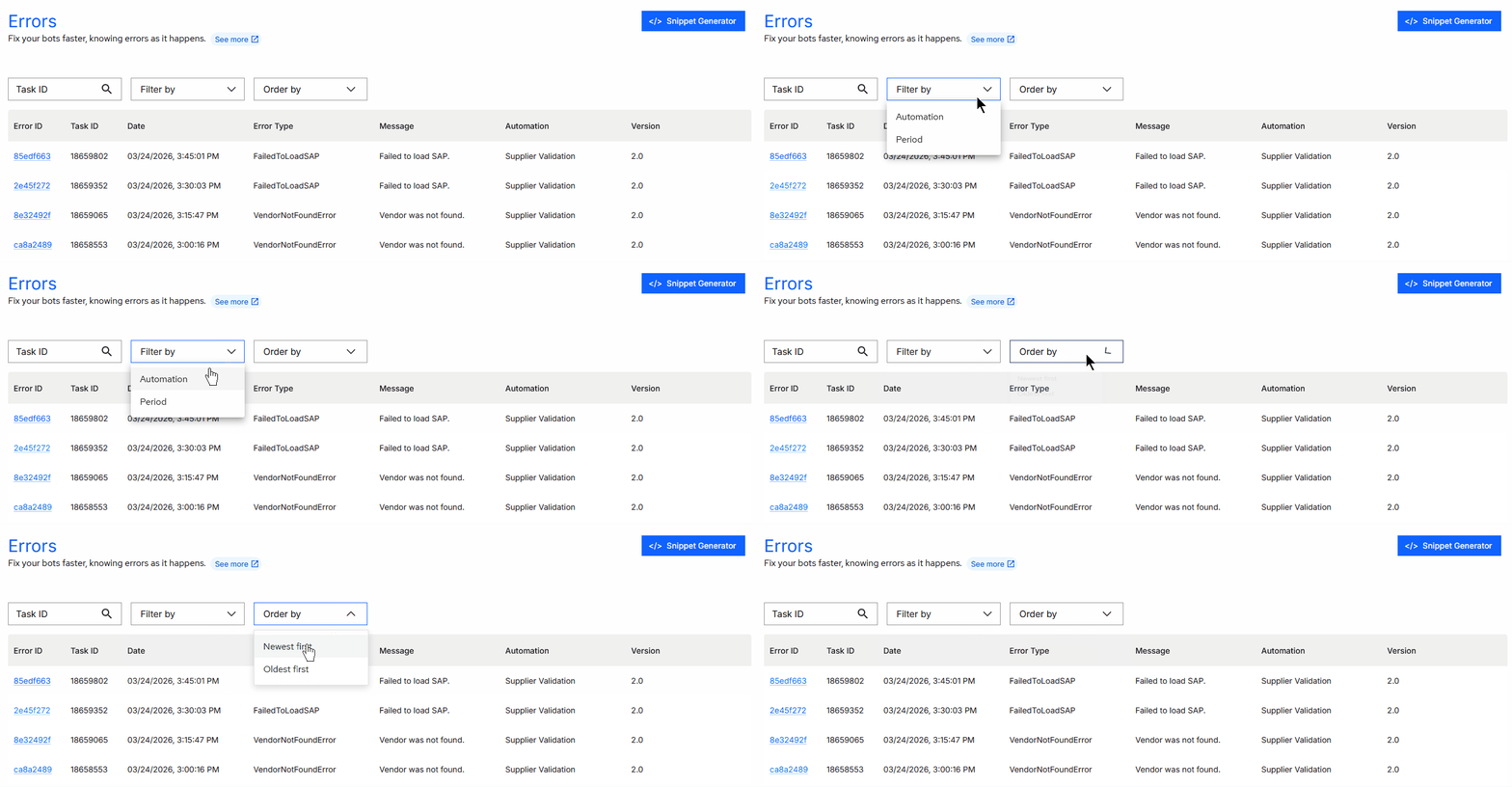
It is possible to combine multiple filters to search in the Errors menu according to your needs.
Search by:
- Task ID: Search by the task identification.
Available filters:
- Automation: Select one or more automations.
- Period: Select a period (
1 day,1 week,15 days,1 month,1 year).
Sorting:
- Most recent first
- Oldest first