Data Reprocessing
This guide aims to provide guidance on how retroactive data processing works in BotCity Insights. In this flow, you can edit both the financial information (human time and cost per item) and the number of processed items for each task. Below, see the details of what needs to be done and how to follow each step of the process.
Step by Step
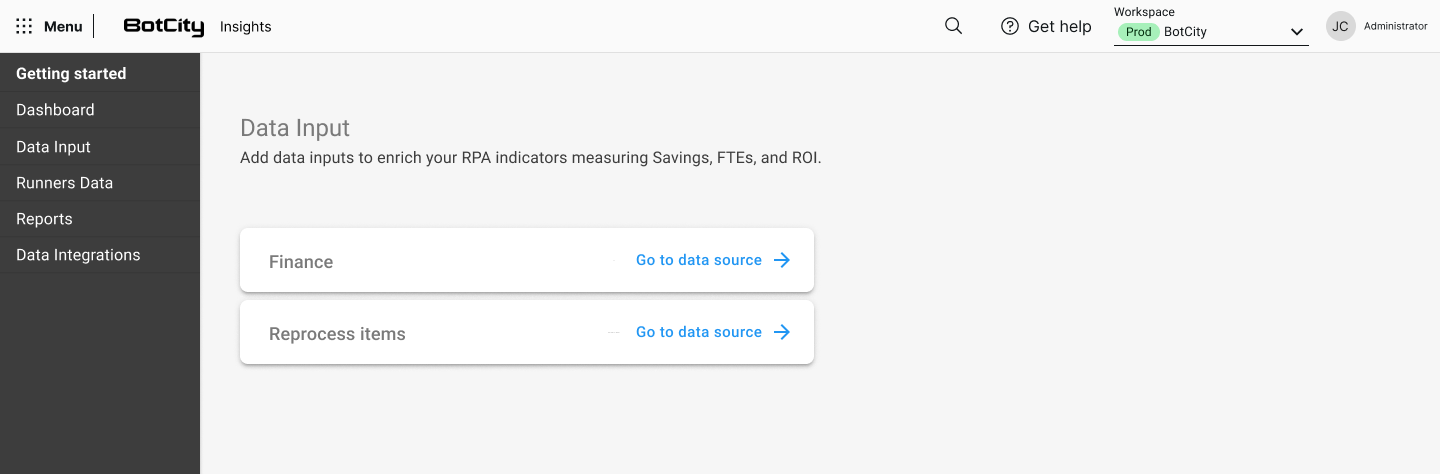
In the Data Input section, you can reprocess specific data for an automation.
To start the reprocessing, click Reprocess items - Go to data source.
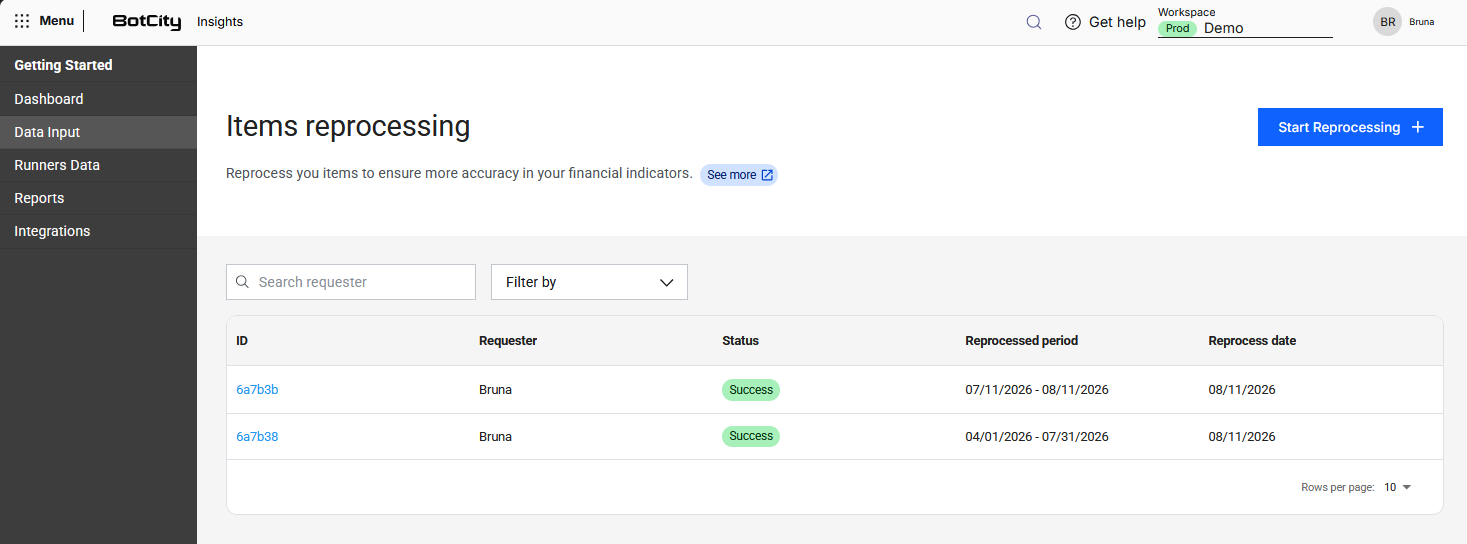
After this step, click Start Reprocessing +.
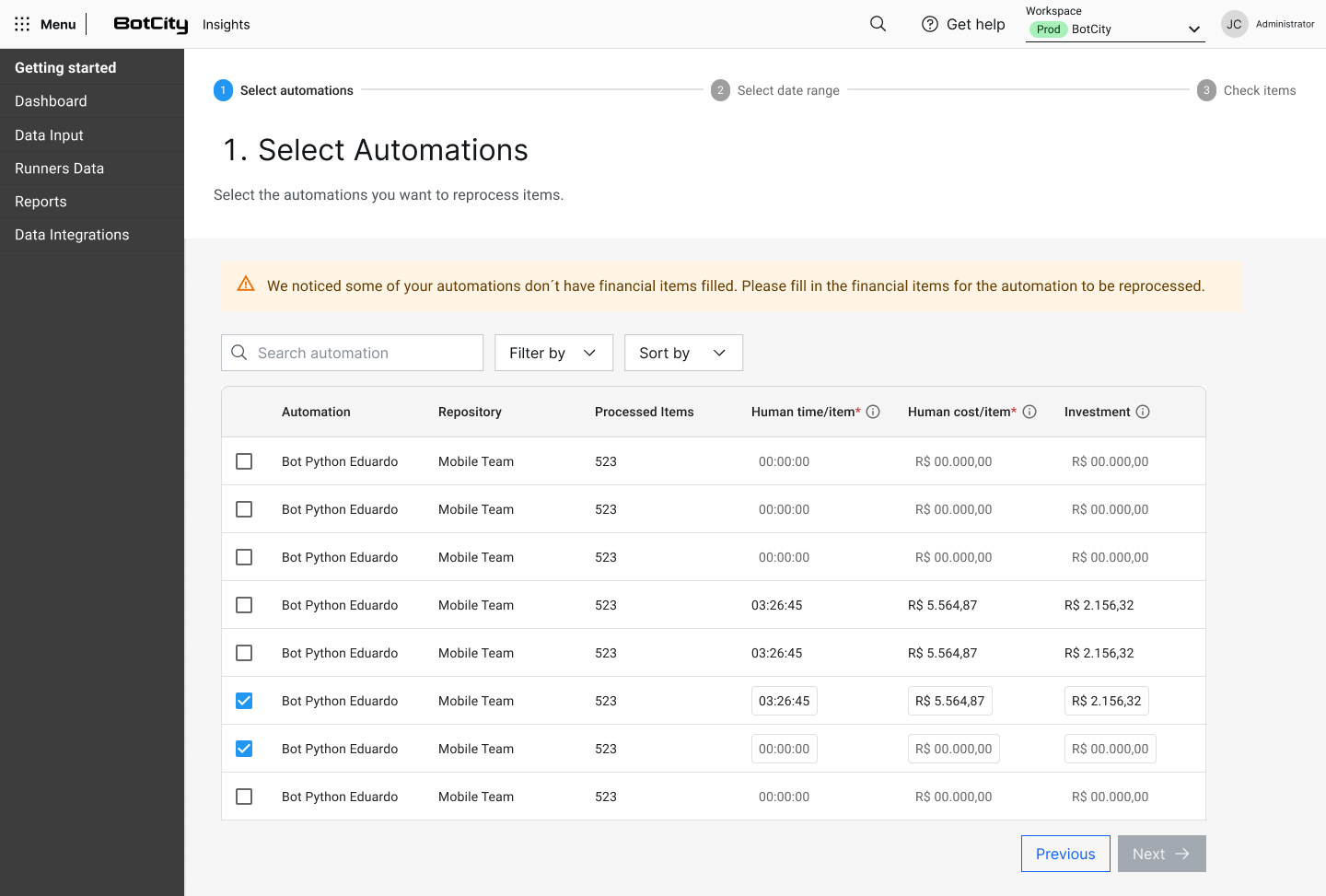
Select Automations
On this screen, select the automations that need to be reprocessed, fill in the financial data for each automation, and click Next.
Financial values
It is not possible to reprocess automations without financial values filled in. The Human time / item and Human cost / item fields are required.
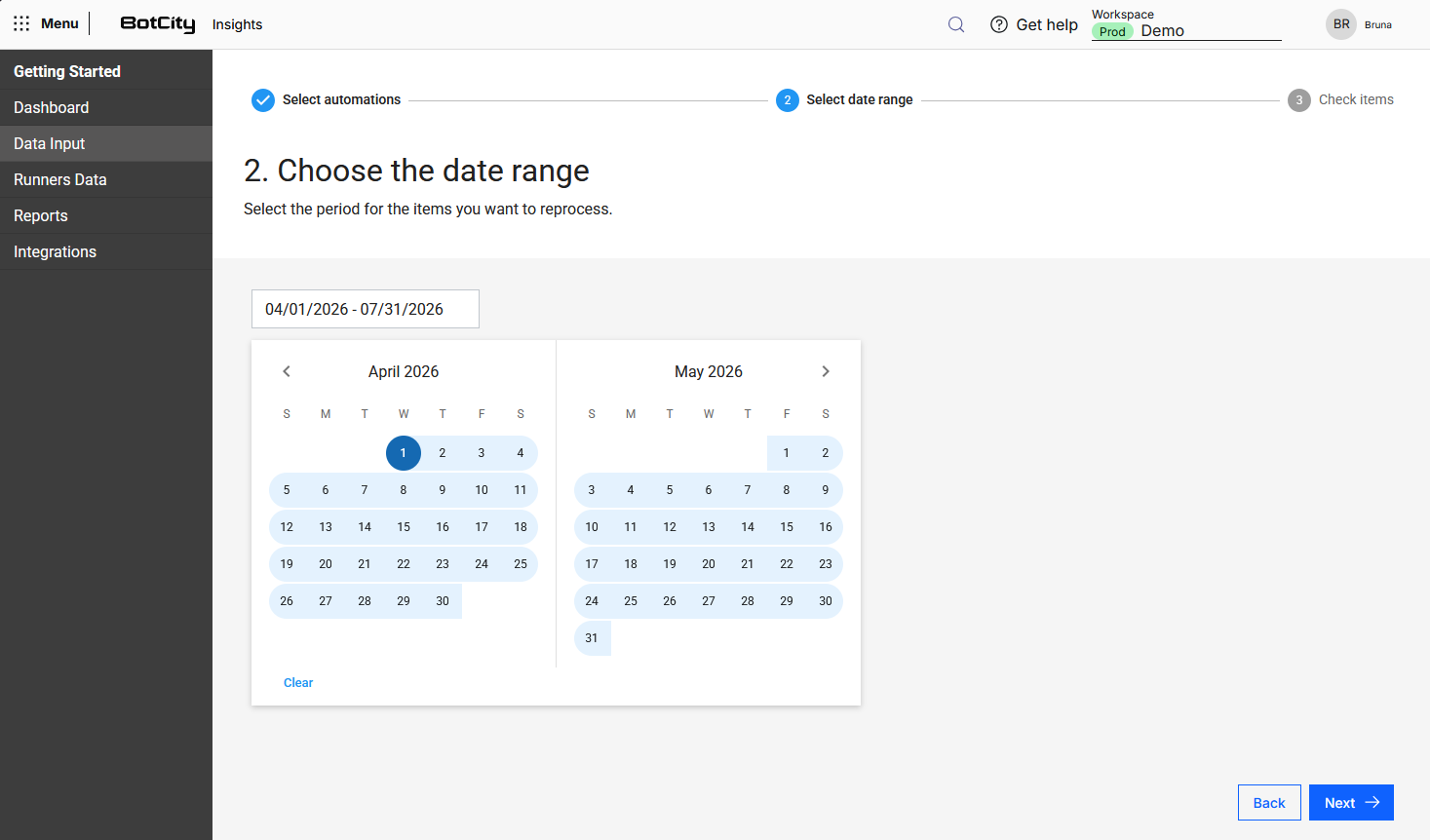
Select the Reprocessing Period
You need to select the date range to be reprocessed. The maximum allowed range is 6 months per request. To process longer periods, submit multiple requests.
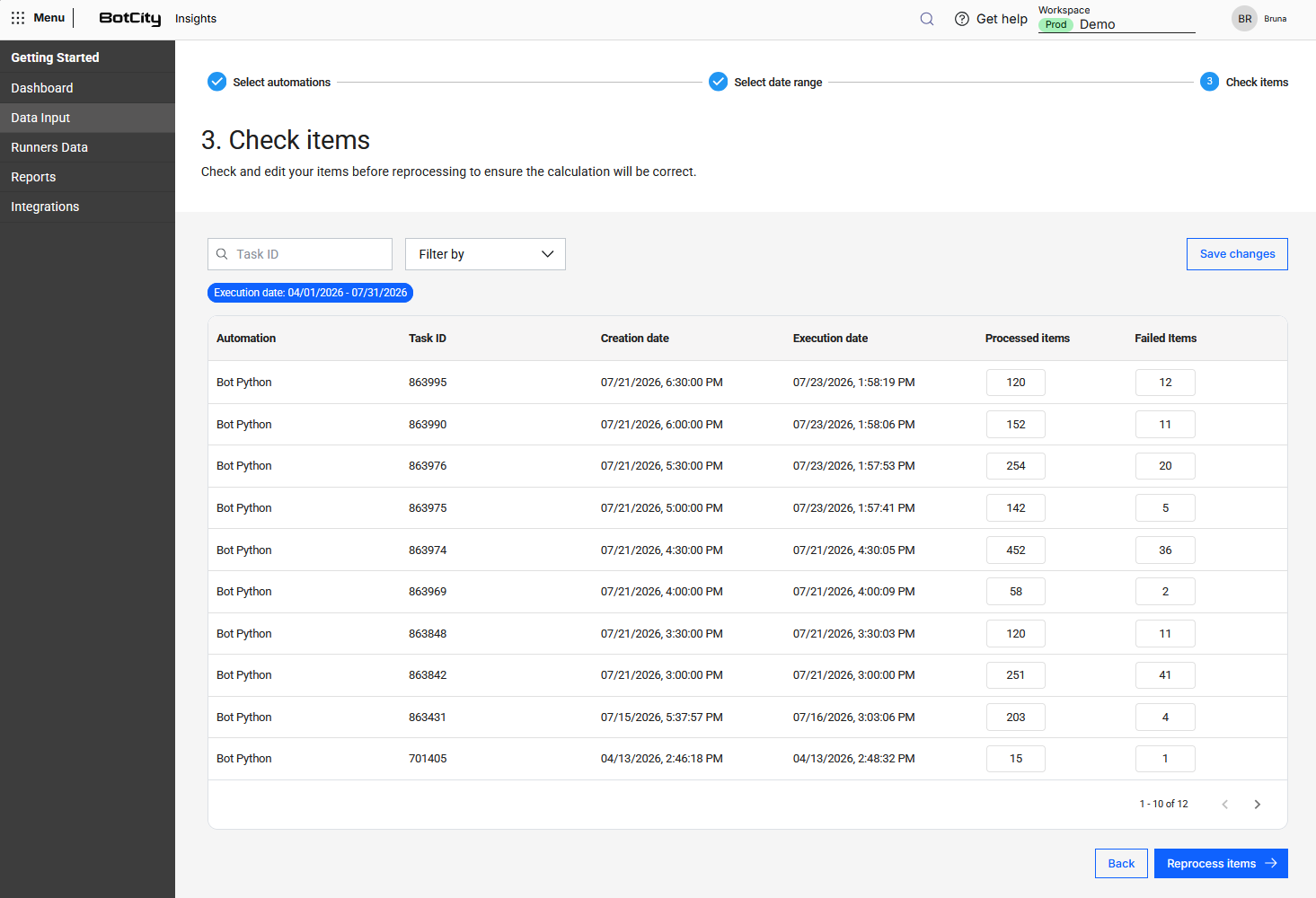
Edit and Confirm Items
This is the step where you edit the information for each task before reprocessing. Adjust the number of processed items (which correspond to successful items) and failed items for each task, making sure the values reflect the actual processing result before continuing.
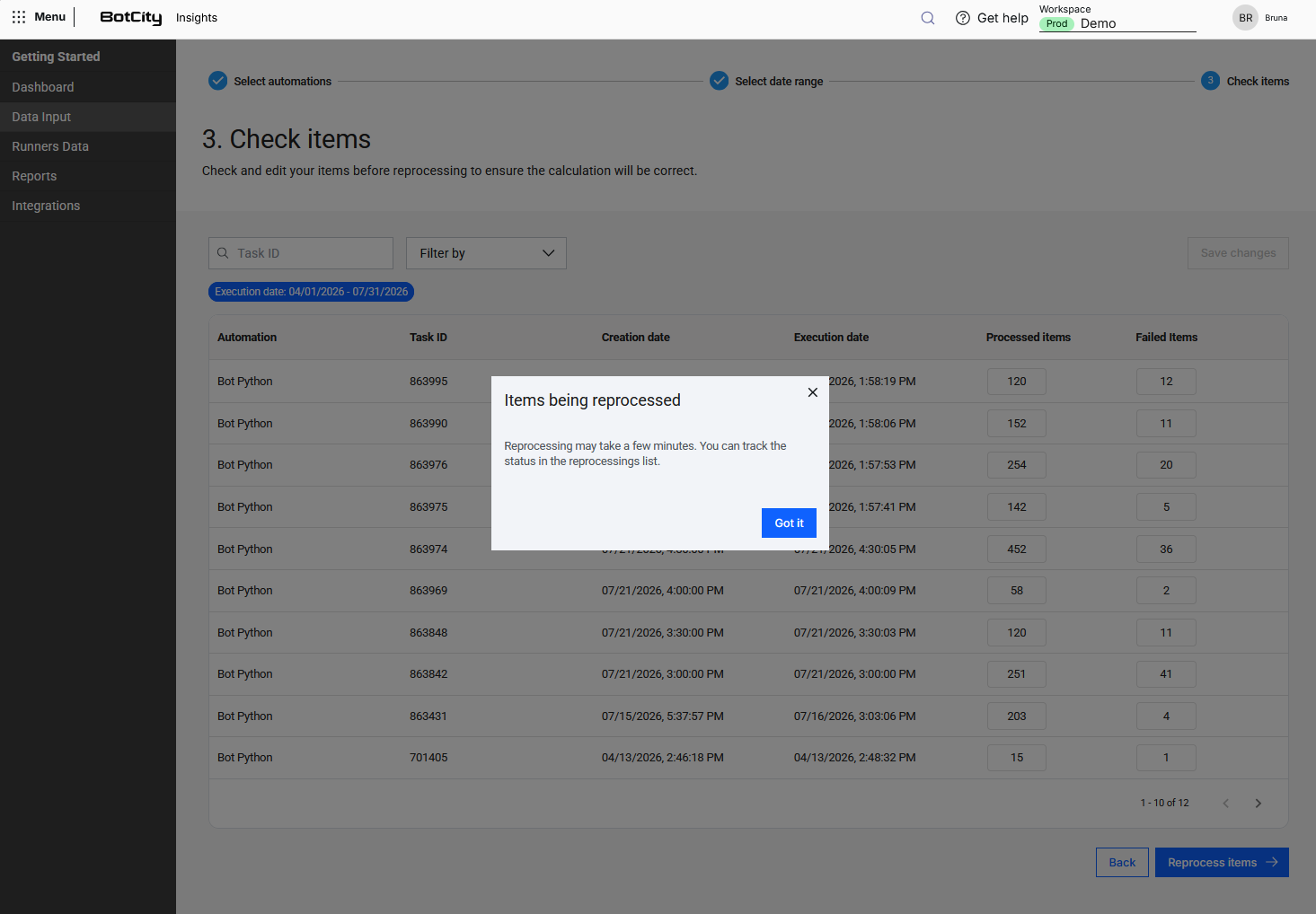
Reprocess
With the information filled in, click Reprocess items.
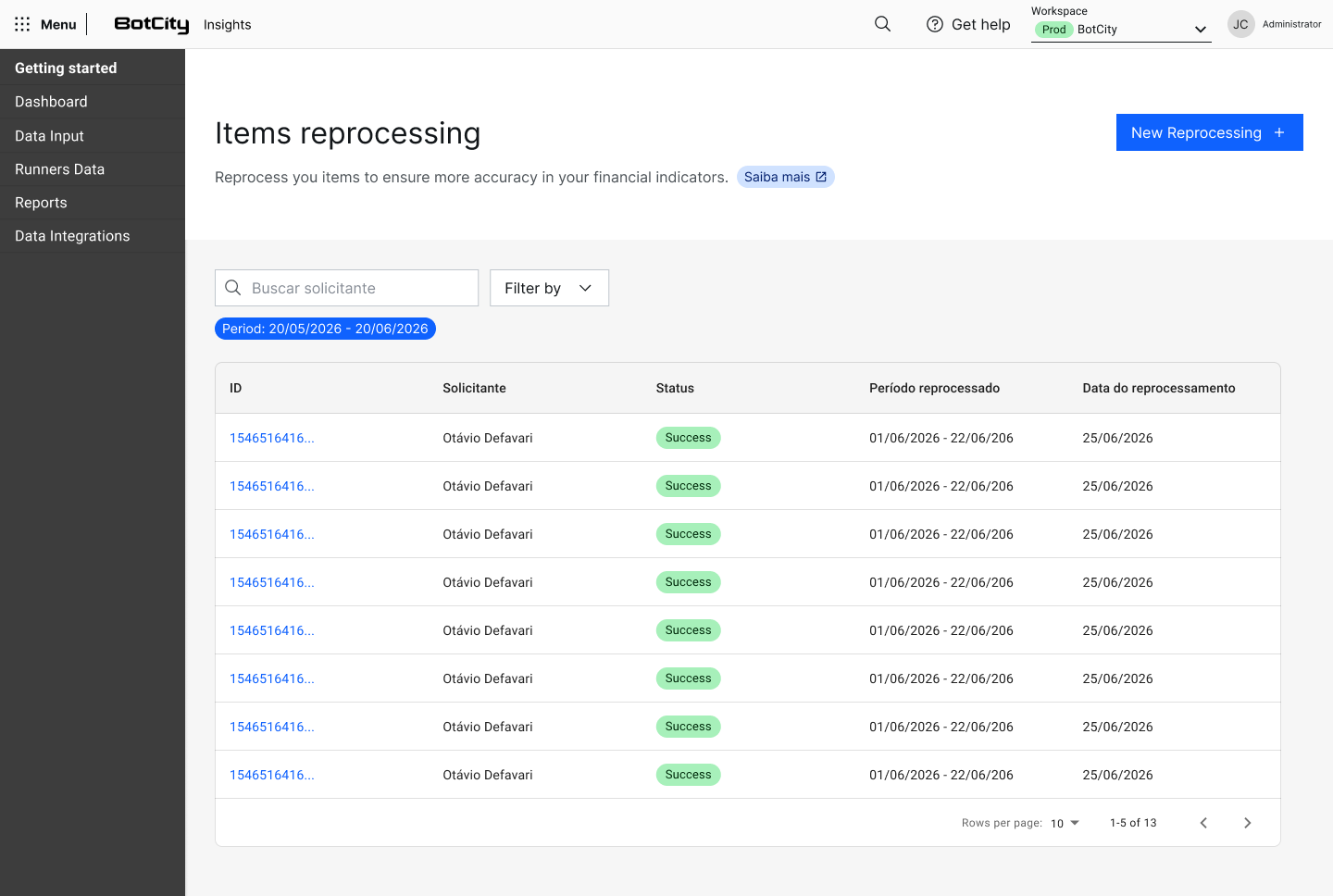
Processing Status
You can track the processing status of each request individually. You can filter items by Status, Reprocessing Date, and Reprocessed Period for a better view.
Queue and status
- Requests enter a queue (they do not run in unlimited parallel) and go through: Queued → Running → Success/Error.
- There is no status per individual automation within a single request, in case you selected more than one automation.
- You can request a new reprocessing even while another one is still in progress.
- The list refreshes automatically every 10s.