Dev. Environment
The Developer Environment menu contains all the information about the credentials to set up the BotCity SDK, Runners, API, third-party applications, among others.
The top panel displays the following information:
- Workspace: Name of the current workspace.
- Login: Authentication code used to authenticate the BotCity Runner, the BotCity Orchestrator SDK, and API requests.
- Key: Organization's authentication
(API key).
Warning
The Developer Environment menu is only available for Administrator and Developer roles. Operators do not have access to this section.

Tables
The tables below display useful information about the configured Automations, Bots, and Runners.
Automation
The automation table lists all automations available in the workspace. You can find the following information in the columns:
- Icon: Icon indicating the automation's technology.
- Name: Name of the automation, clickable to access its details.
- Label: Identification label set for the automation.
- Description: Description registered for the automation.
- BotID: Identification of the bot linked to the automation.
- Repository: Repository the automation belongs to.
Bot
The Bot table lists all bot versions available in the workspace. You can find the following information in the columns:
- BotID: Identification of the bot.
- Version: Version set during the bot deployment.
- Last Deploy: Date and time of the bot's deployment or update.
- Release Version: Identifies which version will be executed by the task; other versions of the same bot have this column empty.
- Technology: Identifies which technology the bot was developed in.
- Repository: Repository the bot belongs to.
Runner
The Runner table lists all Runners available in the workspace. You can find the following information in the columns:
- ID: Runner identifier.
- Name: Runner name.
- Remote Access: Remote access IP for the Runner, when configured.
Generate new key
The Generate new key + button lets you regenerate the organization's (API key).
- Only the Administrator role can regenerate the key.
- The Developer role has access to the screen and can view the key, but does not see the regenerate button.
Immediate impact on operations
- When you generate a new key, all Runners, APIs, and other resources using the previous key stop working immediately.
- The key is not propagated or updated automatically on the Runners. Each resource only resumes operating after the new key is applied to it manually. In operations with many bots, this can mean stopping everything at once, so evaluate the impact before confirming the action.
- Frequent authentication attempts with the old key can lock out the user. For this reason, it is recommended to deactivate all Runners and other resources before generating the new key, and only reactivate them after applying the update to each one.
Confirmation flow
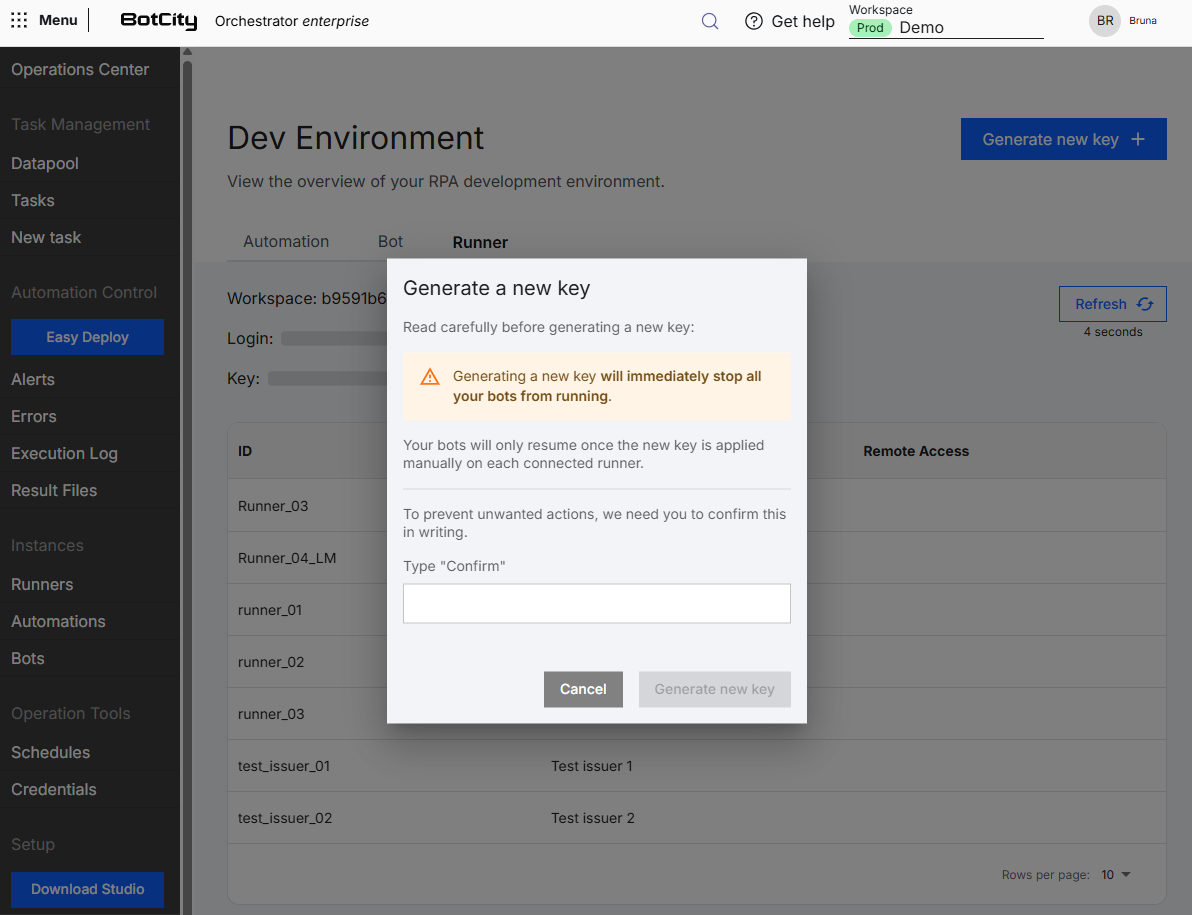
When you click Generate new key +, a confirmation modal is displayed before the new key is actually generated:
- Carefully read the alerts and warnings for this action.
- Deactivate the Runners and resources that use the key, to avoid locking out the user.
- Fill in the confirmation field by typing the requested word.
- Click
Generate new keyto complete the action. - See the New key generated successfully confirmation.
Audit
Who regenerated the key and when this happened are recorded in the product's audit experience.
See more at: