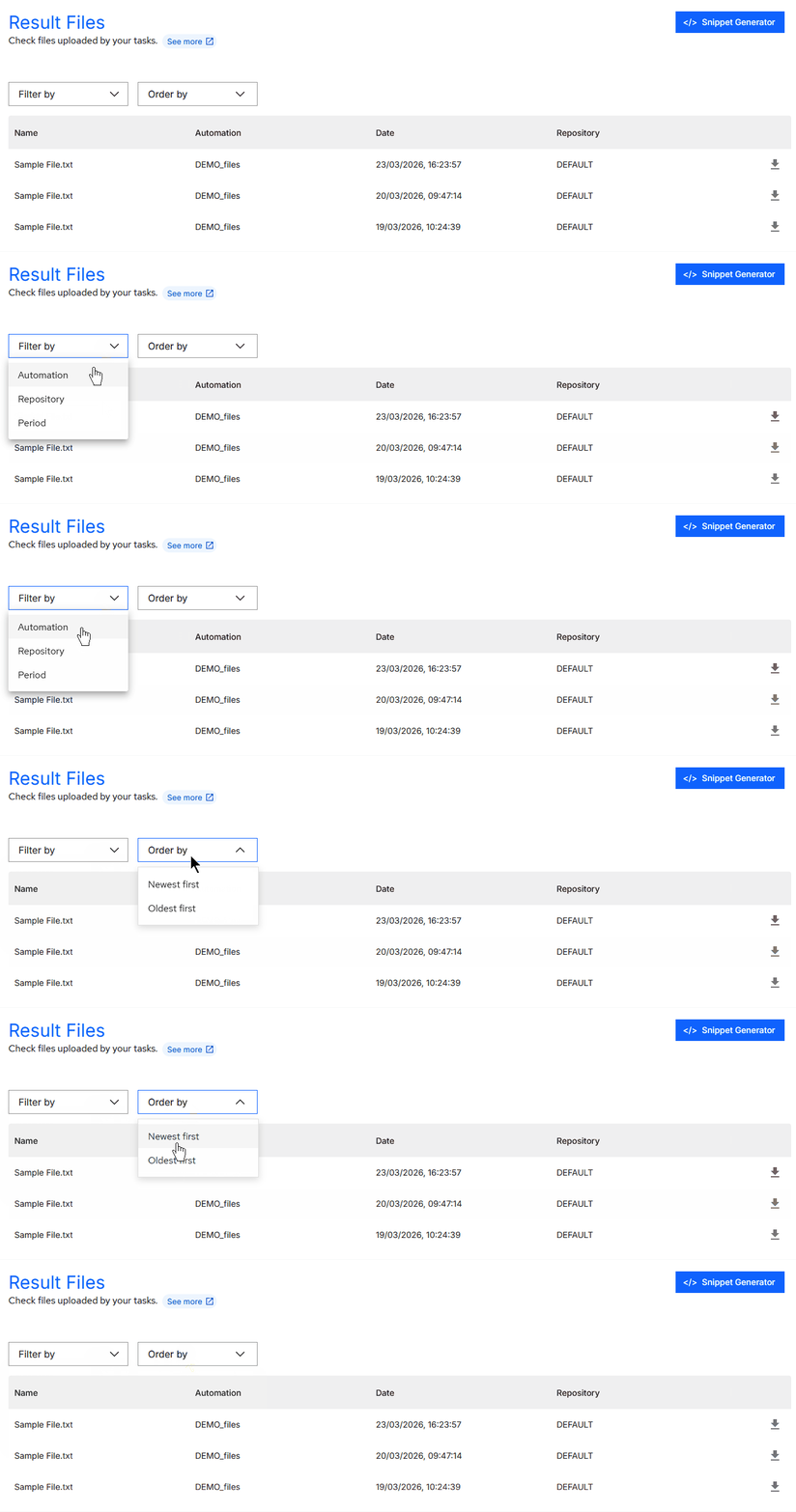
Result Files
Result Files are artifacts generated during the execution of a task and can take any file format.
These files can be sent directly to the BotCity Orchestrator, making them easily accessible to the teams responsible.
Snippet Generator
Result file manipulation actions can be performed directly on the BotCity Orchestrator platform or via code, using the BotCity Maestro SDK or the BotCity Orchestrator API.
Explore the Snippet Generator button to get code examples that facilitate result file manipulations using the BotCity Maestro SDK. Generate code snippets for the actions: send an artifact, list all artifacts and download an artifact.
The generated snippets may be available in the Python, Java, JavaScript and TypeScript languages.

Send a result file
You can send one or more files generated during task execution to the BotCity Orchestrator.
A single task can send multiple files in different formats.
The files are sent directly via the automation code.
Maestro SDK
For more information on how to implement the result file functionality in code, see the Result Files section of the Maestro SDK.
View Files
There are two ways to view Result Files in the BotCity Orchestrator.
Result Files Menu
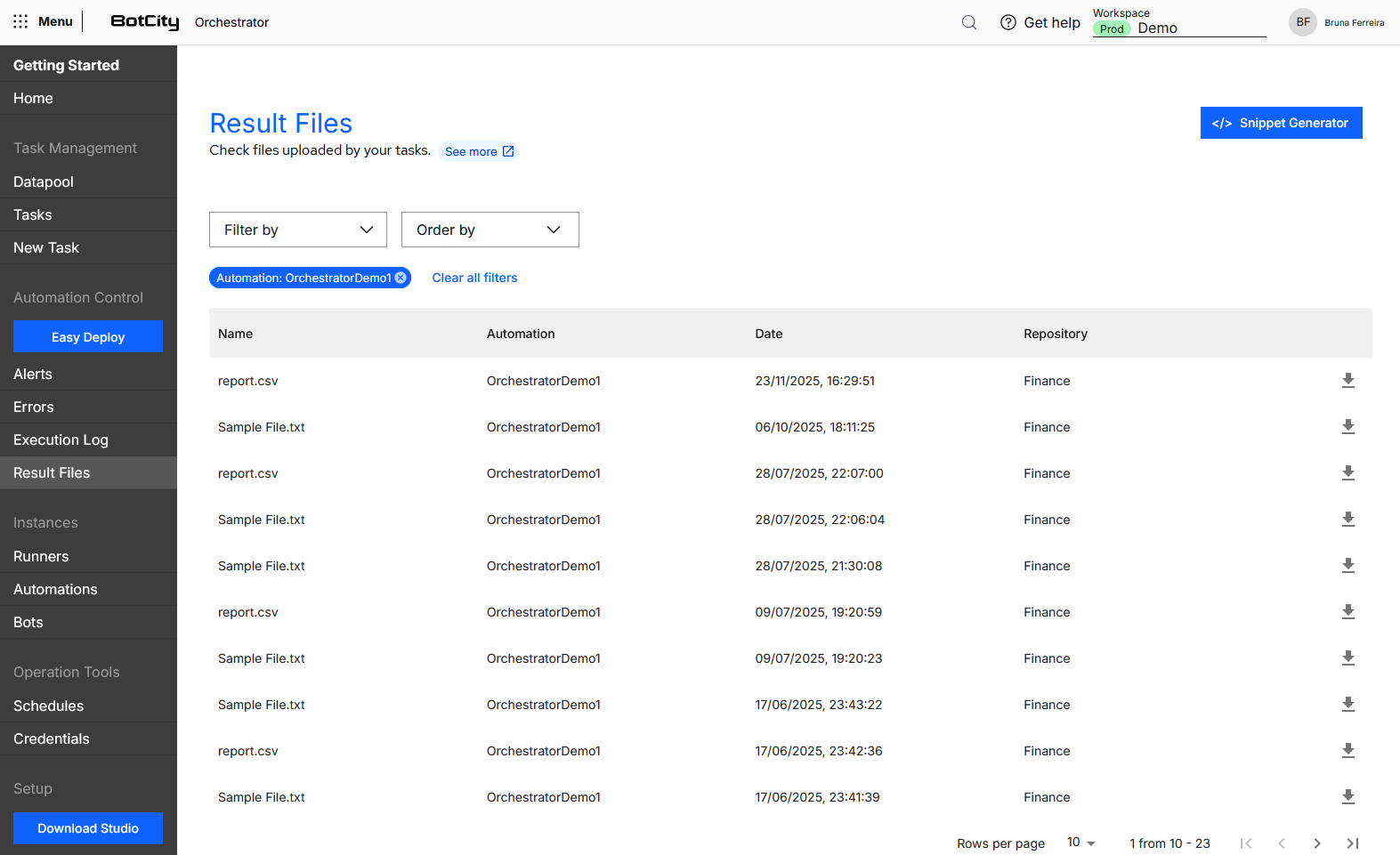
When accessing Result Files in the side menu, you can view a summary of the result files in the following card:
- Total result files: the total number of files sent to the Orchestrator.
Below the summary, all files sent to the Orchestrator are displayed in a table.
You will find the following columns:
- Name: Name of the file sent.
- Automation: Name of the automation that generated the file.
- Date: Date and time the file was sent.
- Repository: Name of the repository where the automation is stored.
- Download button: Button to download the file.
Tasks Menu
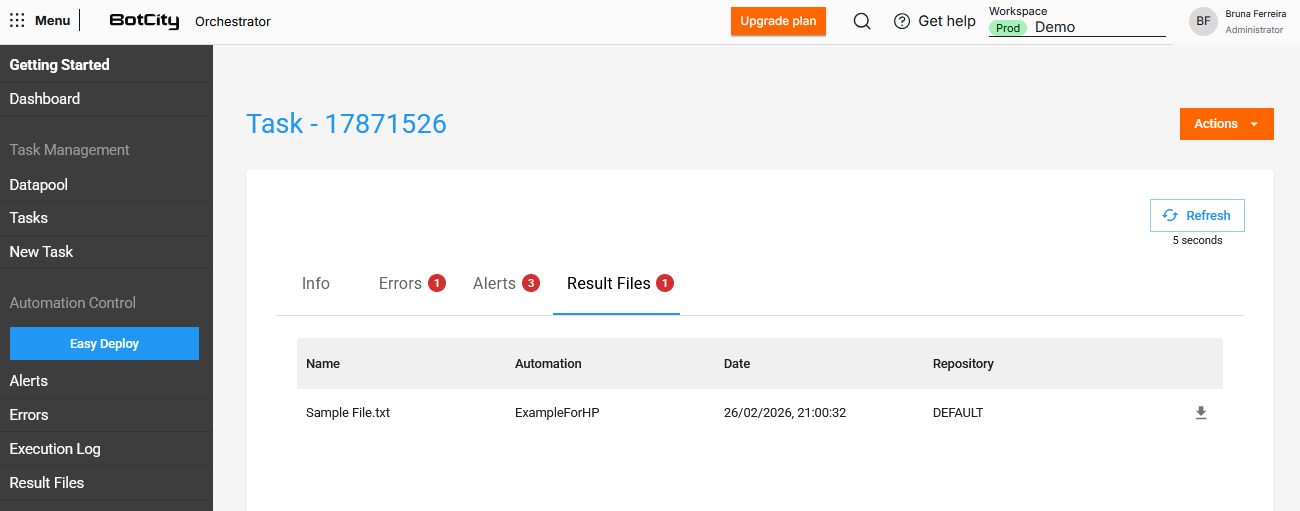
Files can be accessed through the Tasks menu, by accessing a task's details and navigating to the Result Files tab.
You will find the following columns:
- Name: Name of the file sent.
- Automation: Name of the automation that generated the file.
- Date: Date and time the file was sent.
- Repository: Name of the repository where the automation is stored.
- Download button: Button to download the file.
Search and filters
You can combine multiple filters to find Result Files according to your needs.
Available filters:
- Automation: Select one or more automations.
- Repository: Select a specific repository.
- Period: Select a period (
1 week,15 days,1 month,1 year).
Sorting:
- Most recent first
- Oldest first