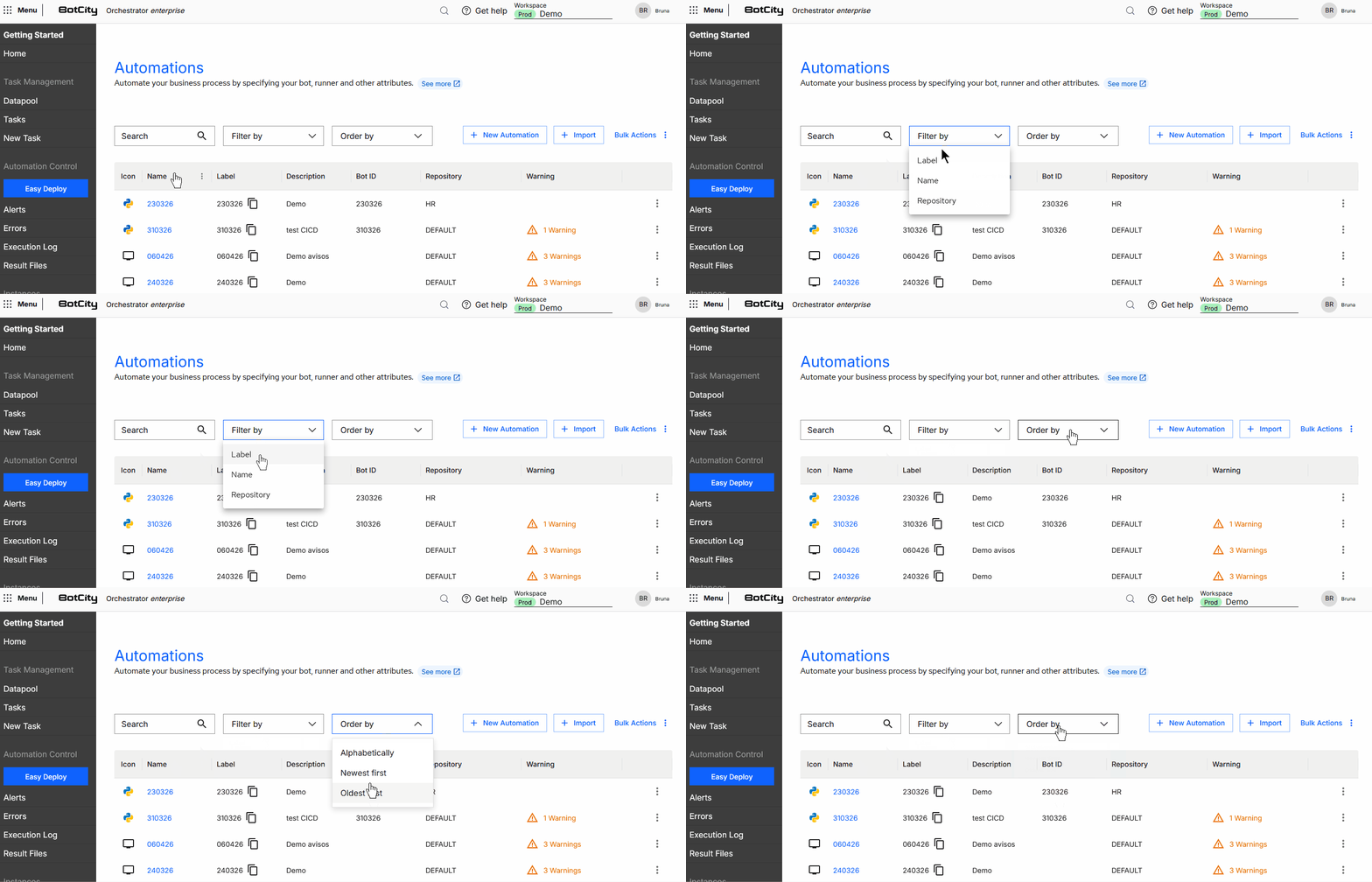
Automations
An Automation is one of the most important elements of the BotCity Orchestrator, it characterizes a process to be executed.
View Automations
On this screen, you can view a summary of the Automations via the following cards:
- Total Automations: The total number of Automations created.
- Complete Automations: The number of Automations with no missing information warnings.
- Incomplete Automations: The number of Automations with missing information warnings.
Below the summary, you can view the automations in a list format with the following columns:
- Icon: Icon representing the language of the robot linked to the automation.
- Name: Unique identifier for the automation, serving as a link to access its details.
- Label: User-friendly label for the automation.
- Description: Description defined for the automation.
- Robot ID: Identifier of the robot linked to the automation.
- Repository: Name of the repository where the automation is stored.
- Warnings: Indicates the amount of configuration information pending for the automation.
- Actions menu: Available actions for the automation.

Anatomy of an Automation
The automation is responsible for linking the Bot (script, software, or process code) and the Runners (instances of the BotCity Runner service). Therefore, when creating a New Task, the automation will contain information about which Bot to use and which Runners can execute that automation.
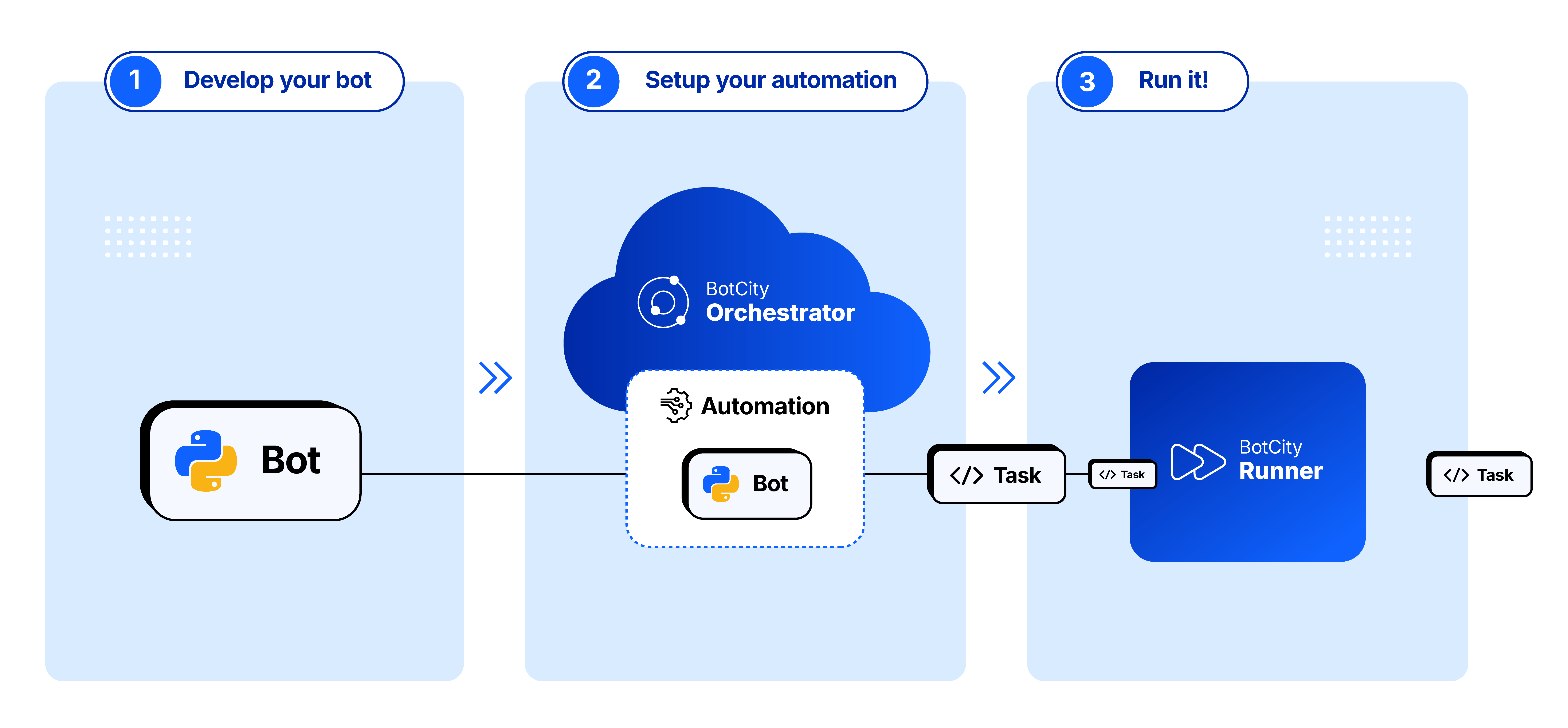
An automation can contain more information and settings about a process to be executed.
When accessing the Automations menu and selecting an existing automation, the information is separated into 3 tabs:
Overview
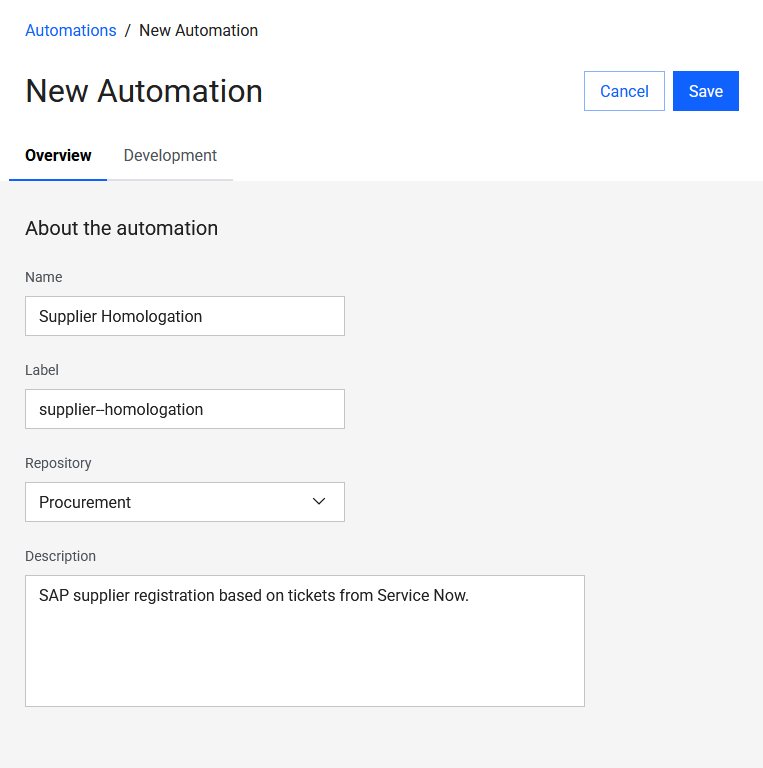
In this tab, you will find general information about the Automation, separated into blocks:
- About the automation
- Name: The friendly name of the automation.
- Label: The unique identifier of the automation (the
labelis unique — even if you delete the automation, you will not be able to use it again). - Repository: Selection of the repository where the automation will be allocated.
- Description: A brief description of the automation process.
- Task management
- Priority: The default execution priority of this process.
- Linked Runners: Selection of Runners associated with this automation. If more than one Runner is attached, the task will be assigned to the first free BotCity Runner that is online and available.
- Notifications
- Users to notify: Selection of users to be notified when a notification alert of a certain type occurs.
- Notification type: The alert notification types for notifying users.
Notifications
The users selected in the Notify users field will receive an email notification every time the automation fires an alert via code.
See more at:
Development
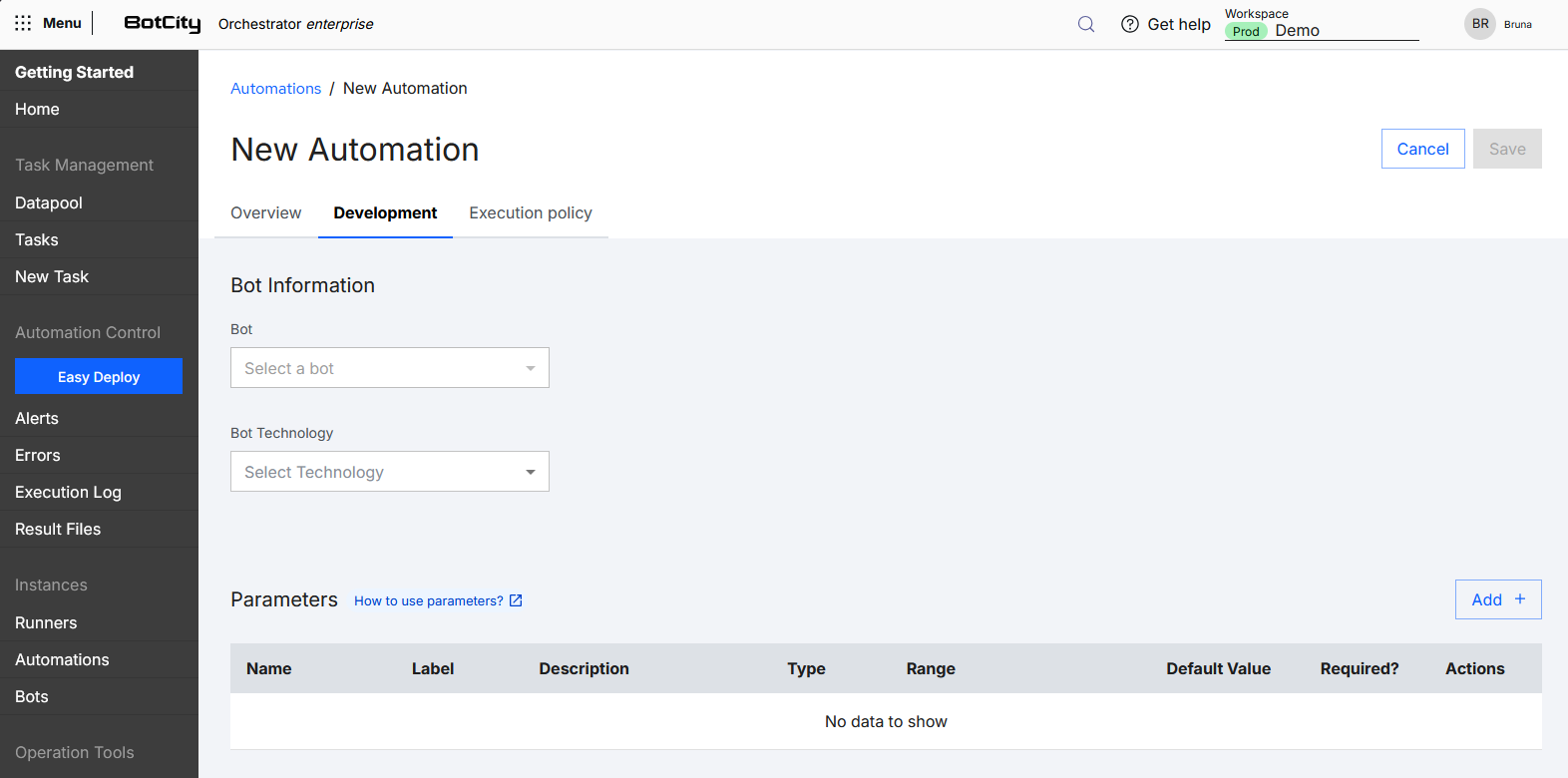
In this tab, you will find development information about the automation, separated into blocks:
- Bot Information
- Linked Bot: The code of a process or software associated with this automation.
- Technology: Technology or programming language used in the automation.
- Parameters: Dynamic information that can be used by the
Linked Bot.
Parameters
Automations can be parameterized for greater flexibility and more dynamic code.
Parameters are defined in the Parameters section of the automation when creating or editing it.
In the Development tab, click the Edit button to enable the editing fields, then click the Add + button to add a new parameter.
A parameter is defined by the following elements:
- Name: The friendly name of the parameter.
- Label: The unique identifier of the parameter.
- Description: A brief description of the parameter.
- Type: Selection of the parameter data type, which can be:
Text: Text input type.Integer: Integer number input type.Double: Decimal number input type.Date: Date input type.
- Range: Indicates the minimum and maximum value for numeric data input.
- Default Value: Indicates which input value is set as default for the field.
- Required:
Yes: It is required to provide a value for the field when creating a task.No: It is optional to provide a value for the field when creating a task.
- Actions:
Delete: Deletes the parameter.Edit: Opens the parameter for editing.Cancel: Cancels the parameter editing.Save: Saves the parameter editing.
Data type
The Type will determine how the parameter is displayed when creating a new task in the BotCity Orchestrator.
See more details on how to access the Parameters via SDK in code.
Execution Policy
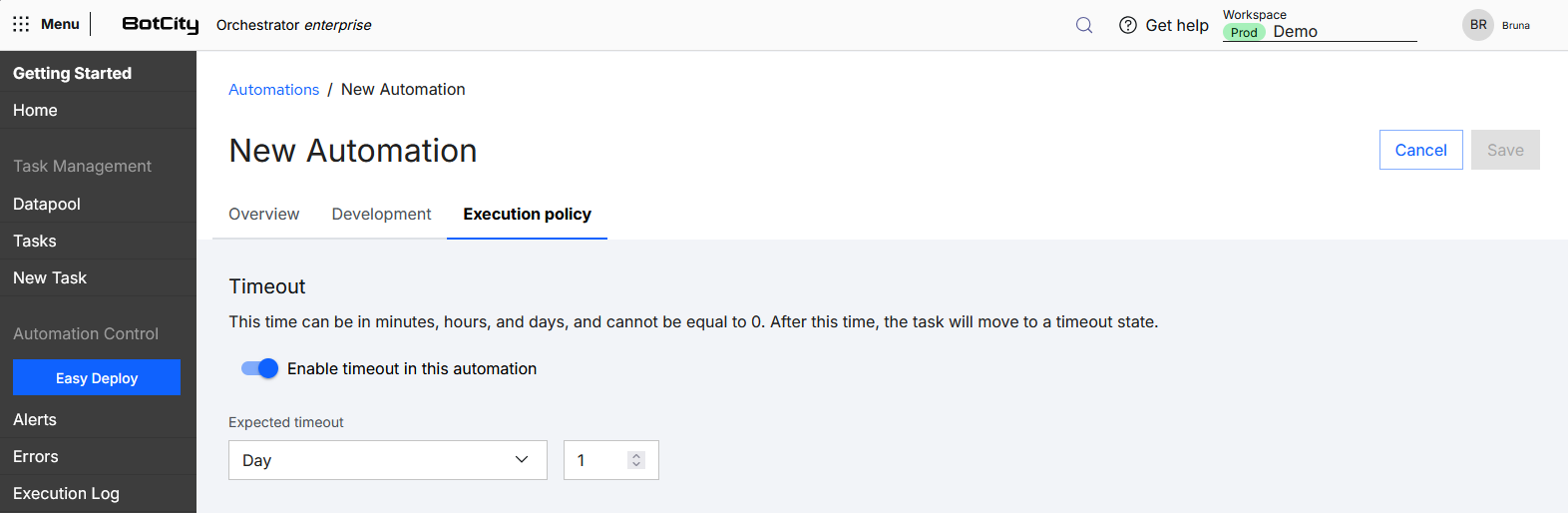
In this tab you have the option to define the maximum expected time for a task of this automation to execute.
When the timeout is enabled, you can select the expected time option in:
- Minute
- Hour
- Day
The time value must be set to a minimum of 1 minute and a maximum of 1 day.
Attention!
- The timeout will be applied to new tasks of this automation. If there are already tasks in the queue, they will not be affected.
- The time defined in timeout starts counting from the moment the task begins its execution by the Runner. The time in queue is not considered.
Actions
You can perform some actions in the Automations menu.
Create
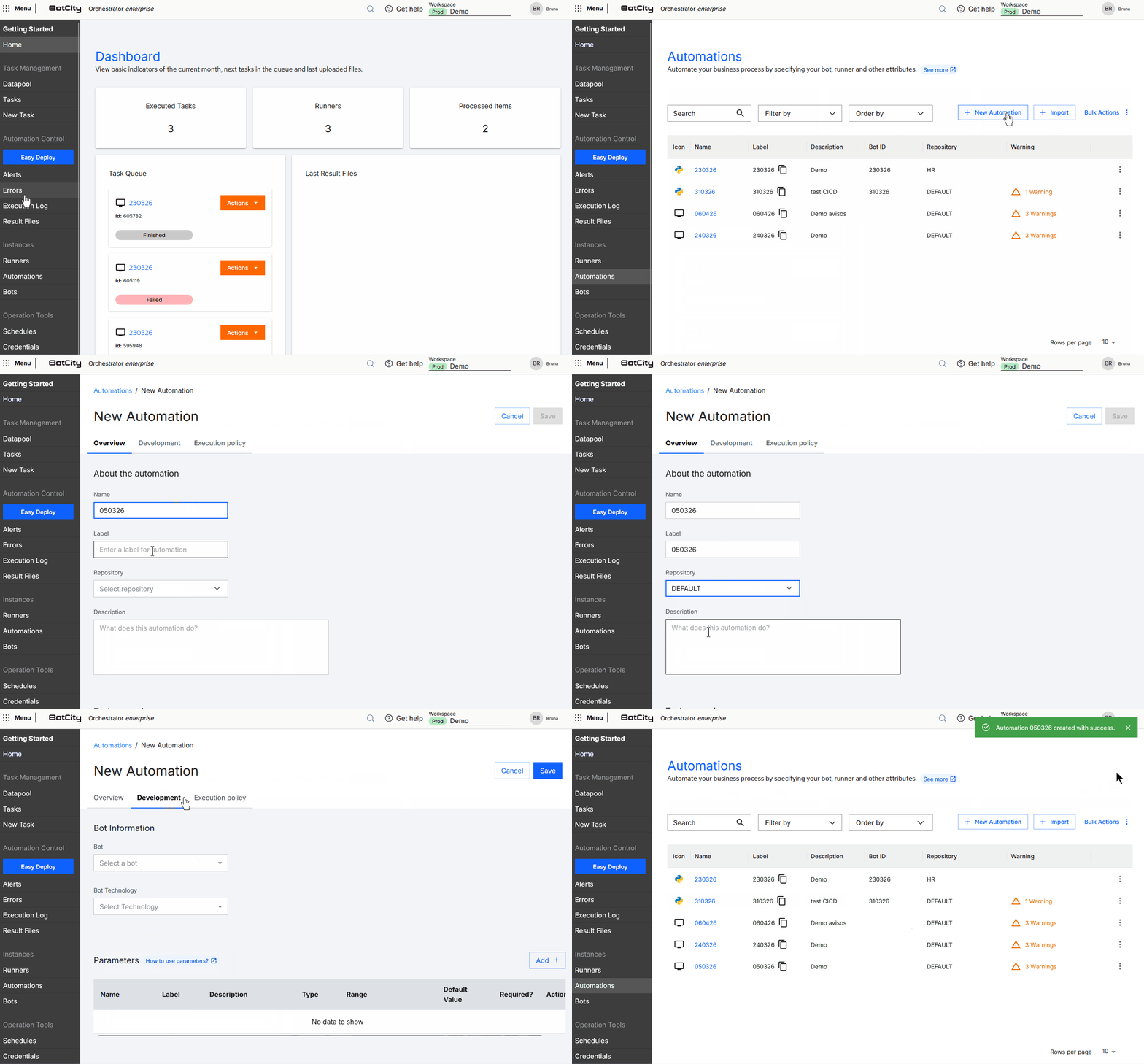
To create an automation, follow the steps:
- Access the Automations menu in the BotCity Orchestrator
- Click the
+ New Automationbutton in the upper right corner - Fill in the information for:
- Click the
Savebutton in the upper right corner
Required fields
The required fields are: Name, Label, Repository and Description.
The remaining information can be filled in later. However, for the execution of tasks of this automation, it is necessary to have the Bot and at least one Runner linked.
Another way to create
Automations can also be created in a simplified way through Easy Deploy.
Warnings!
You may see a warnings panel when the automation is not completely filled in.
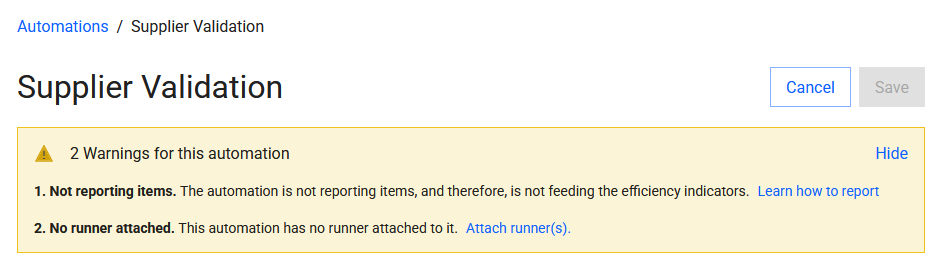
The warnings refer to missing important information in the automation that needs to be filled in for correct operation, including:
-
Not reporting items. The automation is not reporting items and therefore is not feeding the efficiency indicators. Learn how to report.
- Using this feature in your automation process allows you to have information about items processed with success or failure for each executed task.
BotCity Insights
This feature is part of BotCity Insights, a module dedicated to reporting and displaying data related to your automation initiative.
See more at:
-
No runner attached. This automation has no runner attached to it.
See more at:
-
No bot attached. This automation has no bot attached to it.
See more at:
- Bots.
Edit
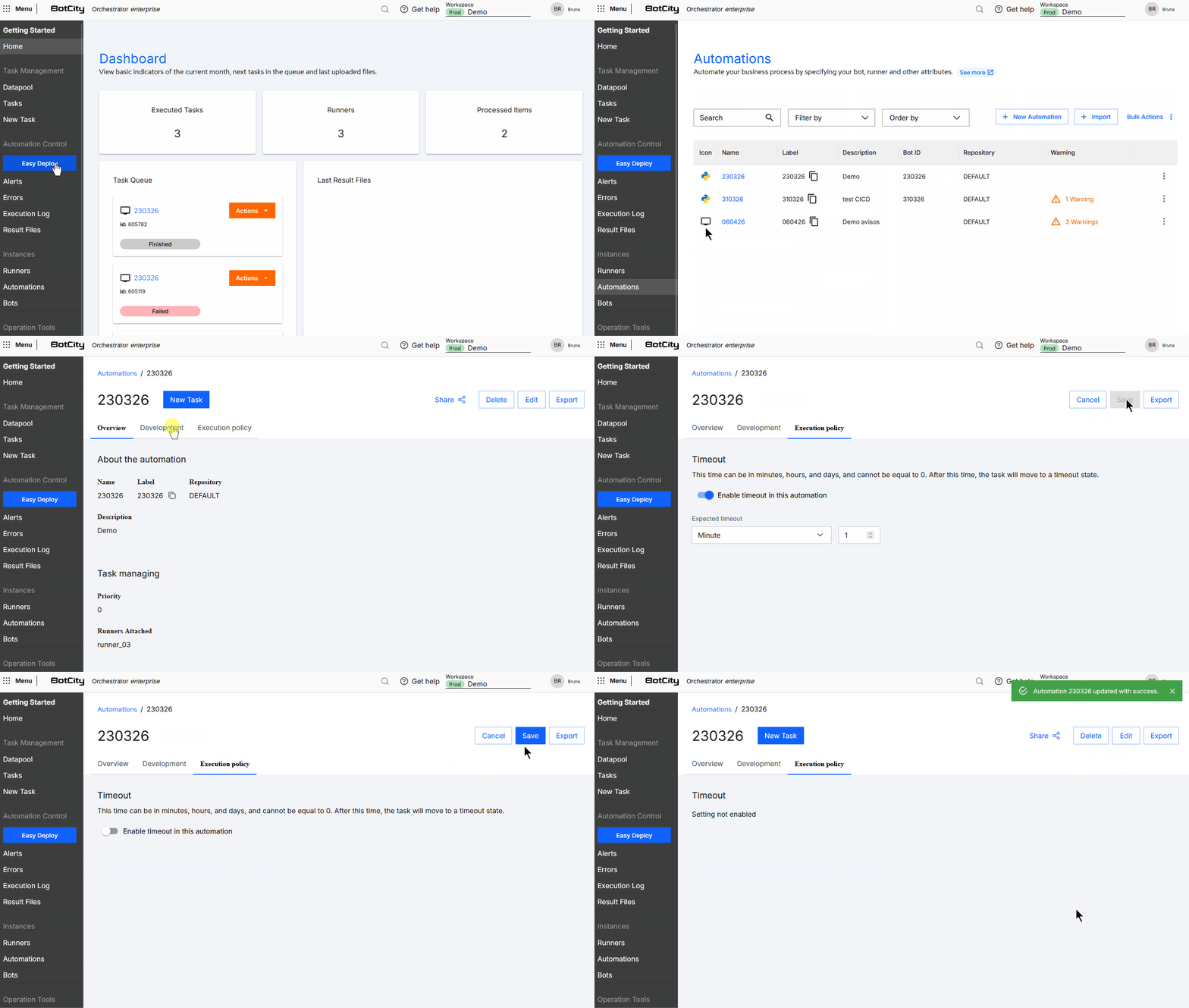
After creating an automation, you can follow these steps to edit it:
- Access the Automations menu in the BotCity Orchestrator
- Access the details by clicking on the automation name
- Click the
Editbutton in the upper right corner - Change the values of the desired fields
- Click
Savein the upper right corner
Export
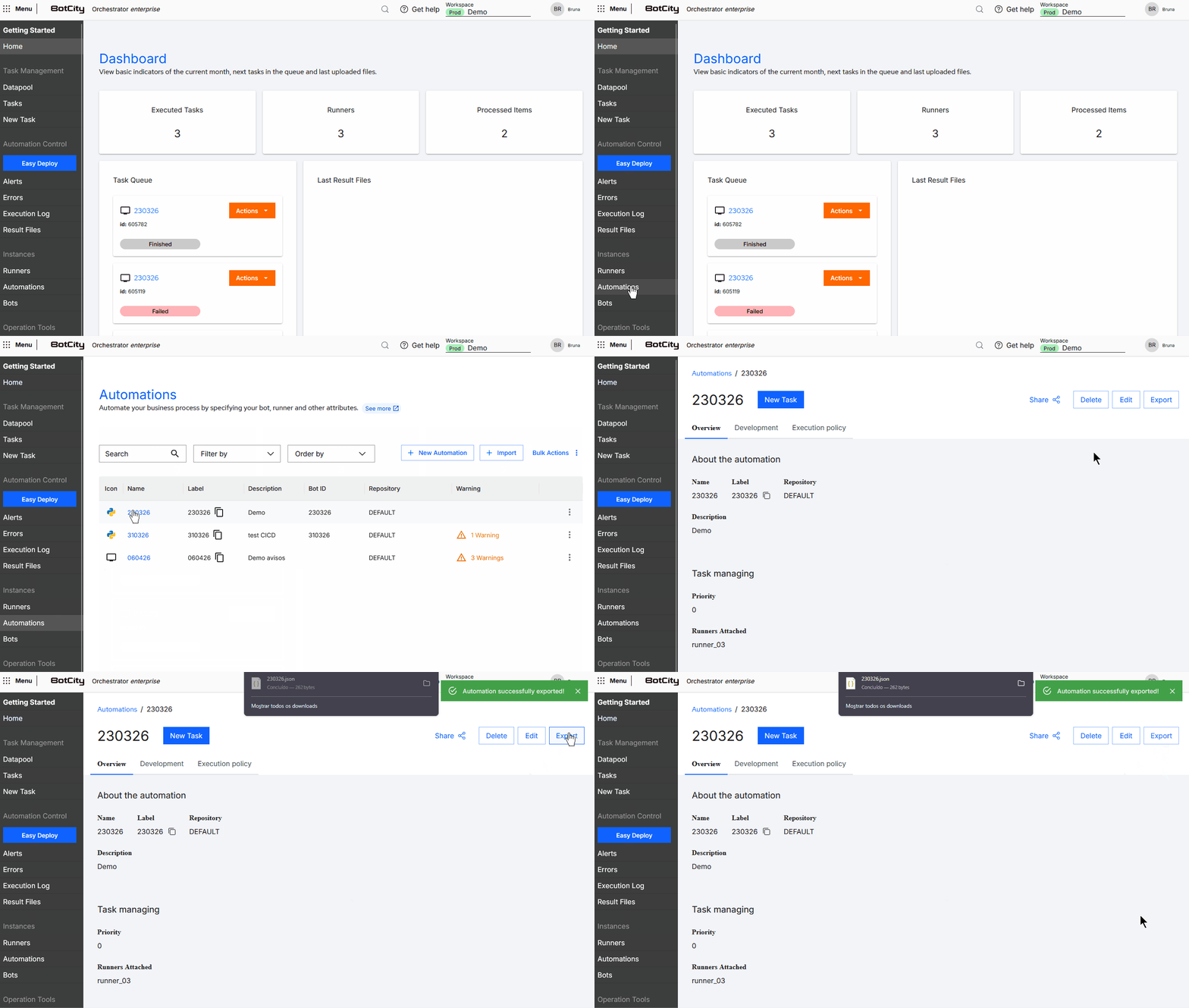
You can export the information of an automation from one workspace to use in others.
To export, you can follow the steps:
- Access the Automations menu in the BotCity Orchestrator
- Access the details by clicking on the automation name
- Click the
Exportbutton in the upper right corner - The file download should start automatically
Import
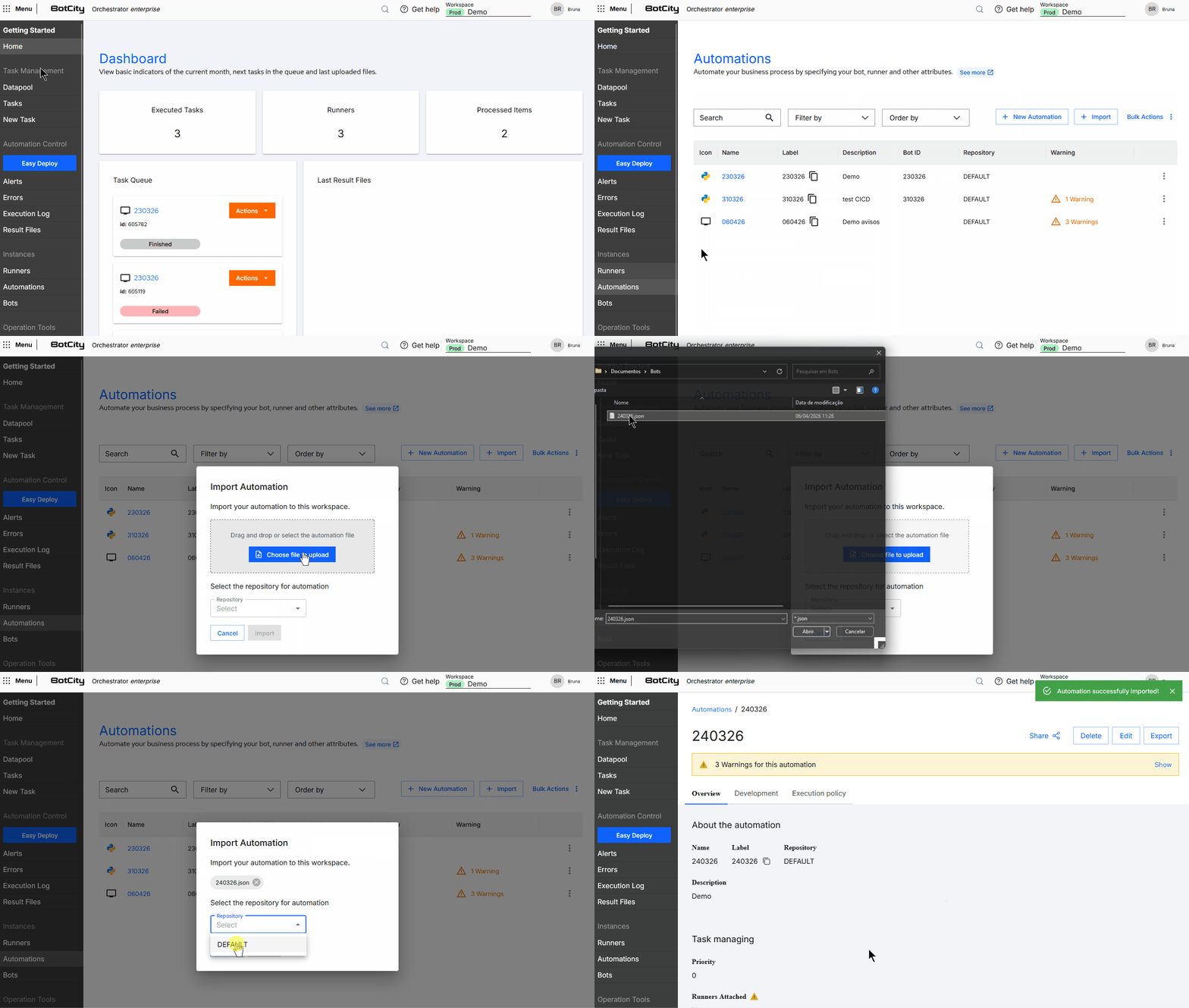
You can import the information of an Automation from one workspace to use in others, without going through the creation step.
To import, you can follow the steps:
- Export the automation from another workspace
- Access the Automations menu in the BotCity Orchestrator
- Click the
+ Importbutton in the upper right corner - Select the automation's
.jsonfile - Select the repository for this automation
- Click the
+ Importbutton
JSON file
The .json file contains the information of an automation to be imported into another workspace. However, it is necessary to link the Runners and Bots of this automation after importing.
File example
    {
      "label" : "demo",
      "name" : "Automation Demo",
      "description" : "Automation used as an example.",
      "parameters" : [ {
        "defaultValue" : "value",
        "description" : "Demo Param",
        "label" : "paran",
        "name" : "Param",
        "required" : true,
        "resourceLabel" : null,
        "rules" : { },
        "type" : "TEXT"
      } ],
      "notification" : {
        "monitored_types" : [ "INFO", "WARN", "ERROR" ],
        "users" : [ 9314 ]
      },
      "status" : null,
      "priority" : 0,
      "automationExists" : false
    }
Move to Repository
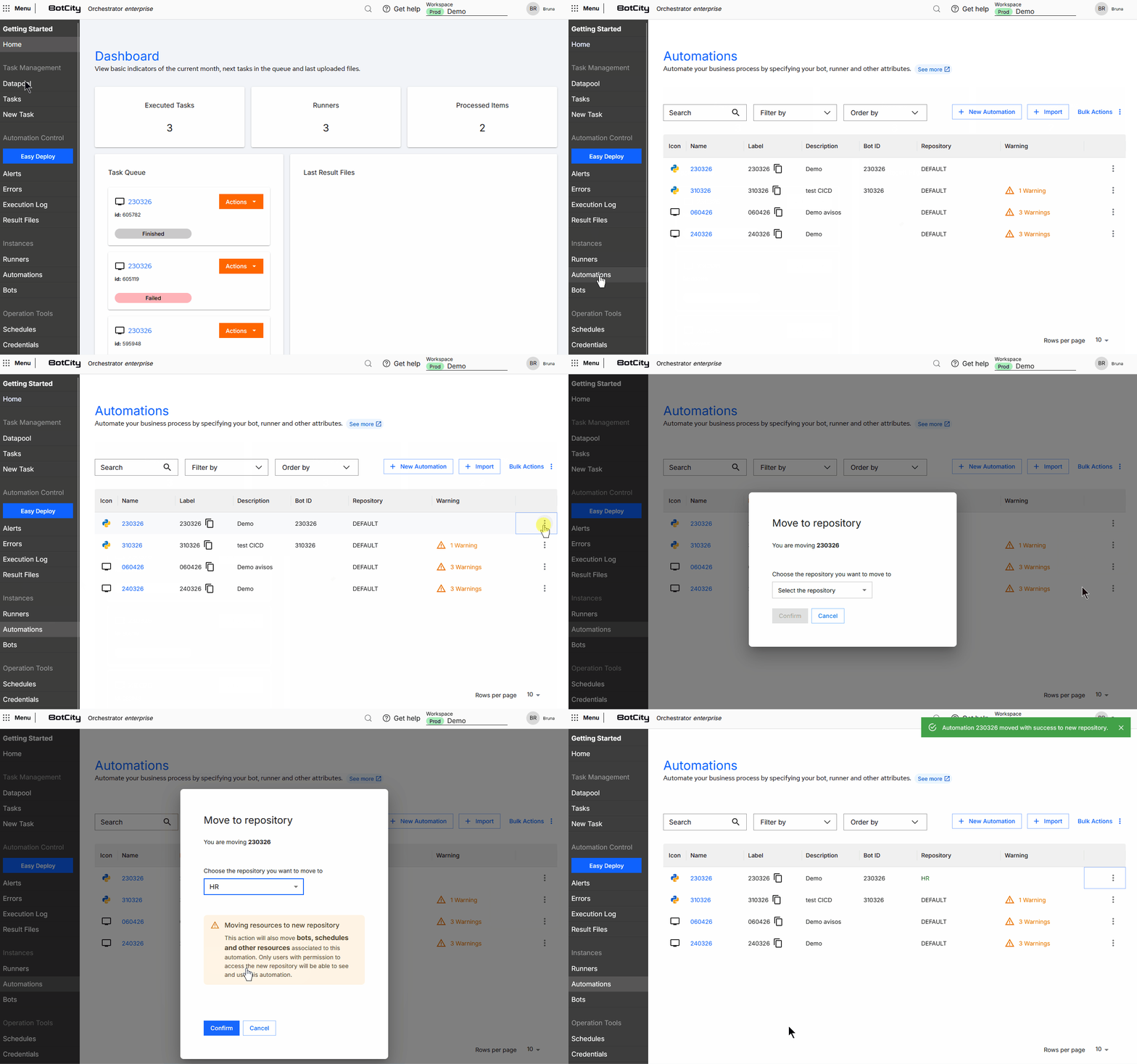
Automations can be relocated to another repository. To do so, follow the steps:
- Access the Automations menu in the BotCity Orchestrator
- Find the automation you want to move
- Click the options menu for that automation
- Select
Move to repository - Select the new repository
- Click
Confirm
Attention
This action will also move the bots, schedules and other resources that are linked to this automation.
Search and filters
You can combine multiple filters to search in the Automations menu, according to your needs.
Search by:
- Automation: Search by the automation name or label.
Available filters:
- Label: Selects one or more labels.
- Automation: Selects one or more names.
- Repository: Selects a specific repository.
- Complete: Filters for all automations with no warnings about missing information.
- Incomplete: Filters for all automations with warnings about missing information.
Sorting:
- Alphabetically
- Most recent first
- Oldest first