Execution Log
An automation can generate important output information for teams to monitor. The Execution Log is a very powerful way to record outputs, track execution, and collect metrics from your automation.
By creating an Execution Log, you can add entries via code when running an automation. With the collected data, you can perform actions such as viewing, searching, deleting, exporting, and more.
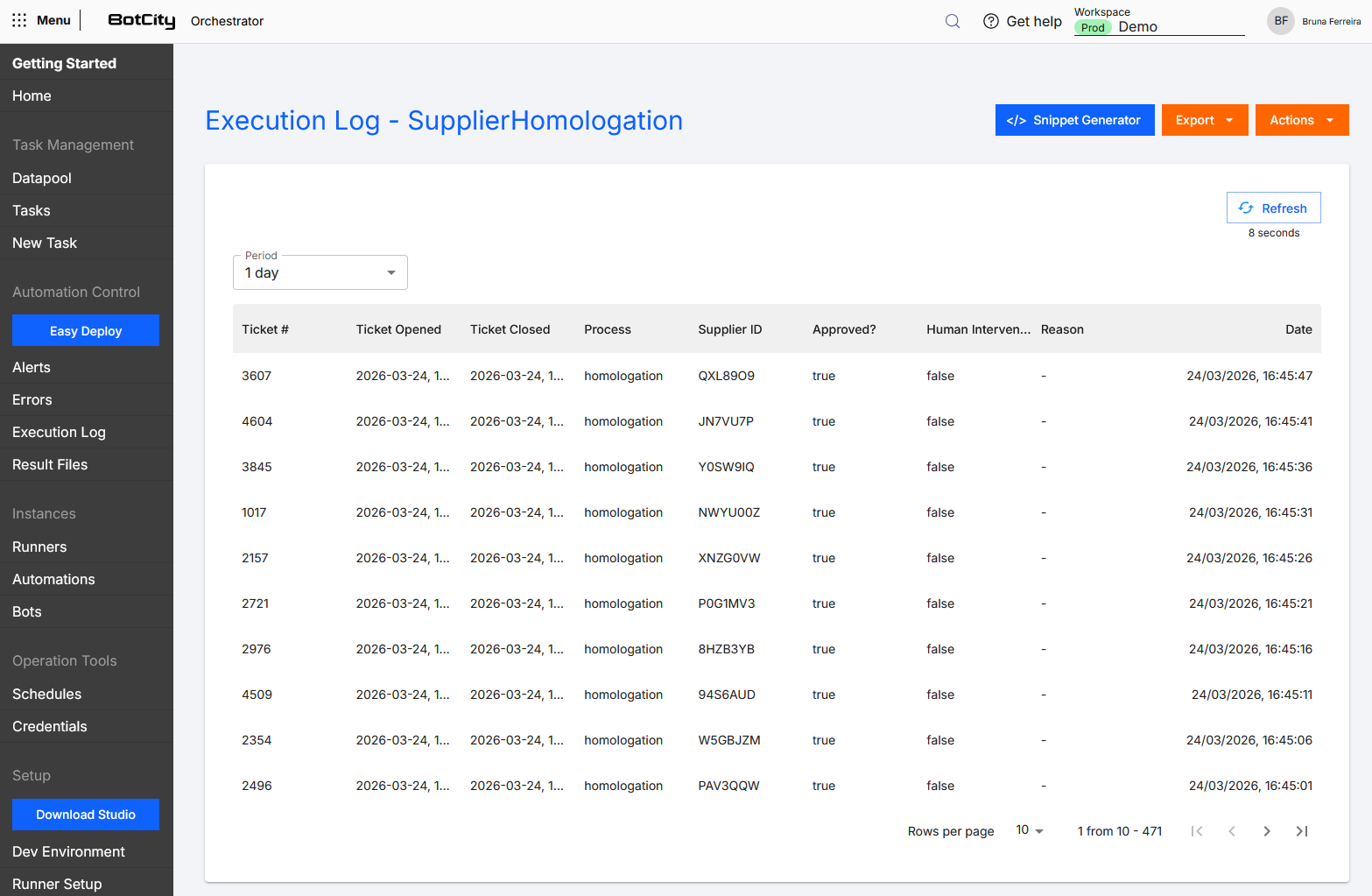
Snippet Generator
Execution log manipulation actions can be performed directly on the BotCity Orchestrator platform or via code, using the BotCity Maestro SDK or the BotCity Orchestrator API.
Explore the Snippet Generator button when accessing an Execution Log to get code examples that facilitate manipulations using the BotCity Maestro SDK. Generate code snippets for the actions: create a new log entry, fetch log data and delete an entire log.
The generated snippets may be available in the languages Python, Java, JavaScript and TypeScript.

Create an Execution Log
You can create custom Execution Logs for each process you want to track and record.
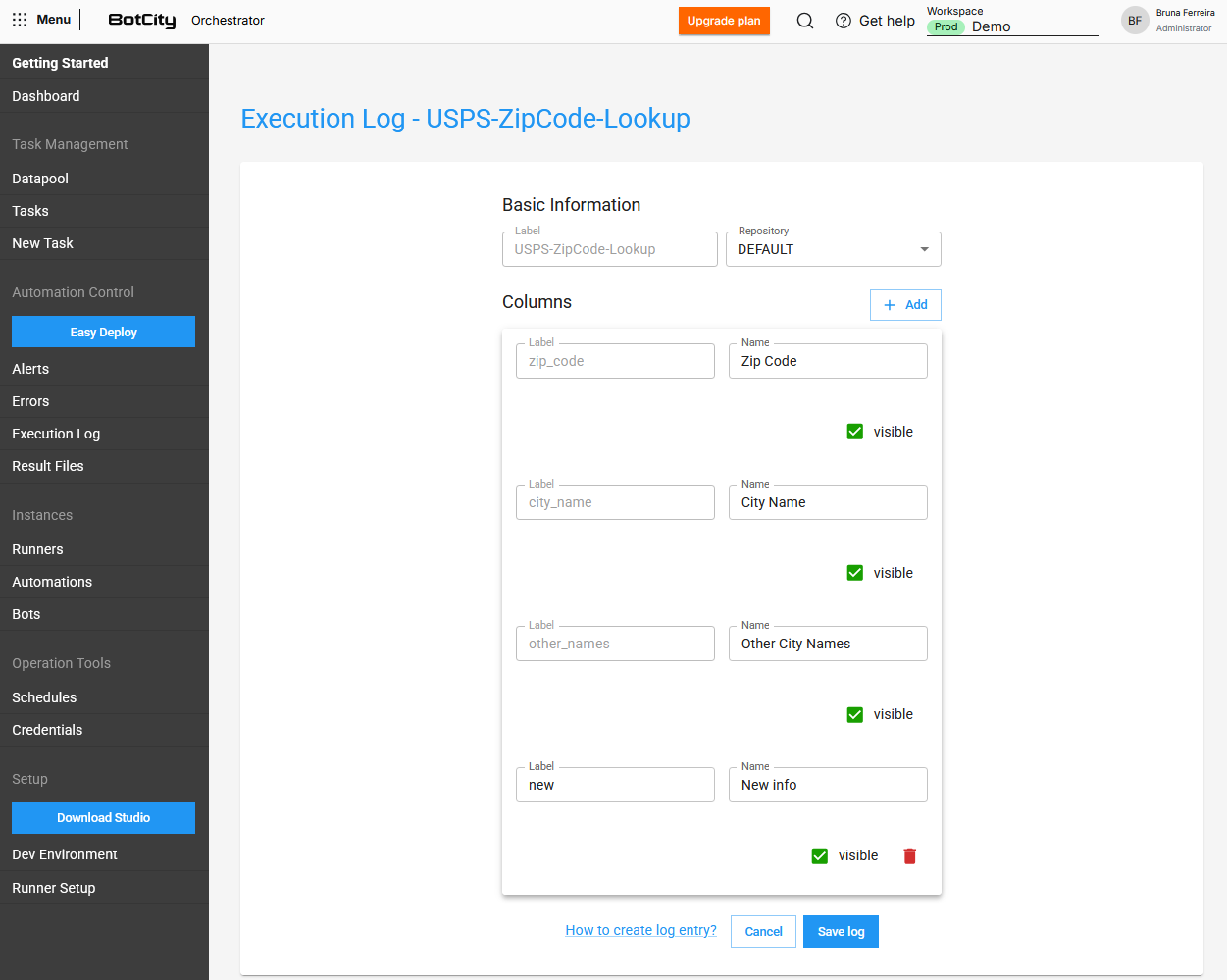
To create one, access the Execution Log in the BotCity Orchestrator side menu, click the + New Log button and fill in the fields:
- Label: Unique identifier for the log.
- Repository: Select the repository where the log will be allocated.
+ Add: Button to add columns to the log:- Label: Column identifier.
- Name: Friendly name for the column.
- Visible: Checkbox to make the column visible or hidden.
Multiple Execution Logs
You can create more than one Execution Log and use them in a single automation. This way, you can organize your process data in the best way possible.

Edit an Execution Log
An already created log can have some information edited, including:
- Repository: Change the repository where the log is allocated.
- Columns:
- Name: Change the friendly name of the columns.
+ Add: Button to add columns to the log.
Log Entry
After creating the Execution Log in the BotCity Orchestrator, data entries can be triggered directly via the automation's code.
Each new entry is recorded as a new row in the Log, storing the relevant information from the process.
Maestro SDK
For more information on how to implement the log functionality in code, see the Logs section of the Maestro SDK.
View Logs
When accessing Execution Log in the side menu, you can view a summary of the logs in the following card:
- Total execution logs: the number of execution logs created.
Below the summary, all logs created in Orchestrator are displayed in a table format.
You will find the following columns:
- Label: Log identifier as a link to access the data.
- Date: Log creation date.
- Repository: Identifier of the repository where the log is allocated.
- Actions menu: Available actions for the log (
View,Edit,DeleteandMove to repository).

Log Data
When accessing a created log, you will find the following columns:
- Date: Default column for recording the date and time of the entry.
- Custom columns: All columns created and defined as visible at the time of creation.
Data retention
The data retention period for an Execution Log is six months in the Community version, and may vary depending on the contracted plan.
Search and Filters
You can search and filter both among the created Logs and within the data recorded in each Log.
Logs
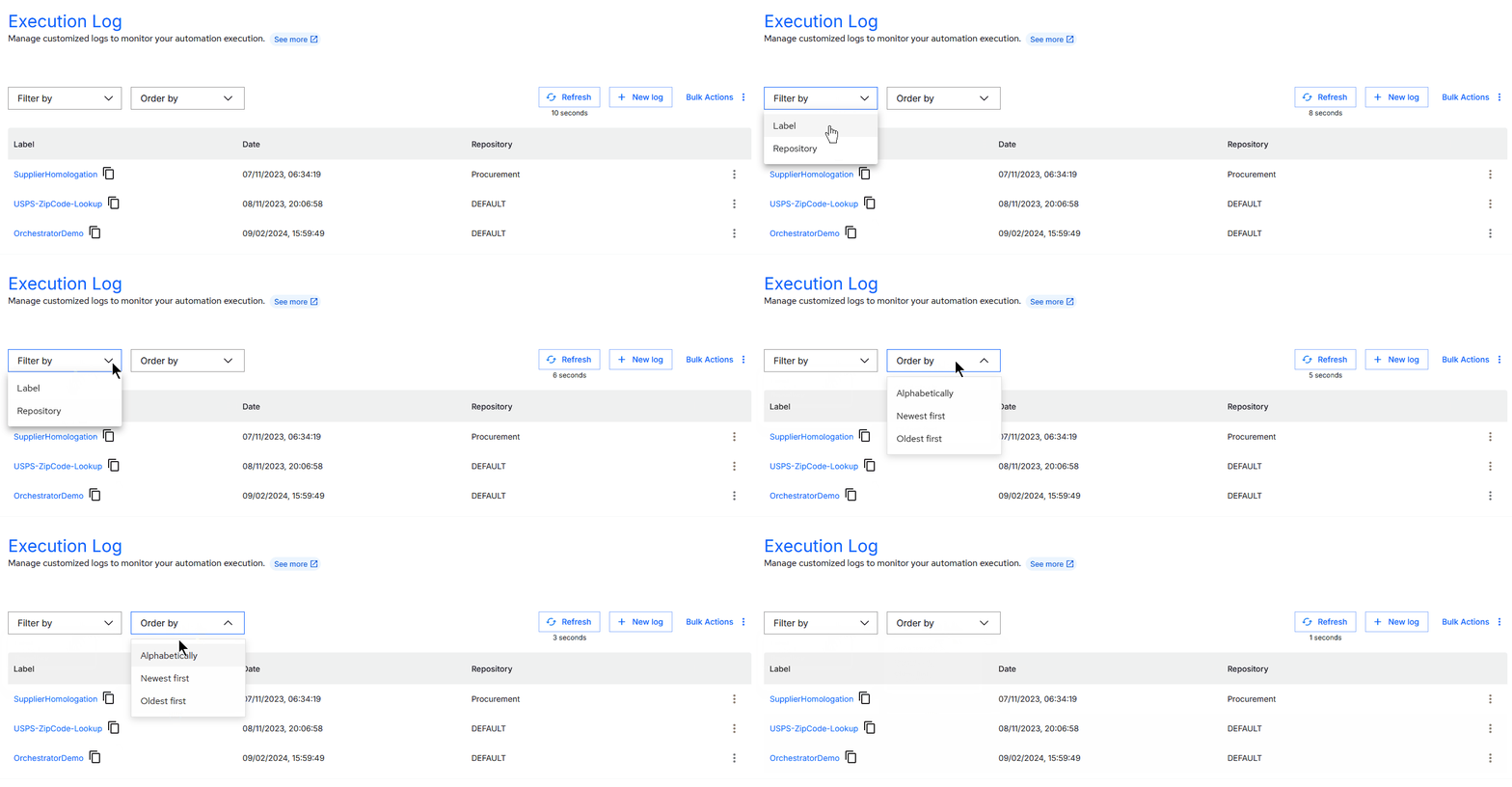
You can combine multiple filters to search the Execution Log menu according to your needs.
Available filters:
- Label: Select one or more labels.
- Repository: Select a specific repository.
Sort order:
- Alphabetically
- Most recent first
- Oldest first
Alongside the filters, you will also find Bulk Actions, which allow you to:
- Bulk delete logs: Permanently delete the selected logs.
- Bulk move to repository: Move all selected logs to a specific repository.
Data and Export
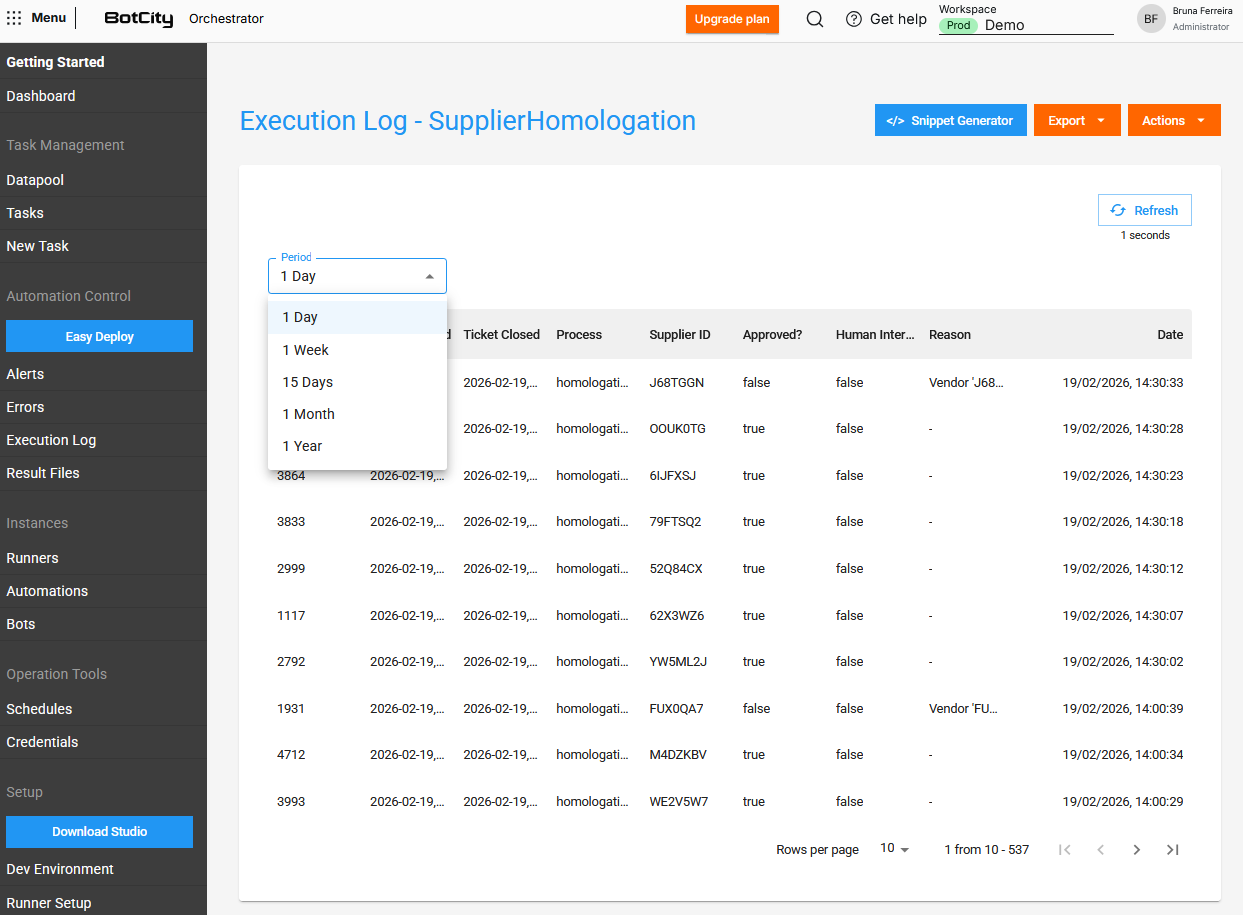
When accessing the log data, you can filter by period (1 Day, 1 Week, 15 Days, 1 Month or 1 Year) and view it in the table.
This data can be exported via the Export button, by selecting the desired format (JSON, CSV, Excel).
Export limit
When exporting data directly through the BotCity Orchestrator, there is a limit of 1,000 records returned. If you need to retrieve more records, you can choose to export via API, following a pagination strategy. See more information in the API section of the Documentation.
Delete a Log
Execution Logs can be deleted at any time.
To delete a single log you can:
- Access the Execution Log menu
- Search for and access the details of a Log
- Click the
Actionsbutton - Select
Delete - Confirm the permanent deletion action
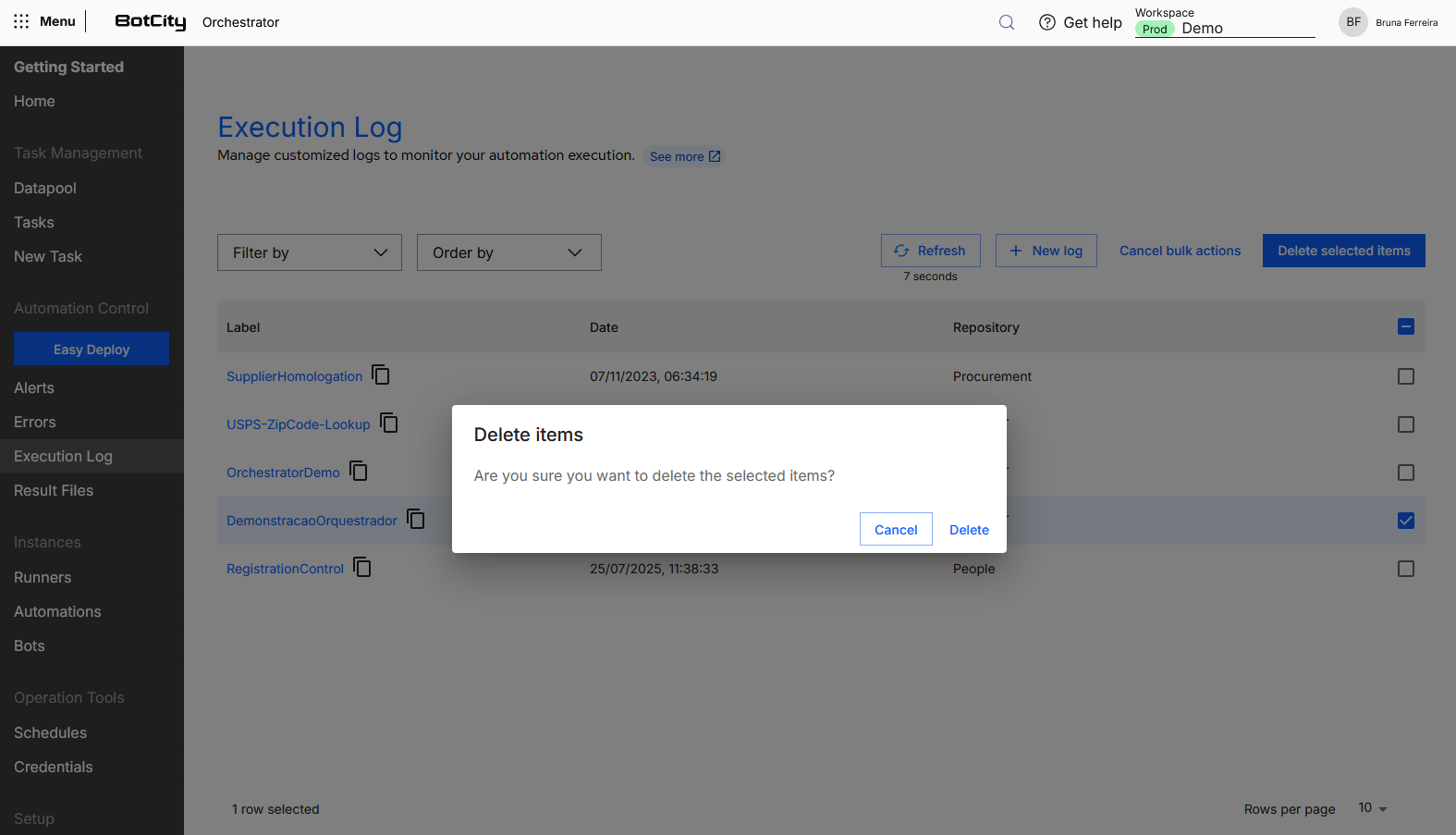
To delete multiple logs at the same time, you can:
- Access the Execution Log menu
- Click on the Bulk Actions option
- Select
Bulk Delete - Select all the logs to be deleted
- Click the
Delete selected itemsbutton - Confirm the permanent deletion action
Permanent deletion
The deletion action is permanent and cannot be reversed.