Stages
When an opportunity is received in the Opportunity Hub, it can go through various stages until it is automated. It can also be marked as rejected or redirected to another area.
The Opportunity Hub provides full control for the internal team responsible for handling the received opportunities according to the rules and priorities of your company.
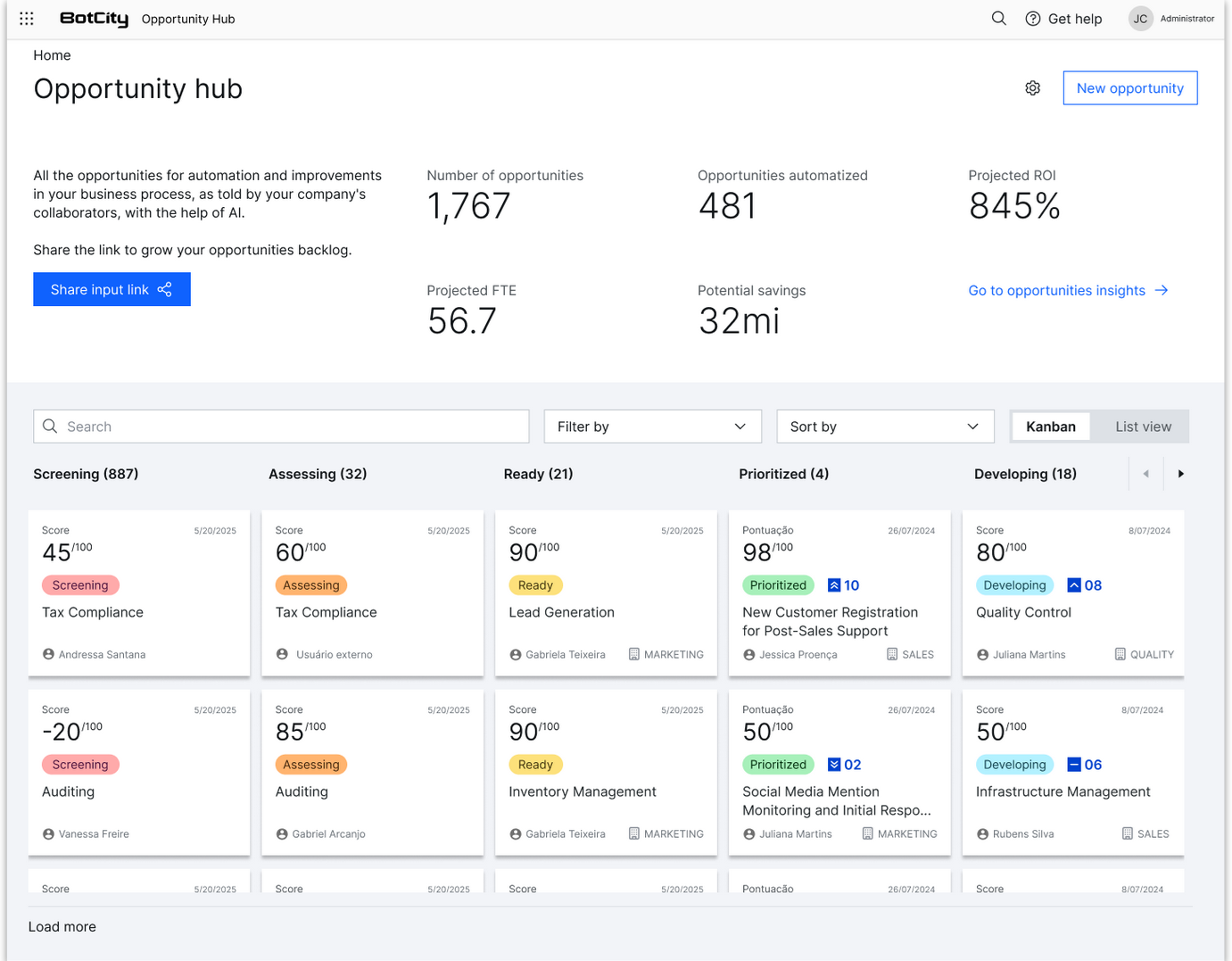
Opportunity Details
By clicking on one of the received opportunities, we access the details page of that opportunity, where we can view all the information filled out in the submission form, as well as manage its status and related actions.
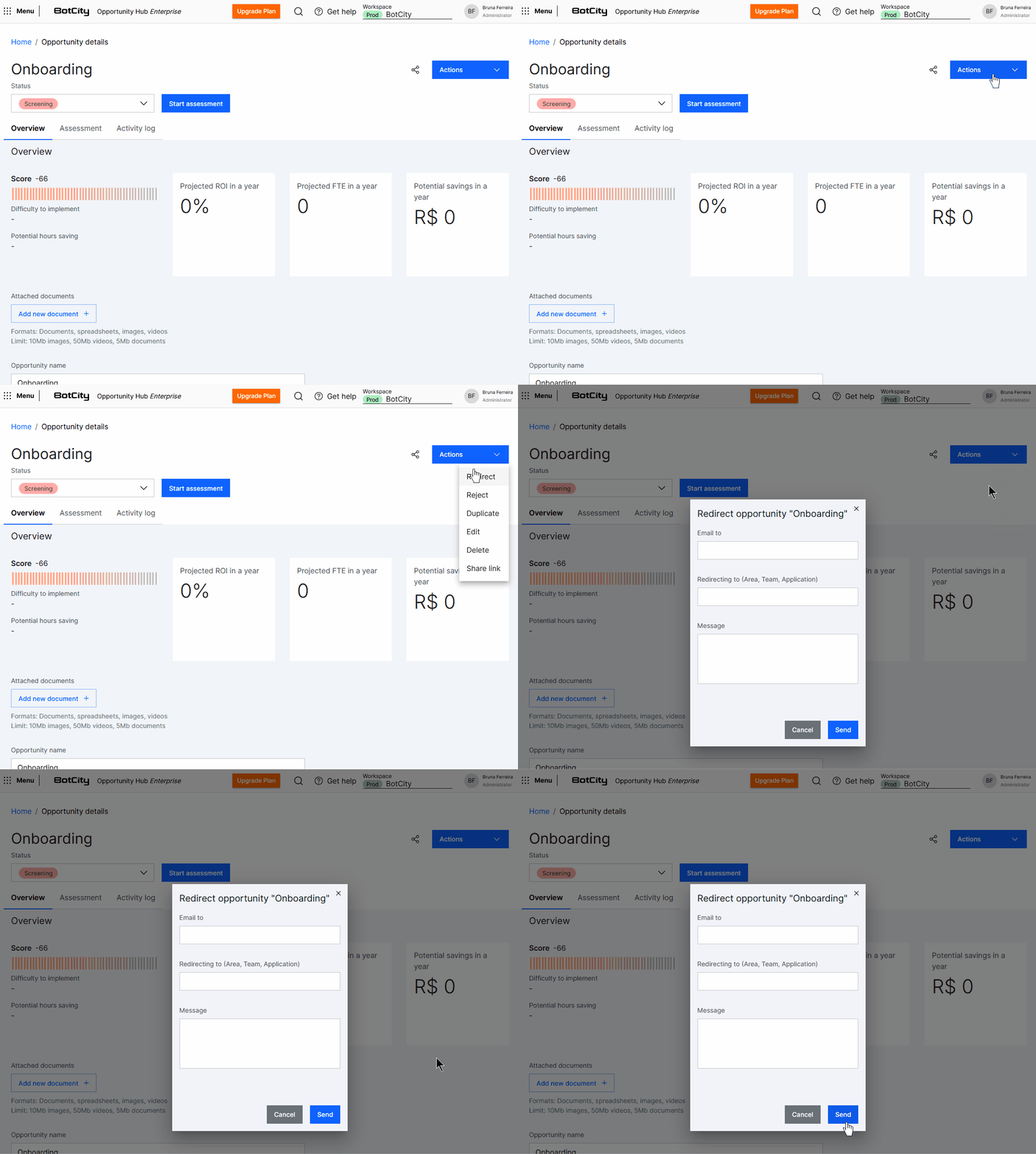
At the top right of this page, we find a button called Actions. This button opens a menu of quick actions that can be performed on this opportunity, displaying the following options:
- Redirect: When the opportunity fits better in another area or solution, we can redirect it via email to the appropriate person.
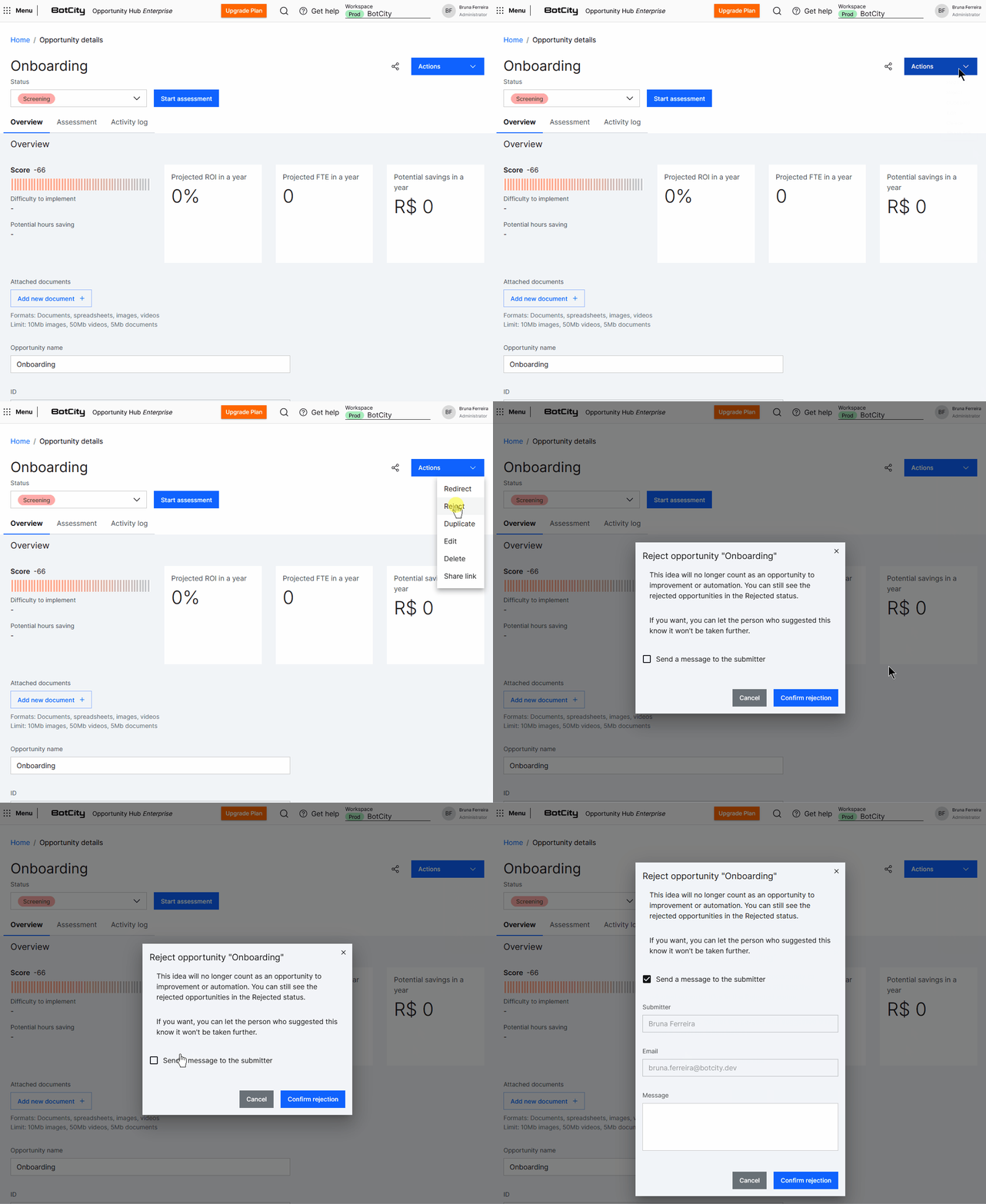
- Reject: If the opportunity does not meet the criteria for automation, we can reject it, with the option to send a message explaining the decision.
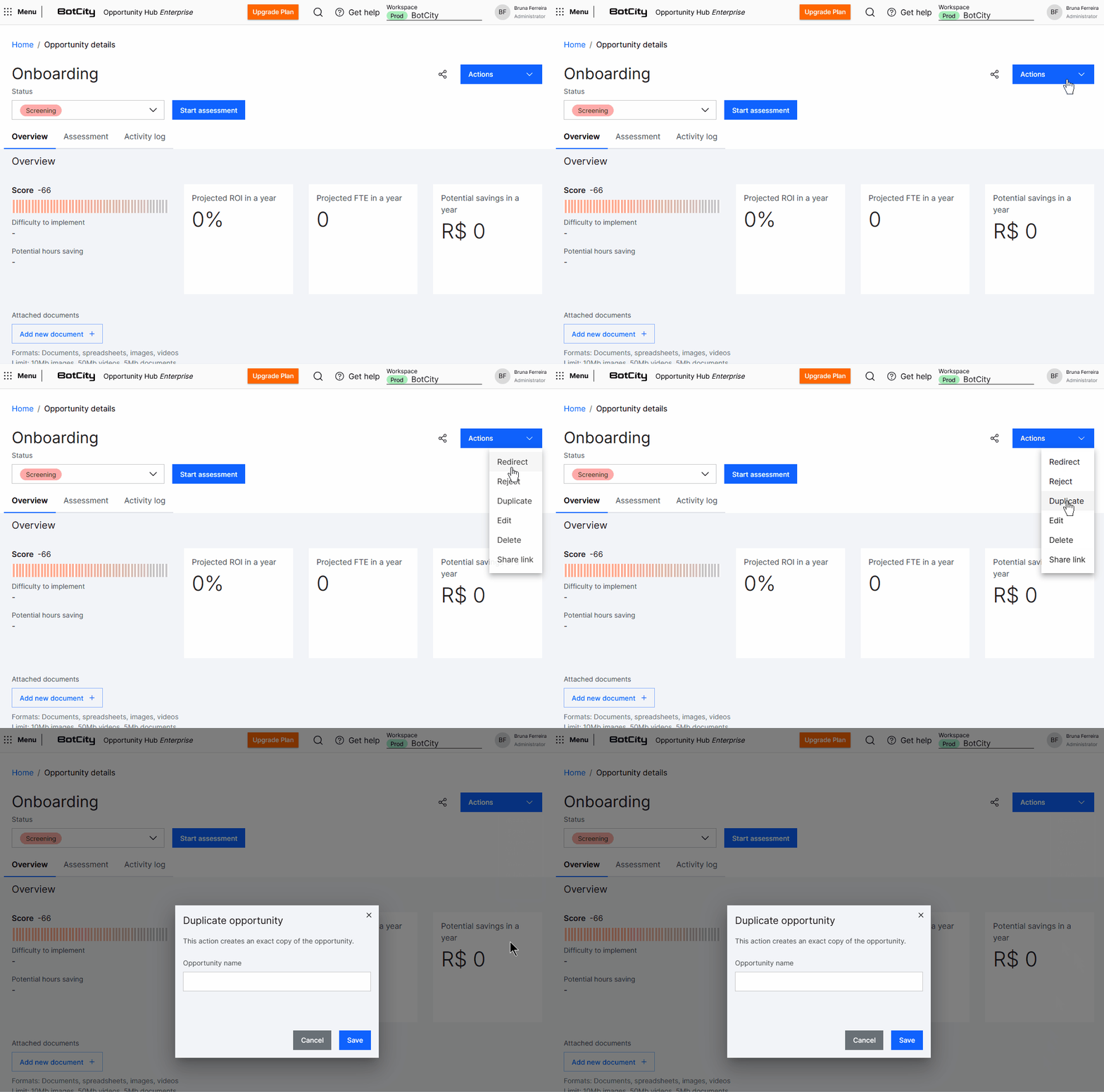
- Duplicate: Creates an exact copy of the current opportunity, including all filled information.
- Edit: Allows modifying the general information filled in the opportunity submission form.
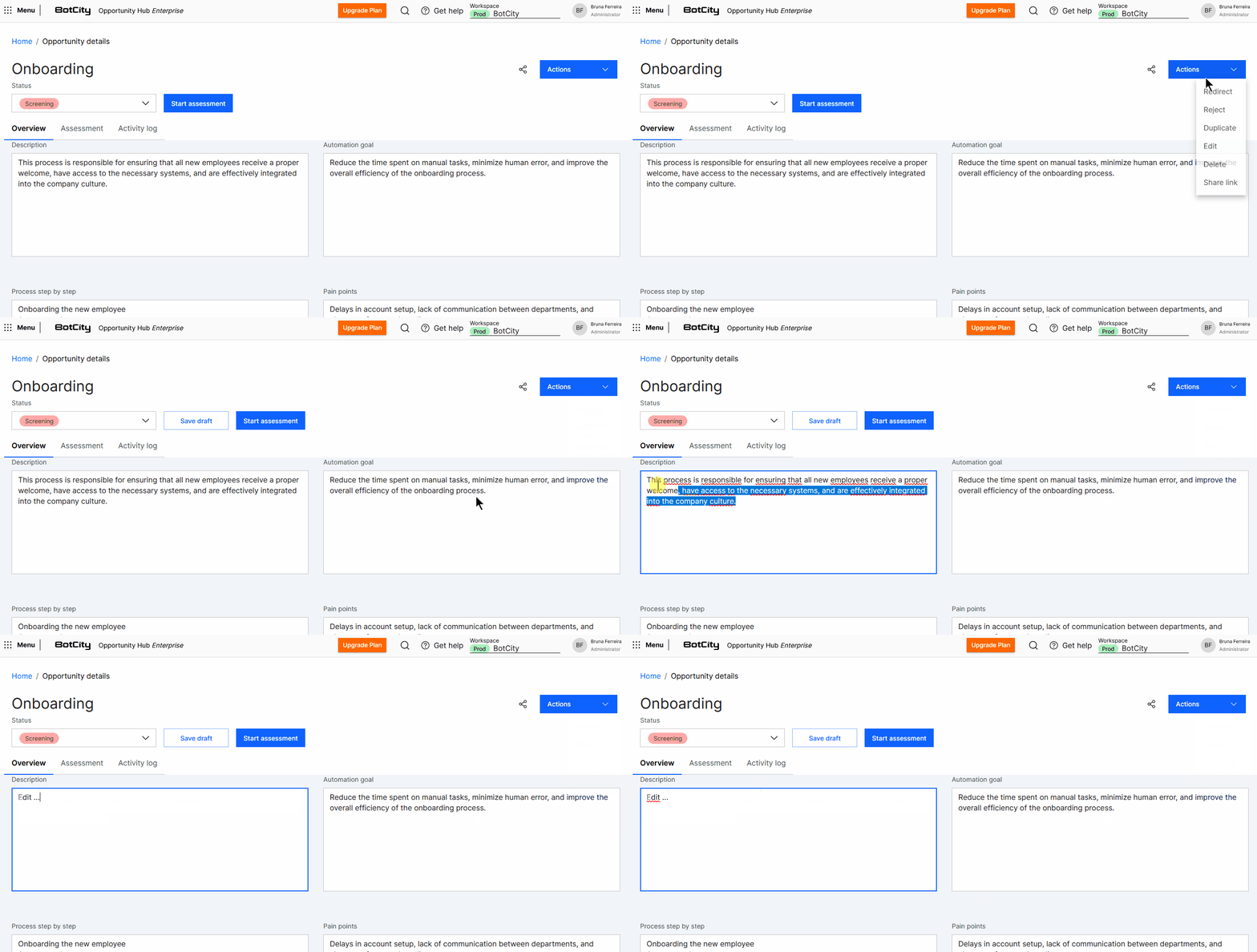
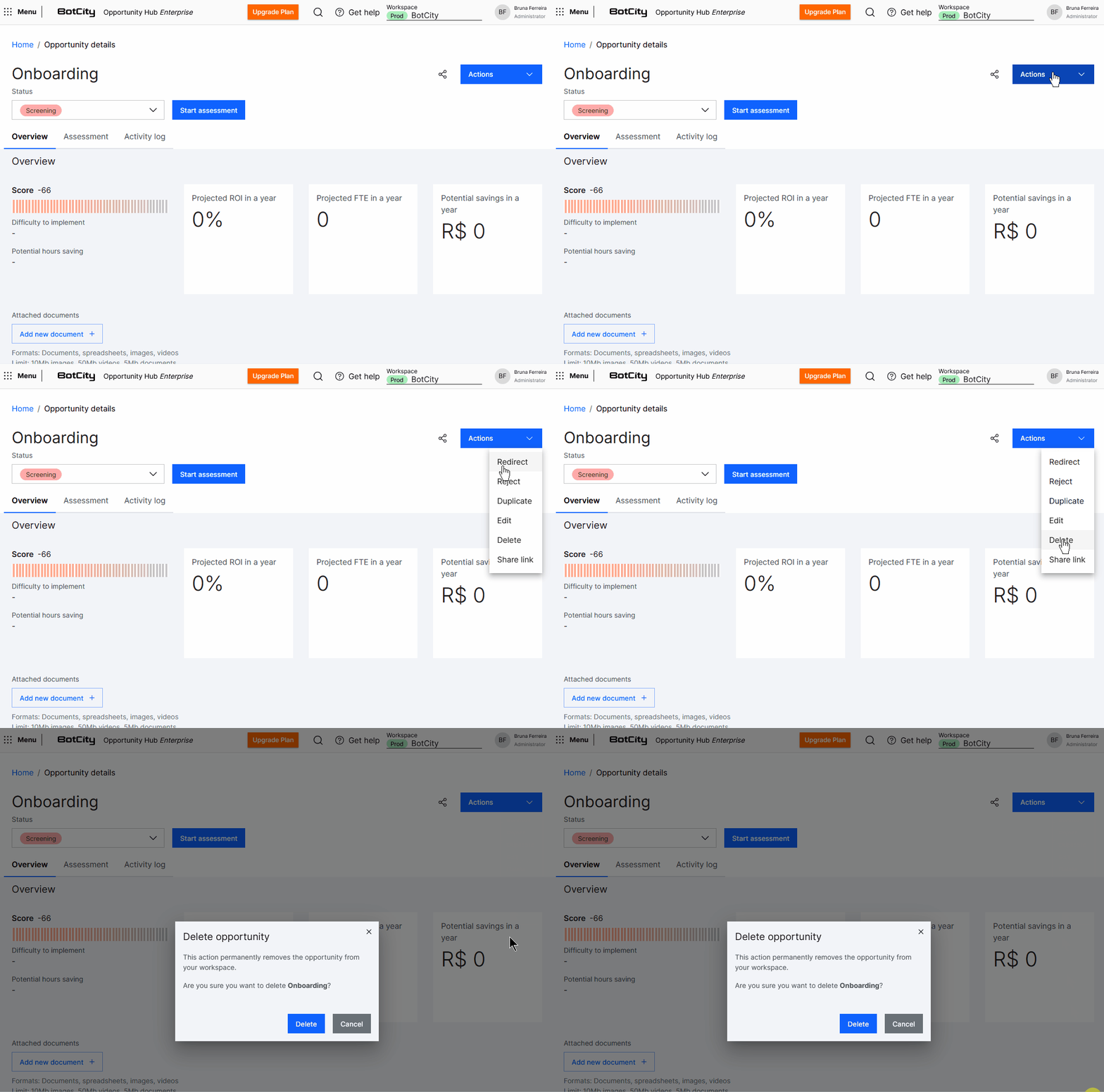
- Delete: Permanently removes the opportunity from the platform.
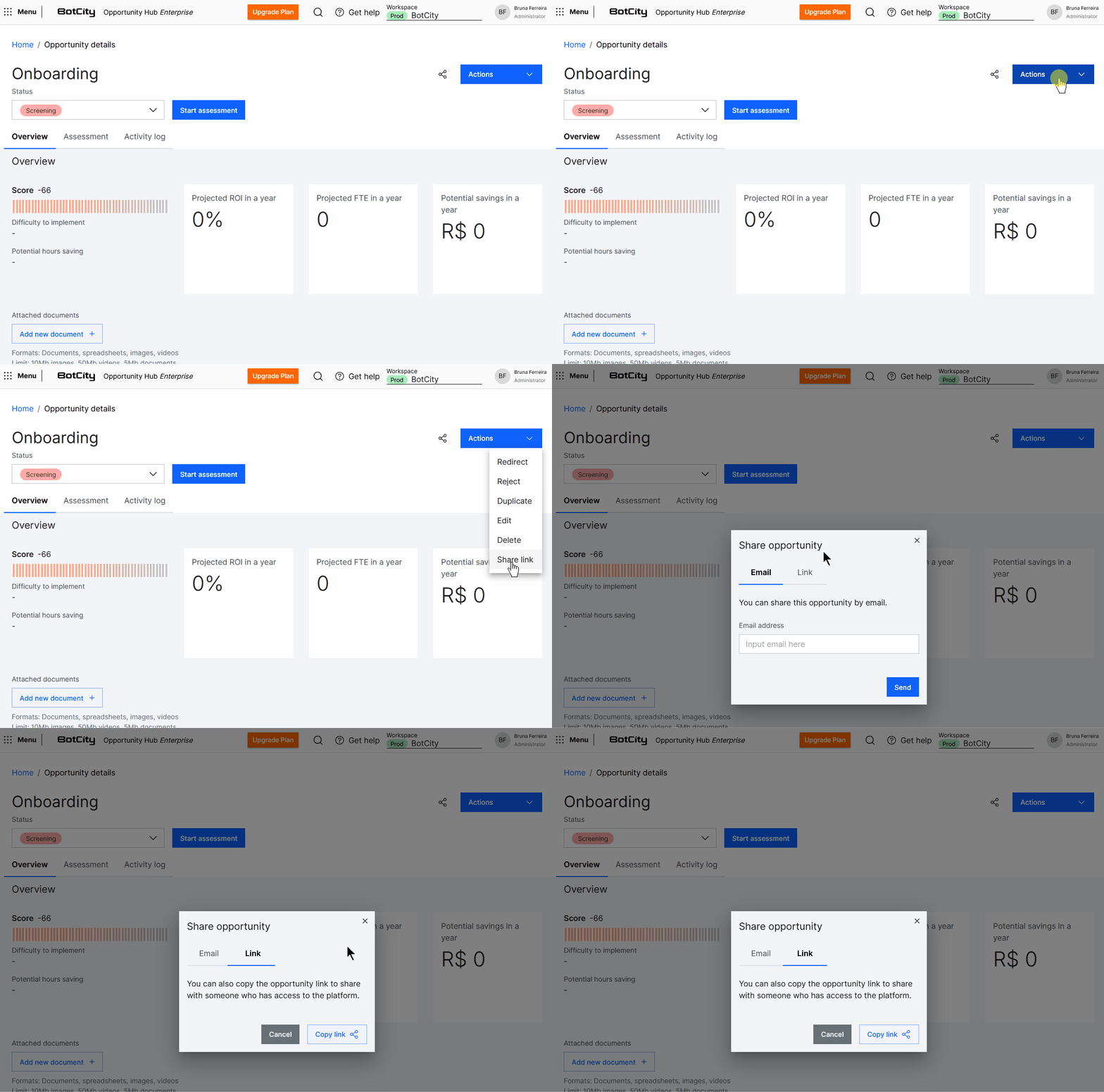
- Share link: Option to send the opportunity link via email or copy the link.
Overview
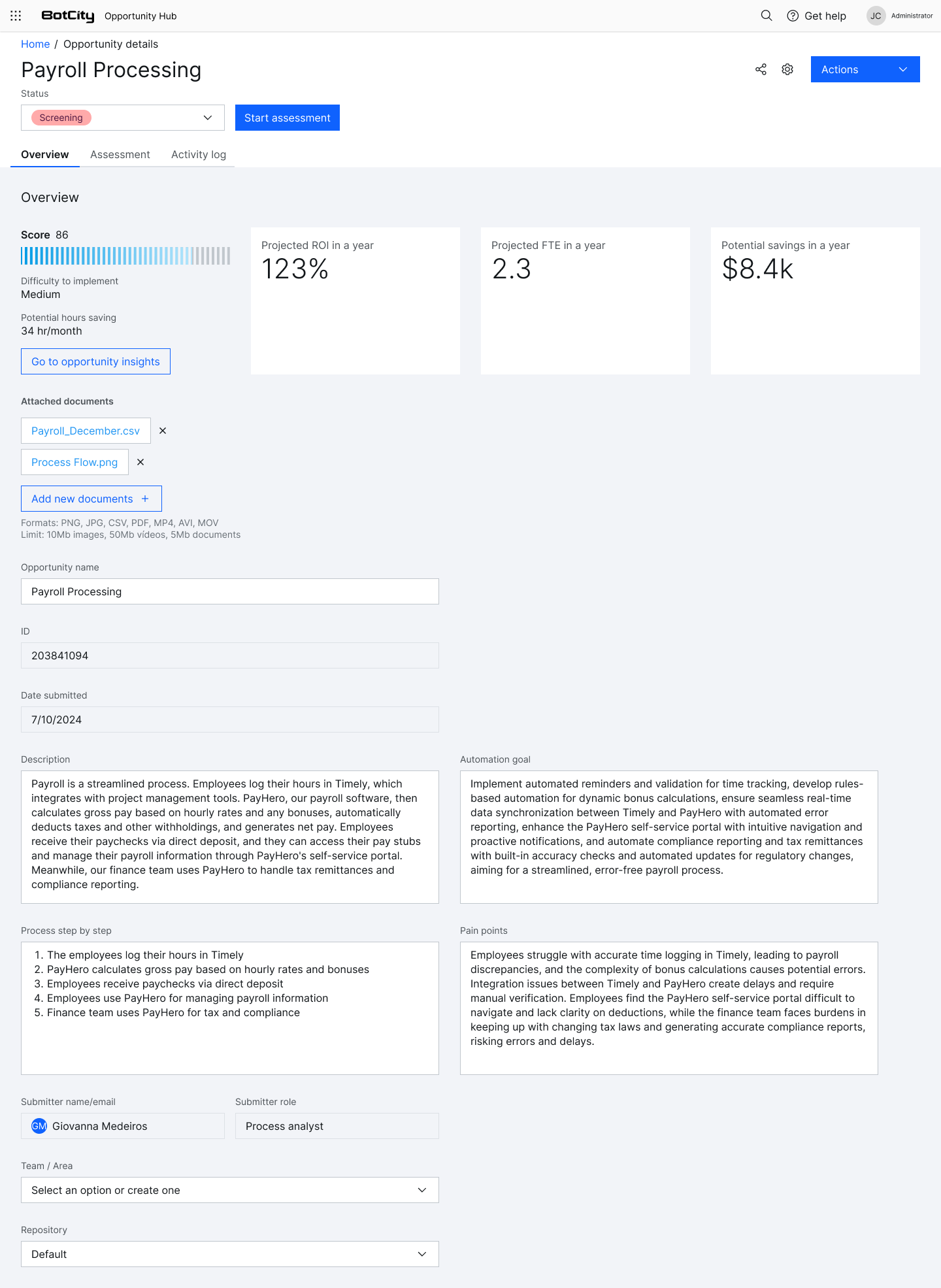
In the Overview tab, we can see a complete summary of the opportunity. Here we can track some data in opportunity charts, such as:
- Score
- Difficulty to implement
- Potential hours saving
- Projected ROI
- Projected FTE
- Potential savings
Additionally, the general information filled out, the documents submitted in the submission form, and the collaborator responsible for the opportunity are displayed.
Example:
Assessment
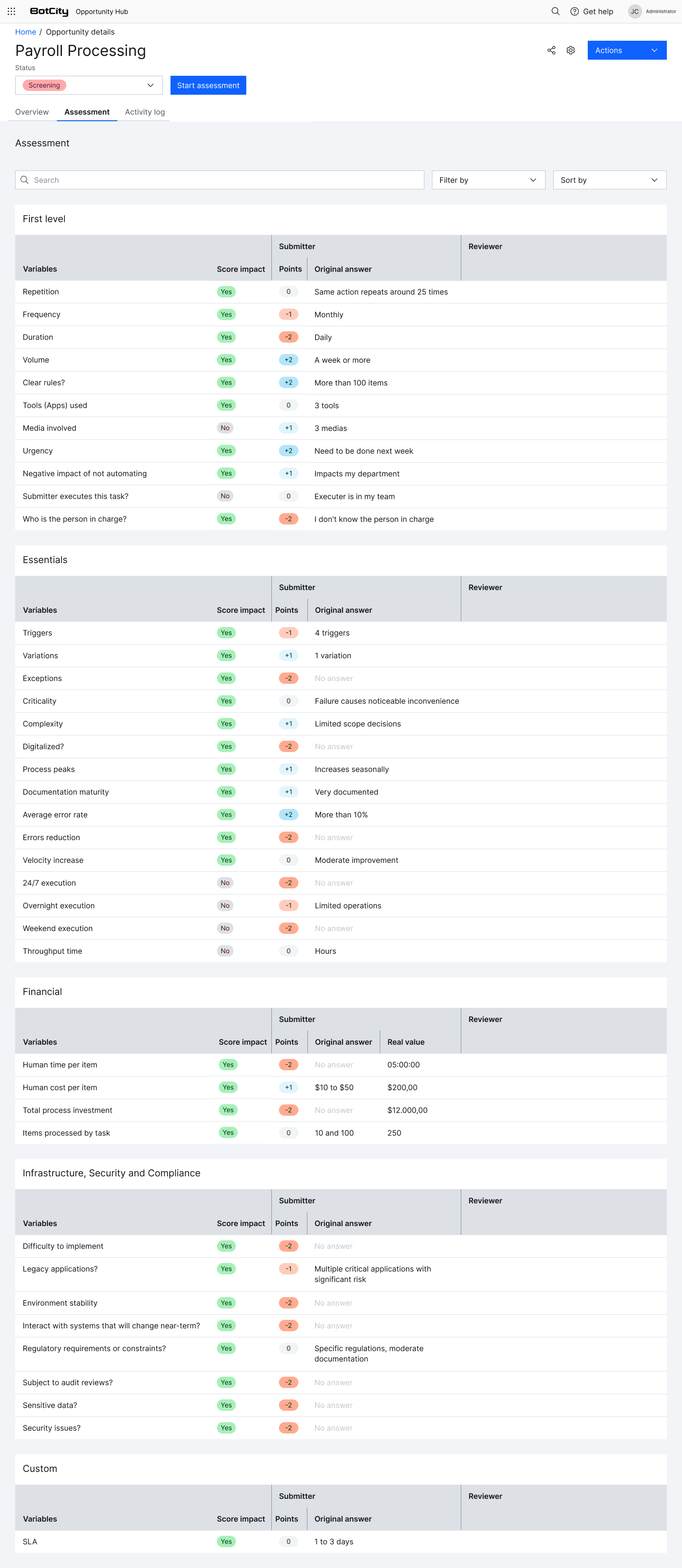
In the Assessment tab, we find the first-level variables filled out during submission.
The variables can be evaluated and adjusted as needed for each process.
Here we also find the second-level variables that can be filled out during the opportunity assessment by the internal team responsible for the analysis.
Search, Filter, and Sort
To facilitate variable search, we can use the search, filter, and sort menu.
- Search: Type the variable name in the search bar.
- Filter: Apply filters to find variables:
Impact on scoreOriginal responseReview
- Sort: Select the desired order:
Lowest scoreHighest score
Example:
Activity Log
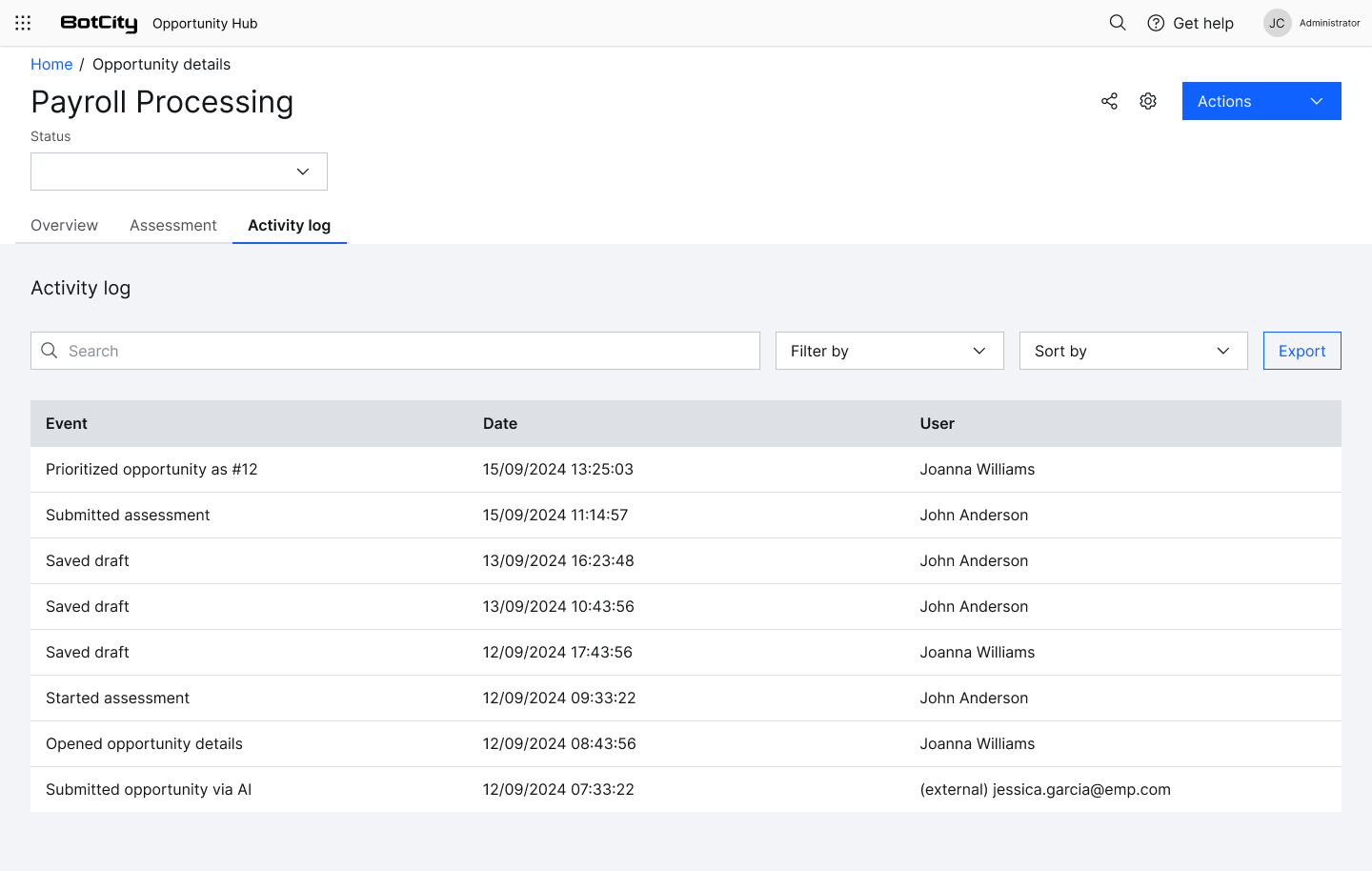
In this tab, we find the record of all events related to this opportunity, such as status changes, variables, among others.
The event description, date and time, and the user responsible for the action are listed.
Search, Filter, and Sort
To facilitate log search, we can use the search, filter, and sort menu.
- Search: Type the event author's name in the search bar.
- Filter: Apply filters to find events:
User
- Sort: Select the desired order:
DateUser
Example:
Stages List
The Opportunity Hub organizes opportunities into different stages, allowing the internal team to efficiently manage the workflow. Below, we detail each stage and its functionalities:
Screening
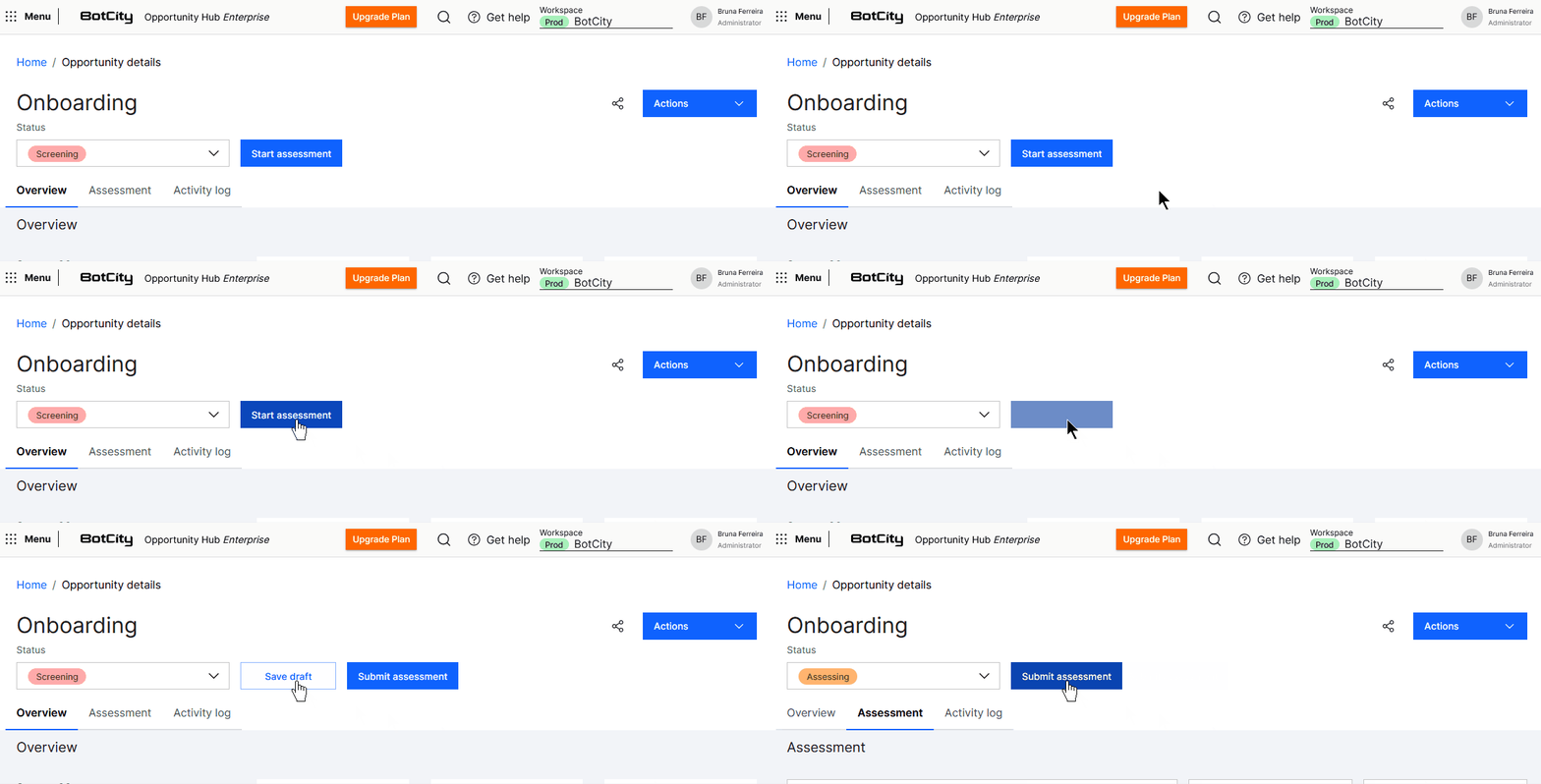
When an opportunity is submitted, it initially enters the Opportunity Hub in the Screening stage. From the start, a score is assigned based on the variable weights and the responses provided in the submission form, helping to prioritize opportunities with the greatest potential.
In this stage, the internal team can review the information provided by the submitter by clicking on the opportunity card and deciding whether it should be further evaluated.
If the opportunity shows potential, the internal team can click the Start Assessment button, moving the opportunity to the Assessing stage.
Assessing
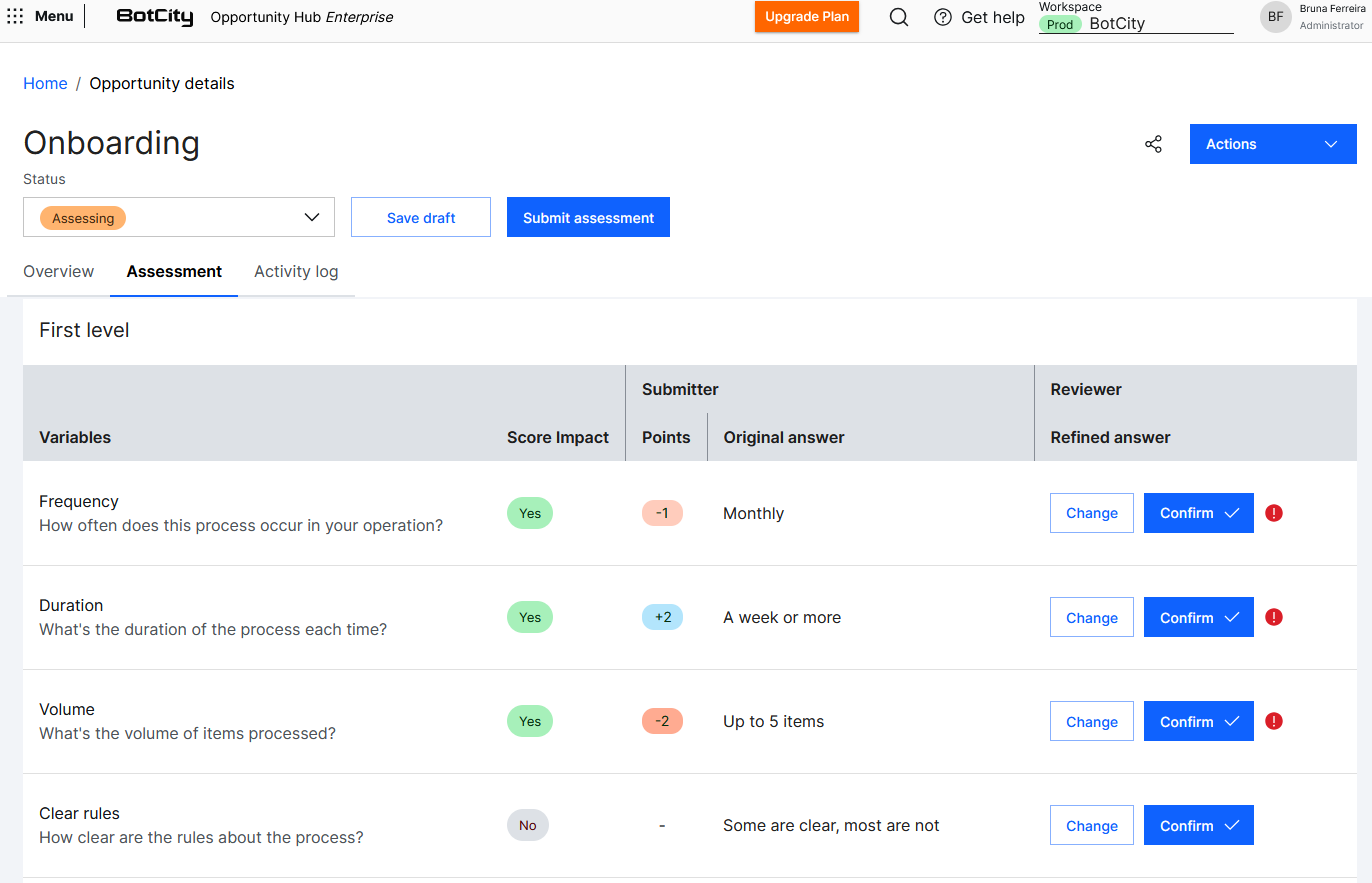
This is where the analysis occurs, conducted by the internal team, which can interview the collaborator who submitted the opportunity and begin evaluating more advanced variables about the opportunity's potential.
Throughout the assessment process, the internal team reviews the responses presented by the submitter, confirming or modifying them as necessary, and adjusting the opportunity's score as new responses are provided.
The assessment can be finalized by clicking the Submit Assessment button, moving it to the Ready stage.
If more information is needed and the internal team requires more time to complete the assessment, they can click the Save Draft button, preserving the responses filled out so far, and the opportunity will remain in the Assessment stage to be resumed later.
Ready
After completing the assessment, if the opportunity is deemed suitable for automation, it will be marked as Ready.
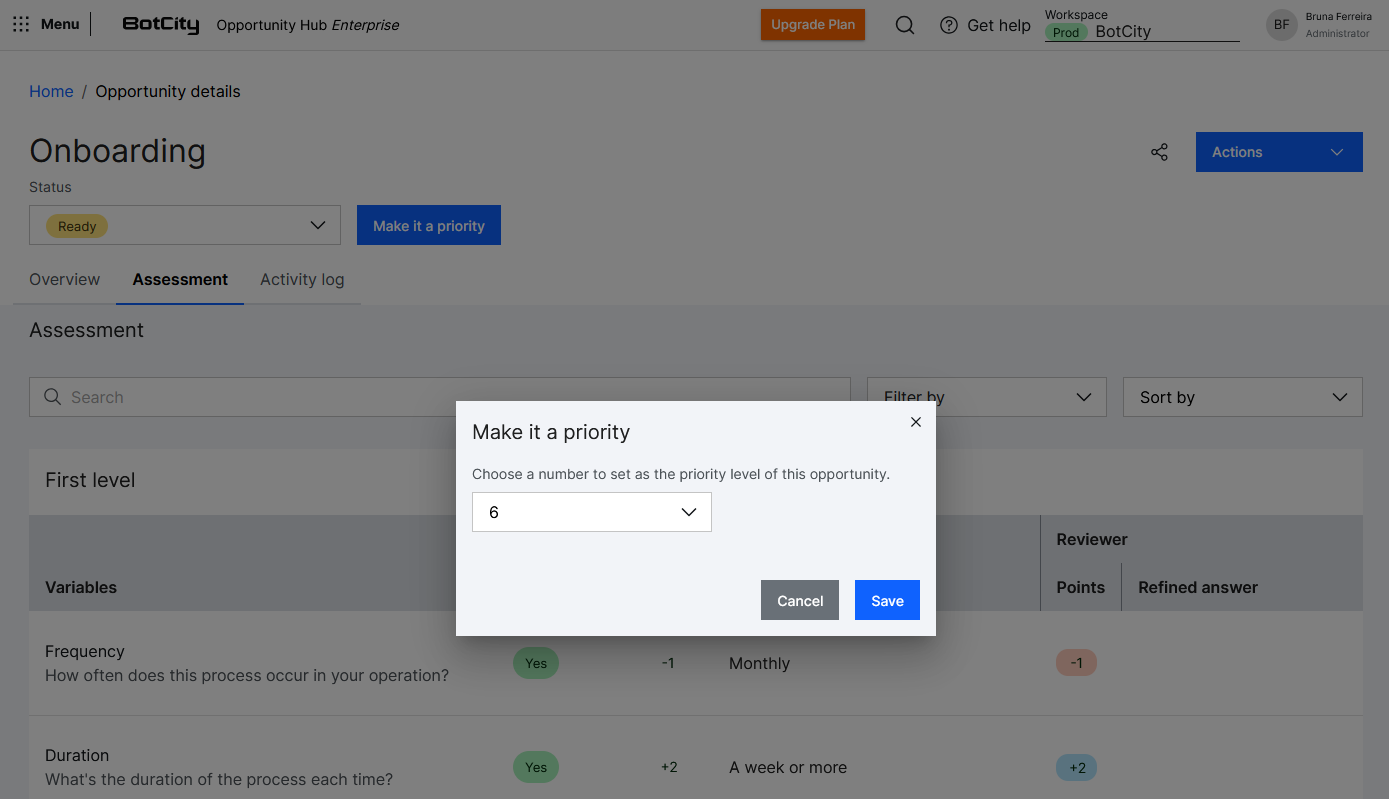
In this stage, the internal team can review all the information and ensure everything is in order before proceeding to development. Here, it is also possible to set the opportunity's priority level, helping to organize the development backlog.
By clicking the Make it a priority button, a window will open to select the priority level: 0 being the lowest priority and 10 being the highest priority.
Upon saving, the opportunity will move to the Prioritized stage.
Prioritized
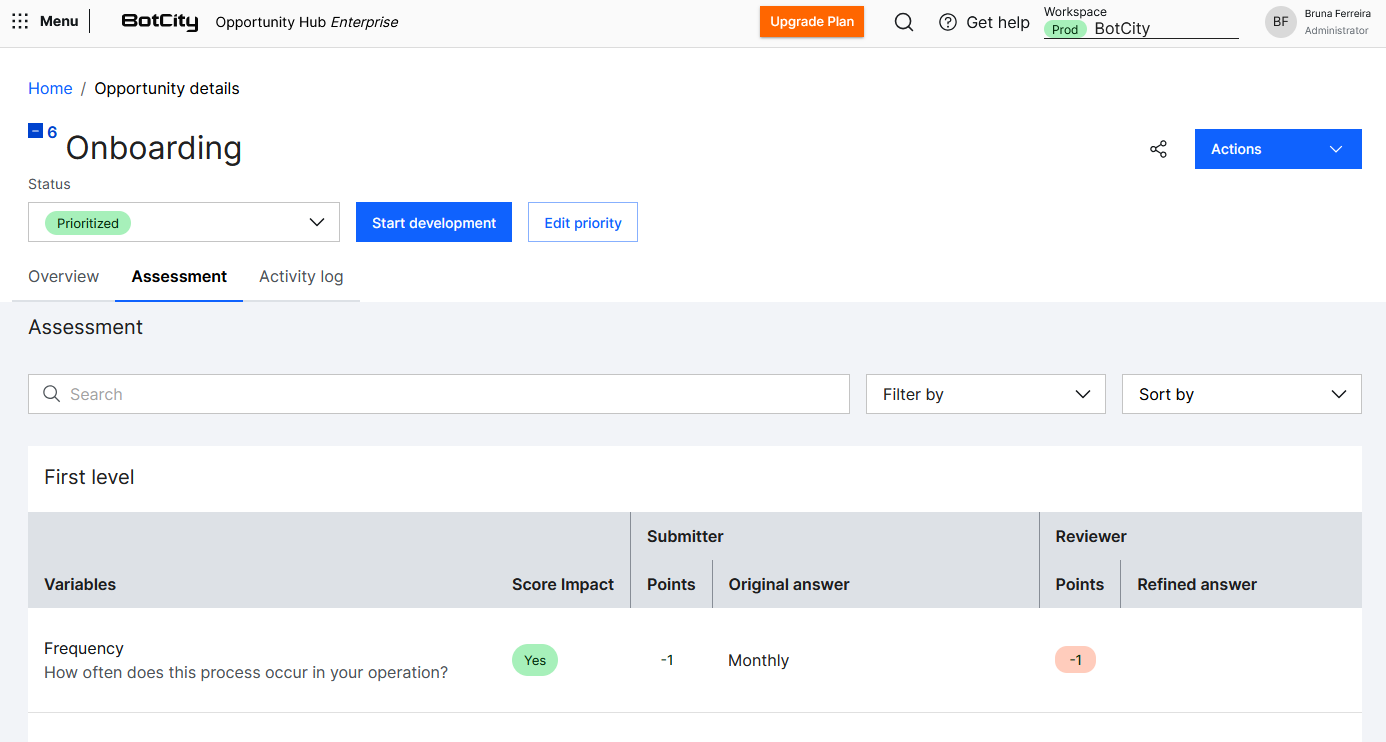
Opportunities that reach this stage are those that have undergone a complete assessment and are considered ready for automation.
In this stage, the internal team can redefine the opportunity's priority by clicking the Edit Priority button.
They can also direct the opportunities to the development team by clicking the Start Development button.
Developing
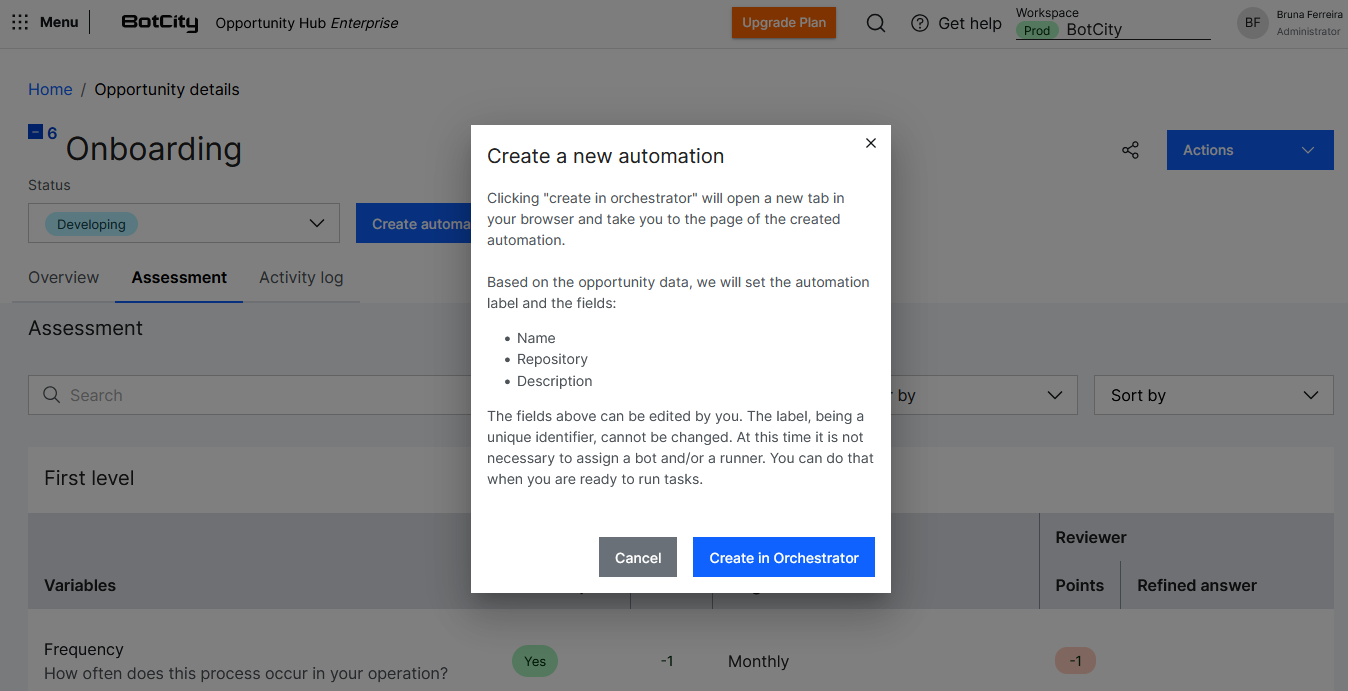
This is where the opportunity reaches the development team.
At this point, the opportunity has been assessed and reviewed, with all necessary information documented to begin the automation development process.
Here, the team can click Create Automation, which will automatically create a new automation in the BotCity Orchestrator based on the information provided in the opportunity.
Automated
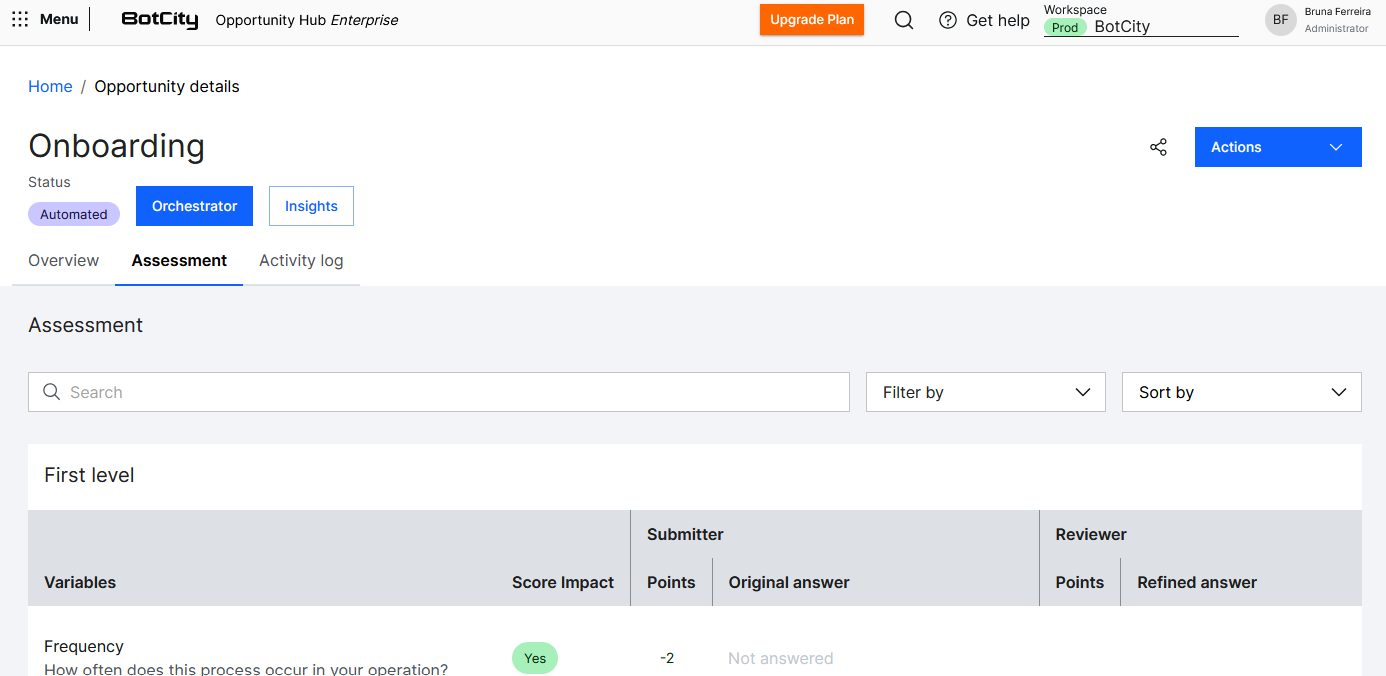
When an opportunity is marked as Automated, it means the automation development and deployment have been successfully completed.
Attention
Once automated, the opportunity can no longer be edited.
In this stage, it is possible to access the automation created in the BotCity Orchestrator by clicking the Orchestrator button. It is also possible to view the automation performance dashboards by clicking the Insights button.
Rejected
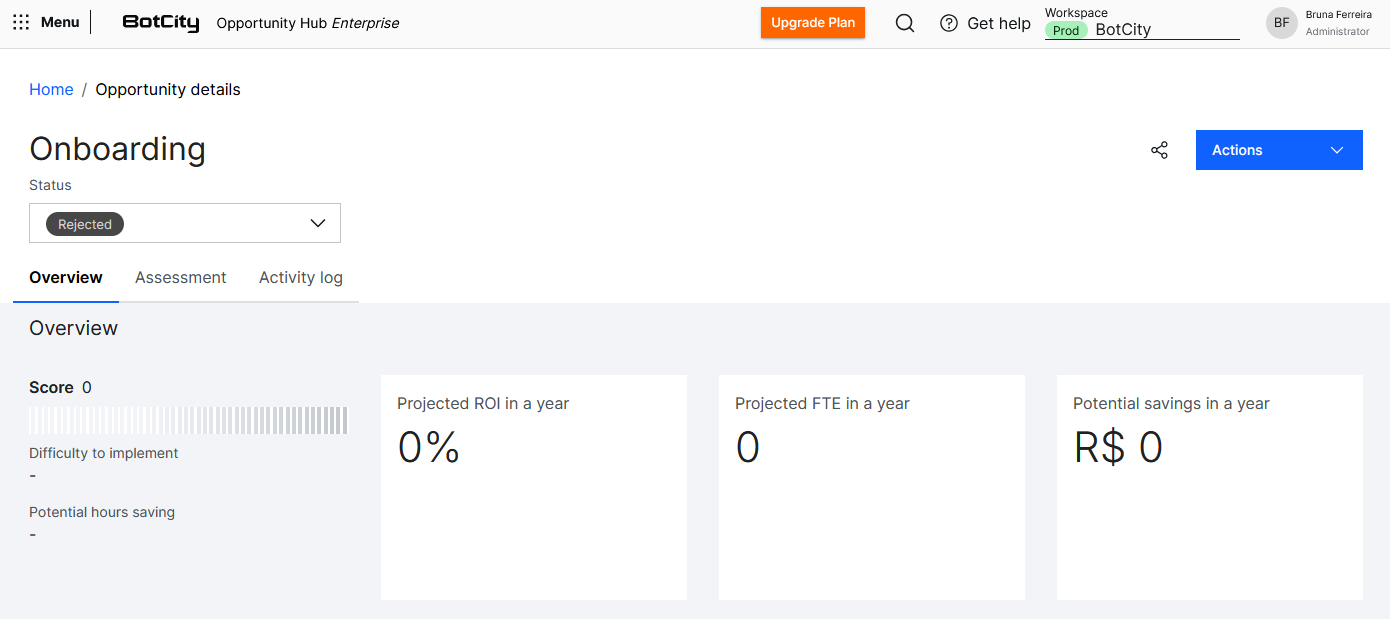
If at any point in the journey, the responsible team realizes that the opportunity definitely does not meet the criteria for automation and has no potential to be redirected to another area or solution, this opportunity can be rejected.
This action can be performed by accessing the opportunity card, clicking the Actions button at the top right, and selecting the Reject option.
A window will open to confirm the rejection. A message explaining this decision can also be sent to the submitter if desired. Upon confirmation, the opportunity will be marked as rejected.
Tip
Rejecting an idea is important to organize the backlog and accurately evaluate the total potential of opportunities.
Redirected
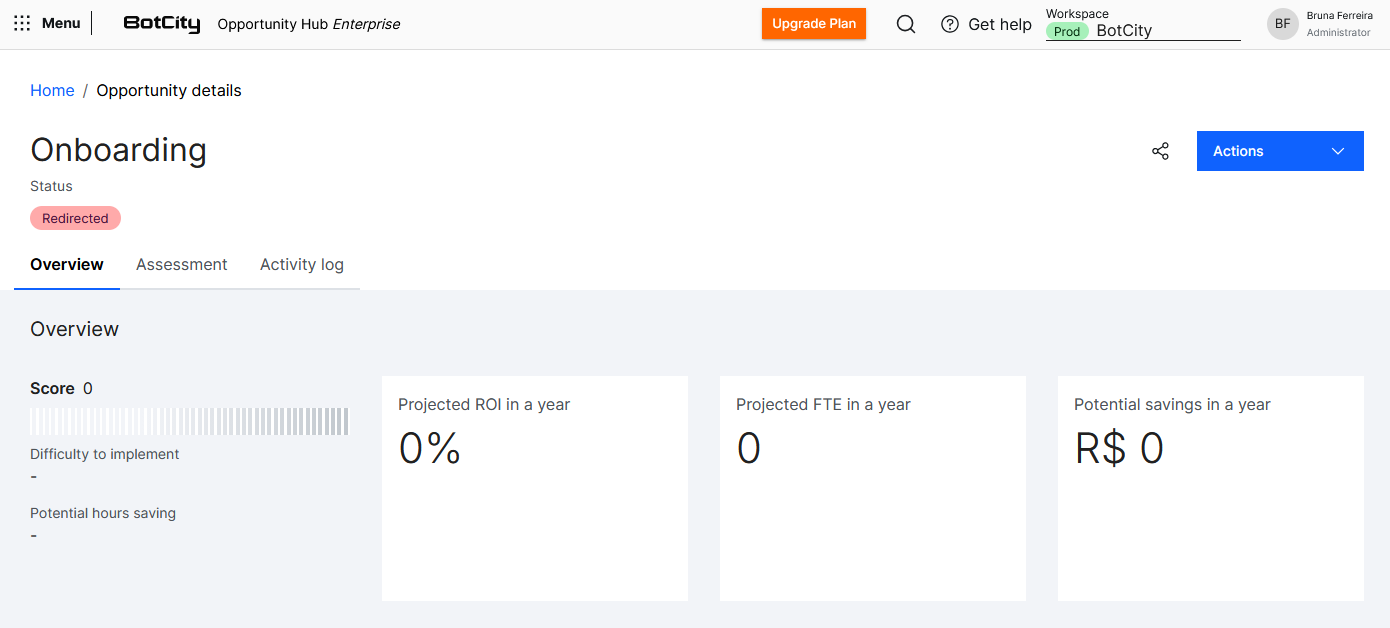
At any point in this journey, an idea may fit better in another area or another type of solution that is not automation.
This action can be performed by accessing the opportunity card, clicking the Actions button at the top right, and selecting the Redirect option.
A window will open to enter the recipient's email, the name of the responsible area or team, and a message. Upon confirmation, the opportunity changes to Redirected.
Tip
This action sends all relevant information about this opportunity via email to the most suitable person to handle it.
Finalizing
In this way, the Opportunity Hub provides a clear and efficient structure for managing opportunities from submission to automation, ensuring that each step of the process is carefully evaluated and handled as needed.
With this, companies can maximize automation potential, ensuring that the most promising opportunities, according to the company's defined criteria, are prioritized and developed.