Manage Items
The Datapool allows you to efficiently manage batch item processing.
Items are the data units that will be processed by the automation through the Datapool. Each item is composed of a set of fields defined in the Datapool's Schema, which represent the information required for processing.
In the following sections, you will find more details about how Datapools work and how to use these resources together with your automation processes.
Snippet Generator
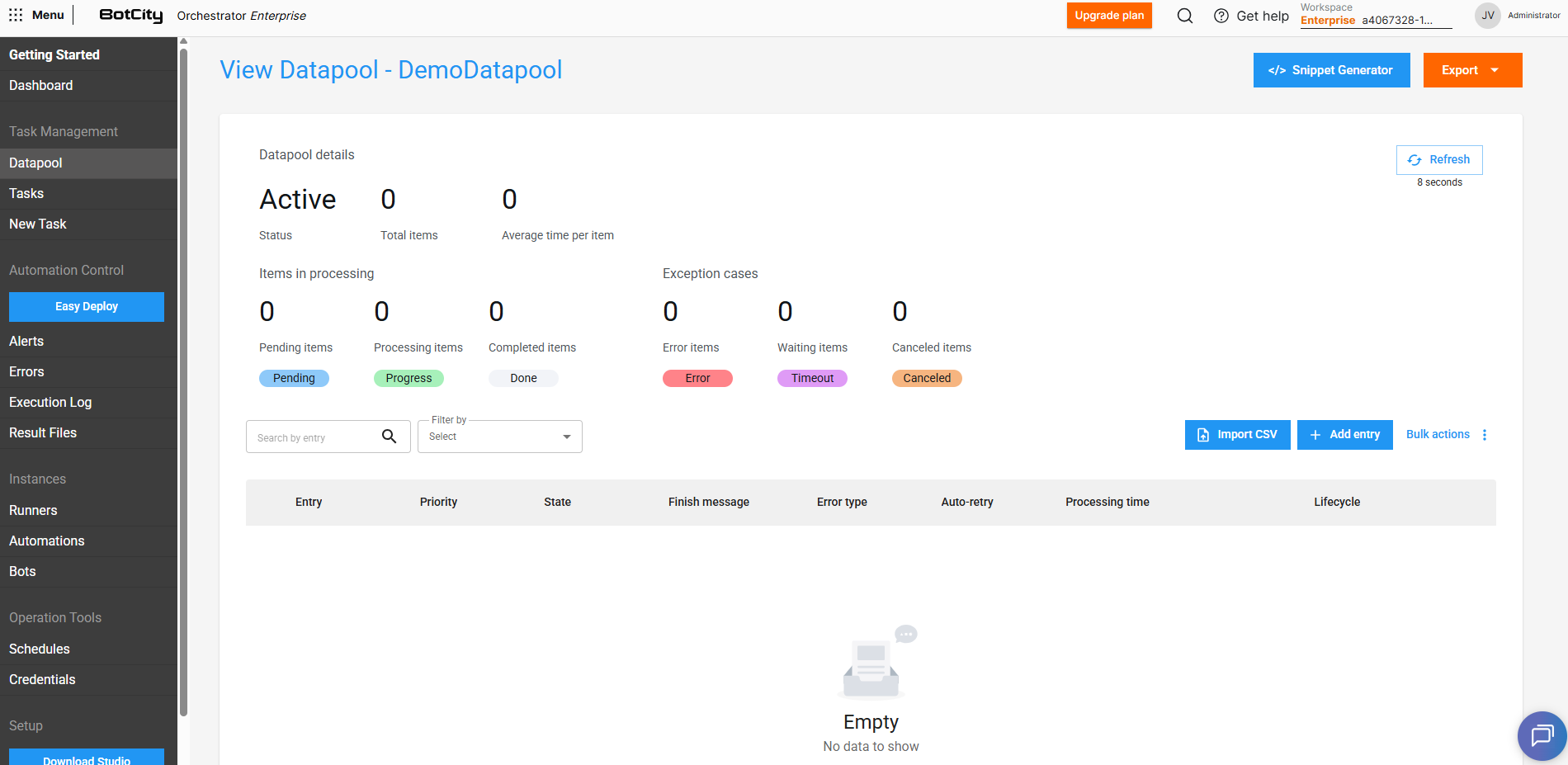
Datapool item manipulation actions can be performed directly on the BotCity Orchestrator platform or via code, using the BotCity Maestro SDK or the BotCity Orchestrator API.
Explore the Snippet Generator button to get code examples that facilitate Datapool manipulations using the BotCity Maestro SDK. Generate code snippets for the following actions: Consume Datapool items, Manipulate a Datapool item, Datapool Operations and Add new items.
The generated snippets are available in the Python language.

Add new items to the Datapool
You can add new items to the Datapool in several ways:
- Single item: Filling in values manually, directly on the platform.
- Import CSV: Multiple items at once, by uploading a
.csvfile. - Via code: Items through code:
- SDK: Using the BotCity Maestro SDK in the automation.
- API: Using the BotCity Orchestrator API.
Add items manually
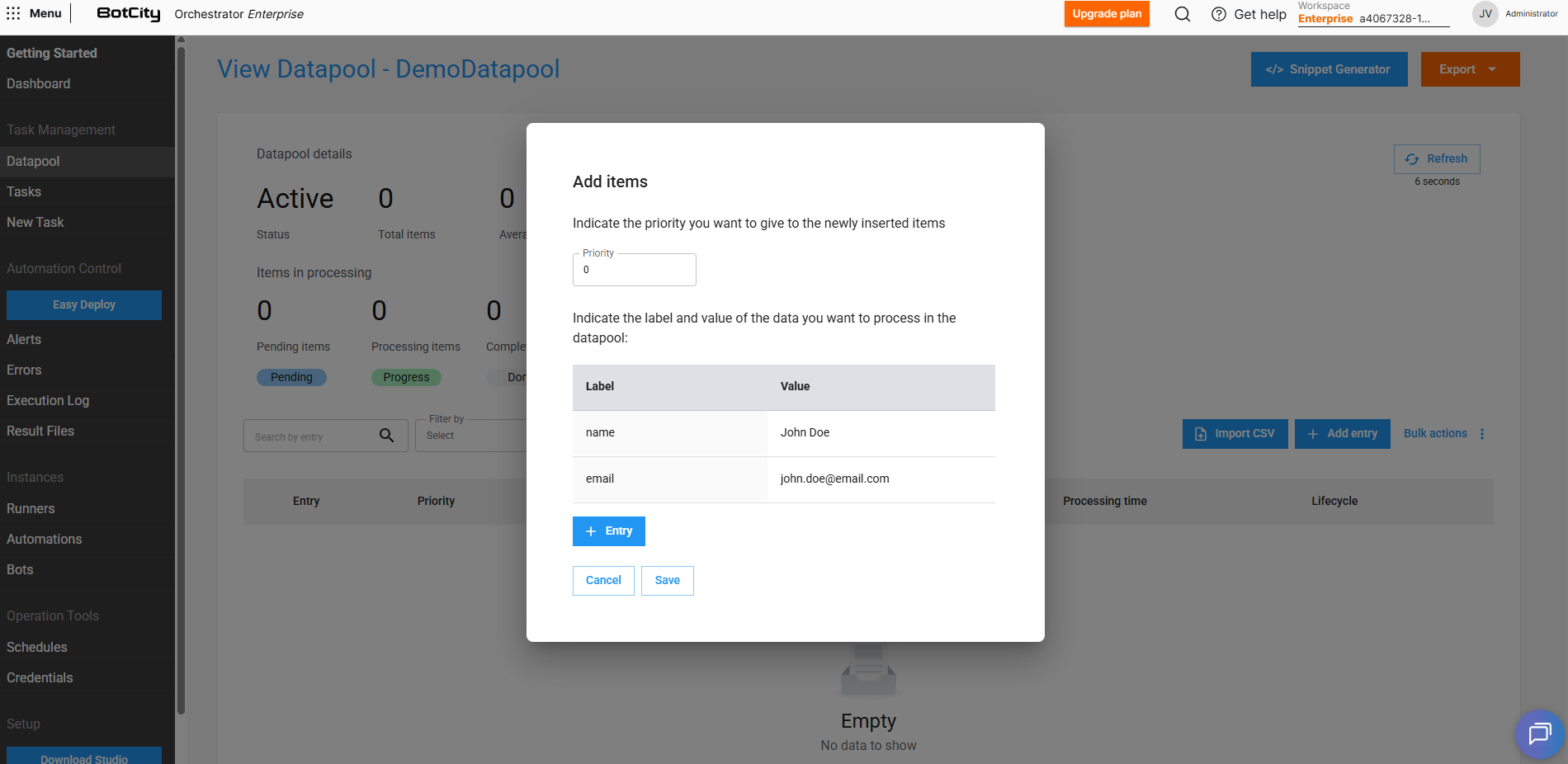
For exceptional cases, you can add items individually by filling in values directly on the platform as follows:
- On the Datapool main panel, click
+ Add entry - Set the item's priority (
0lowest to10highest) - Fill in the field values according to the defined Schema
(optional)Add new fields to the item by clicking+ Entry, if necessary- Click
Saveto submit this new item
Add items via CSV
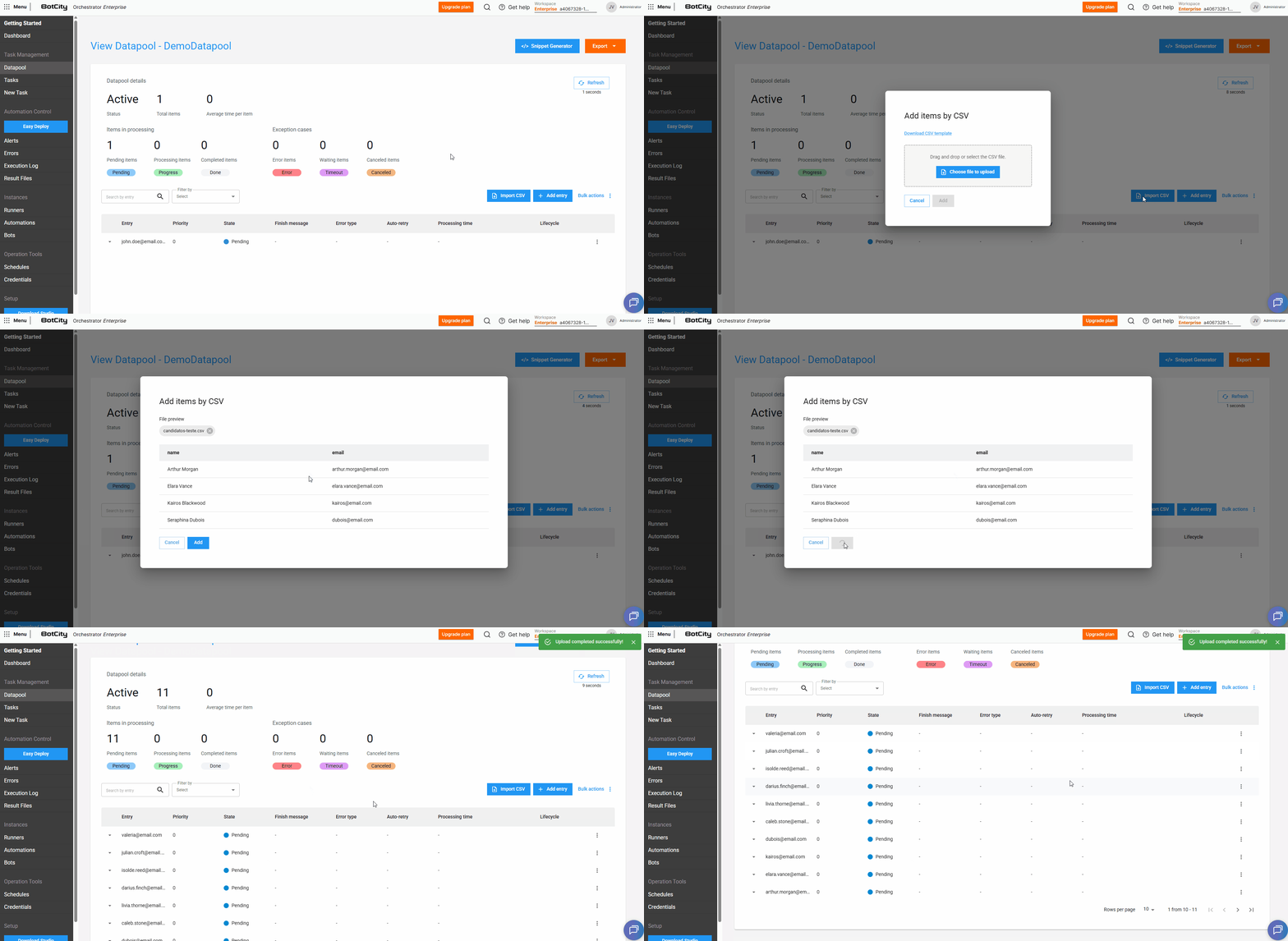
You can include multiple items at once by importing a .csv file as follows:
- On the Datapool main panel, click the
Import CSVbutton - A new window will open
- Download the sample file provided in the link
- Fill in the file with the data of the items to be added
- Upload the completed file
- Preview the items that will be added
- Click the
Addbutton to submit these new items
Attention
Depending on the unique value configuration defined in the Datapool Schema, duplicate items may be rejected during import.
Add items via SDK
To add items via code, you can use the BotCity Maestro SDK to create an automation that inserts items into the Datapool.
The SDK offers simple methods to interact with the Datapool. This functionality is available in Python and C# languages.
Maestro SDK
For more information on how to implement the Datapool functionality in code, see the Maestro SDK Datapool section.
Add items via API
The BotCity Orchestrator API also allows you to add items to the Datapool by making HTTP requests. This functionality is useful for integrating external systems that need to insert data into the Datapool or for using other programming languages not supported by the SDK.
Maestro API
For more information on how to implement the Datapool functionality via API, see the API Integrations section.
Manipulate Datapool items
The basic flow of an item consists of:
- Adding a new item
- The item is pulled for processing
- The item is finalized with success or error
View information
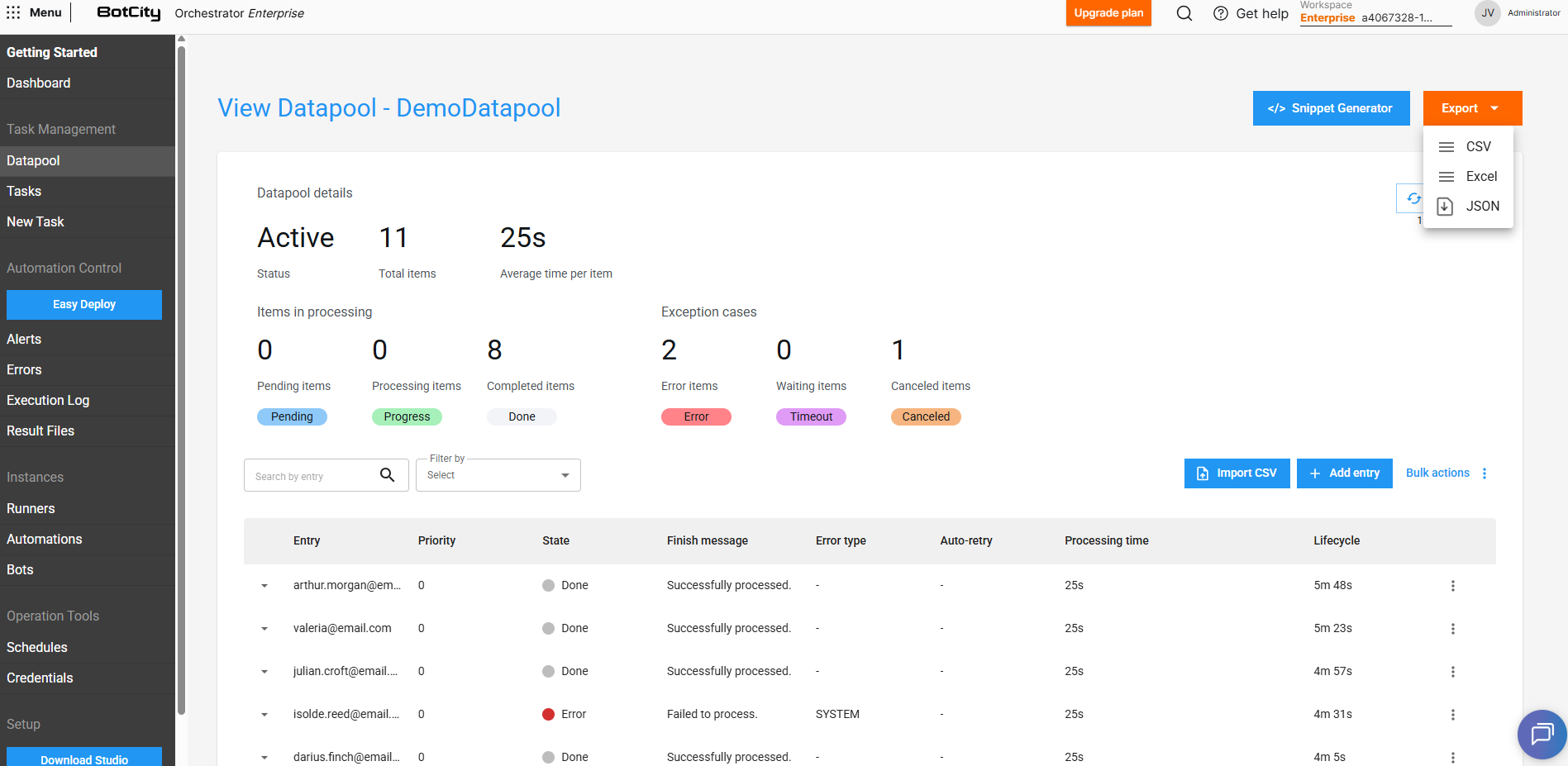
Each Datapool item has various information that can be viewed directly on the BotCity Orchestrator platform.
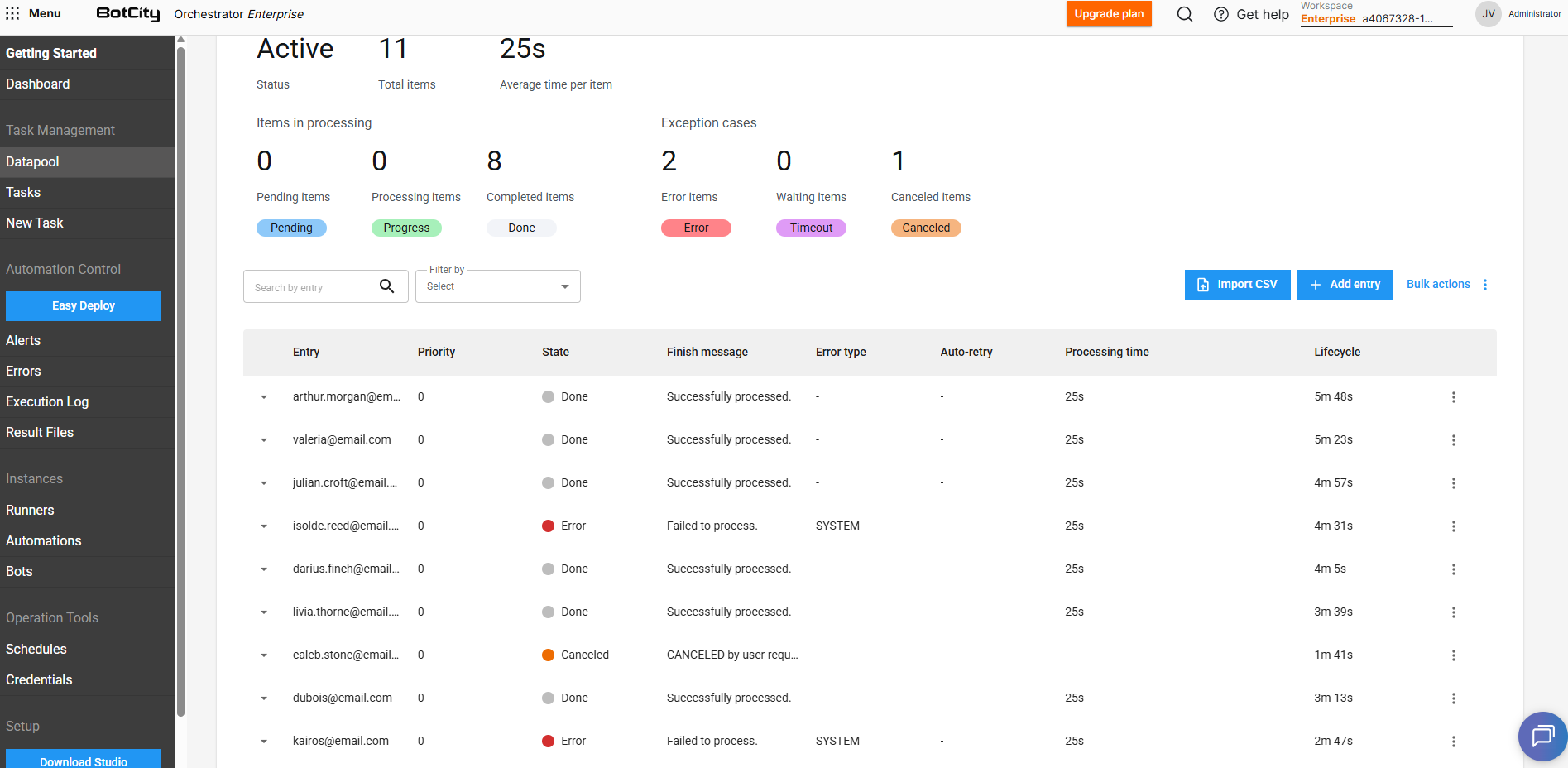
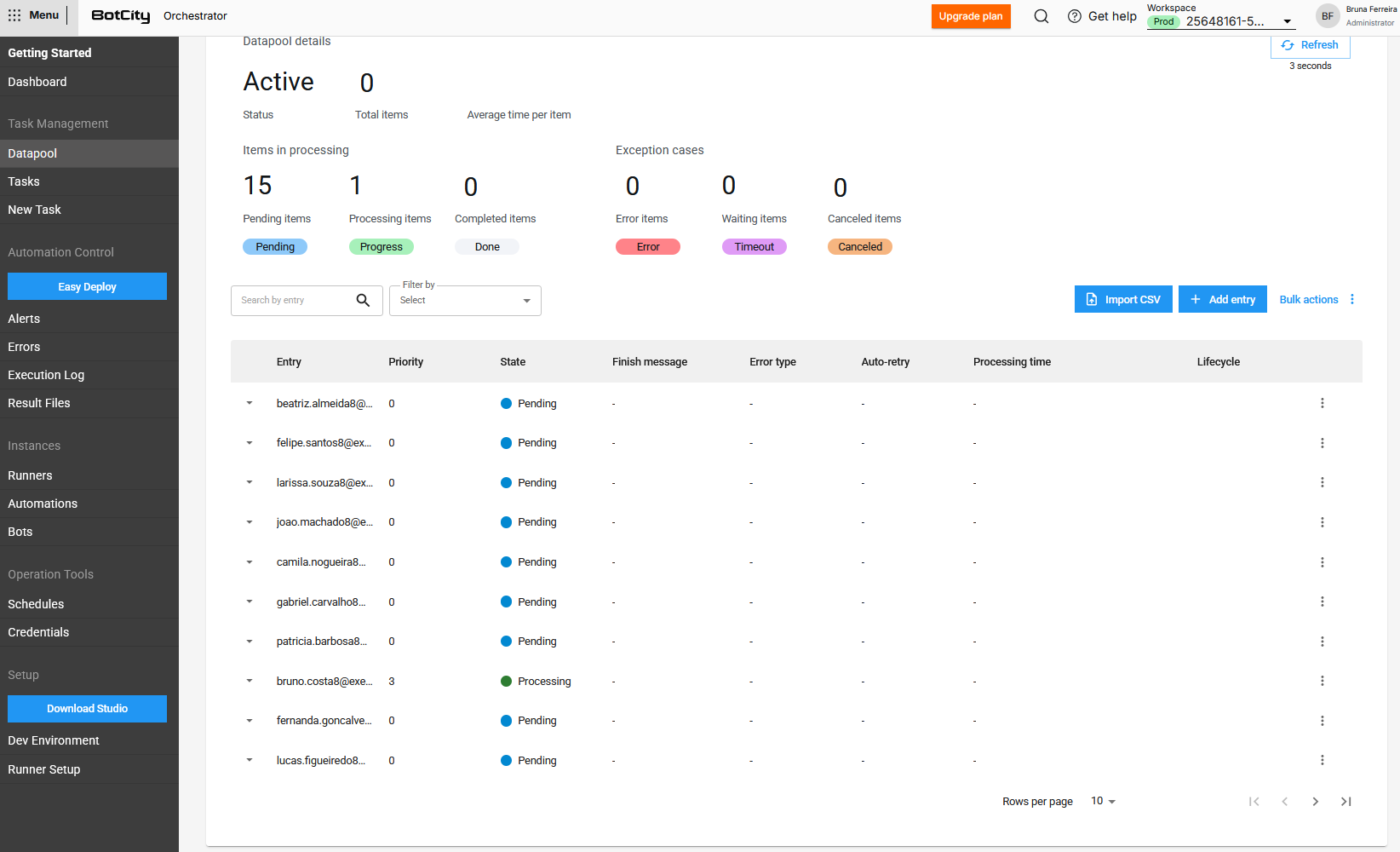
In the Datapool item list, you can view the following information in columns:
- Entry: The value of the fields marked in the
Schemato be displayed. If no field has been marked, the item ID will be displayed. (See more about Schema creation). - Priority: The priority set for the item. Items with higher priorities will be processed first.
- State: The current state of the item in the Datapool.
- Completion Message: The custom completion message reported via code at the end of processing.
- Error Type: The error type reported via code at the end of processing, if the item was processed with failure.
SYSTEM: Indicates that the processing error was caused by a system error. This will be the default type if not specified in the report.BUSINESS: Indicates that the processing error was caused by a business rule failure, meaning the item finished with an error due to a specific business rule.
- Auto-retry: Represents the processing attempt number, for items that were reprocessed.
- Processing Time: The time spent processing the item.
- Lifecycle: The time elapsed from when the item was created in the Datapool until the end of processing.
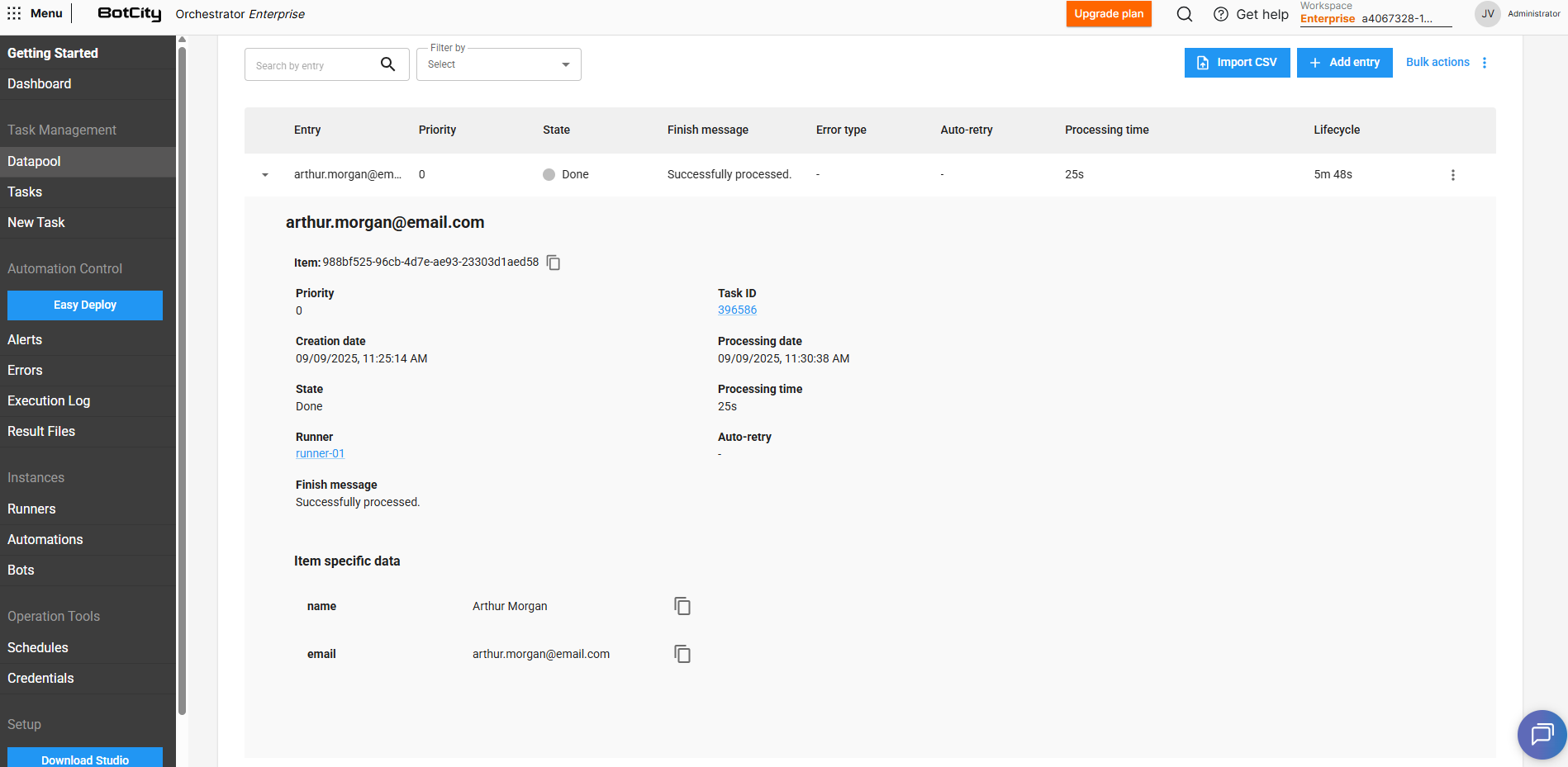
By expanding an item's details by clicking ▼, you can view the following additional information:
- Item: The unique identifier of the item.
- Priority: The priority set for the item.
- Task ID: The identifier of the task responsible for accessing and consuming that item from the Datapool.
- Creation Date: The date the item was added to the Datapool.
- Processing Date: The date the item was pulled for processing.
- State: The current state of the item in the Datapool.
- Processing Time: The time spent processing the item.
- Runner: The Runner responsible for executing the task that consumed the item.
- Auto-retry: Represents the processing attempt number, for items that were reprocessed.
- Completion Message: The custom completion message reported via code at the end of processing.
- Item-specific data: The key/value pairs defined in the Schema that make up the Datapool item.
- Edit button: Allows editing the item's values if it is in the
PENDINGstate. - Reprocessing history: Displays the history of processing attempts for the item, if it has been reprocessed.
Processing states
When an item is added to the Datapool, it will have an initial state of PENDING. This state may change according to the item's processing flow.
See all possible states for a Datapool item:
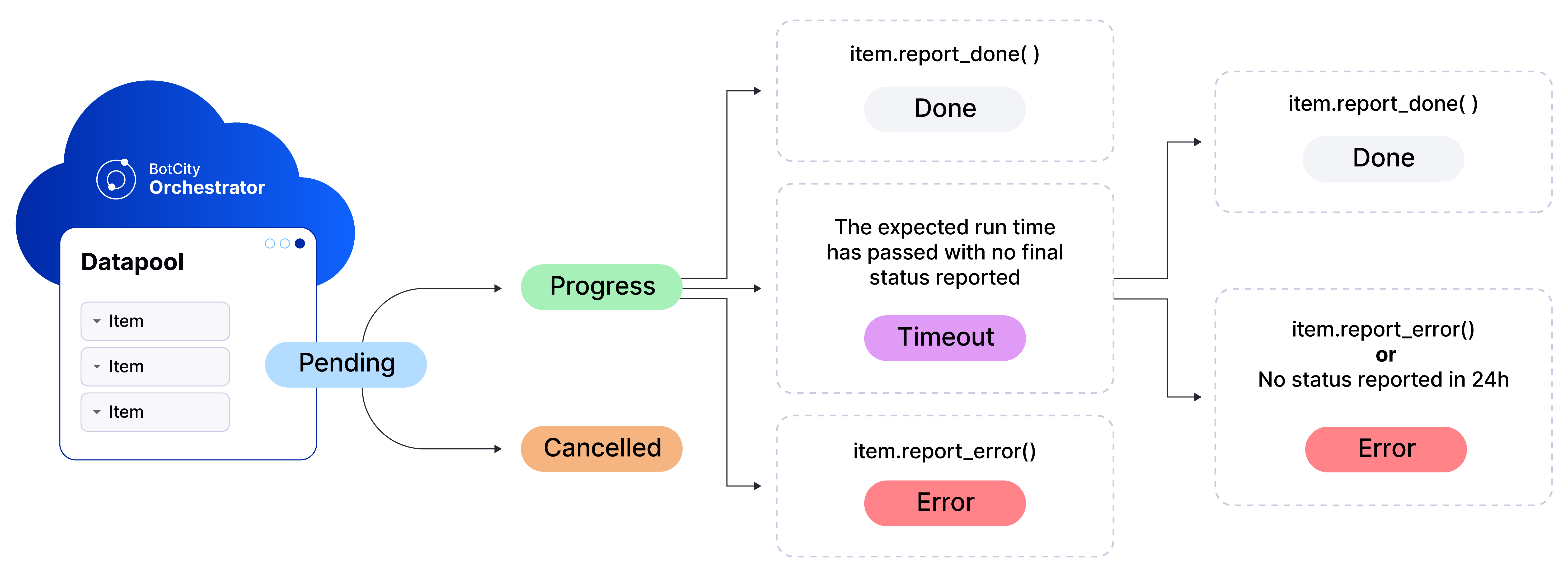
PENDING: The item is waiting for processing. At this point it will be available to be accessed and consumed.
PROCESSING: The item has been pulled for execution and is in the processing phase.
DONE: The item's processing has been completed successfully.
ERROR: The item's processing has been completed with an error.
SYSTEM: Indicates that the processing error was caused by a system error.BUSINESS: Indicates that the processing error was caused by a business rule failure. Errors of typeBUSINESSare not considered in Auto-retry and Abort on error scenarios.
CANCELLED: The item has been cancelled and will not be pulled for processing.
TIMEOUT: The item's processing time has exceeded the defined limit.
Understanding the TIMEOUT state
The TIMEOUT state is based on the time defined in the Processing Time property when creating the Datapool.
If the processing of an item exceeds the defined maximum time, the Datapool will automatically indicate that the item has entered a TIMEOUT state.
This time may be exceeded for various reasons, such as a missing report indicating the item's final state or some freeze in the process execution that prevents the report from being made.
This state does not necessarily indicate an error, as an item can still transition from TIMEOUT to a DONE or ERROR state. However, if the process does not recover (in case of eventual freezes) and the item state report is not made, the Datapool will automatically consider that item's state as ERROR after a period of 24 hours in TIMEOUT.
Edit item values
Items with PENDING state — meaning they have not yet been processed — can be edited, allowing their filled values to be changed and new fields to be added.
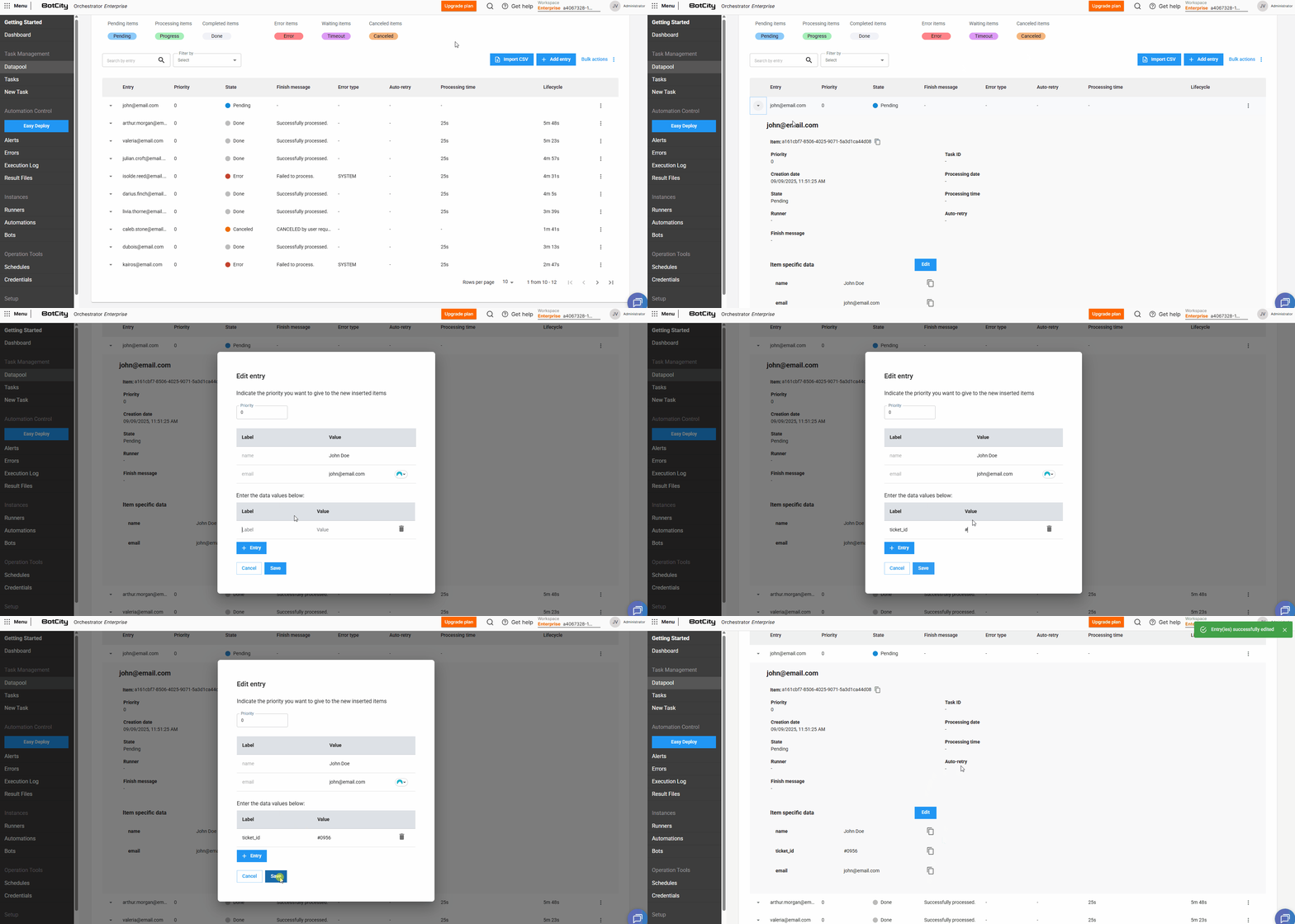
To edit an item, follow the steps below:
- On the Datapool main panel, locate the item you wish to edit
- Expand the item's details by clicking
▼ - Click
Edit - Change the desired values
(optional)Add new fields to the item by clicking+ Entry, if necessary- Click
Saveto save the changes
Consume items from the queue
To process Datapool items, the automation must consume the pending items through code.
Maestro SDK
For more information on how to implement the Datapool functionality in code, see the Maestro SDK Datapool section.
Report an item's state
The step of reporting an item's final state is crucial for the Datapool's states and counters to be updated correctly.
To do this, the final processing state of each item (DONE or ERROR) must be reported via code within the process logic.
If the item's processing state is not reported for any reason, two scenarios may occur:
-
Processing: The item will remain in the
PROCESSINGstate, even if it has finished processing. -
Timeout: If the processing time exceeds the value defined in the Processing Time property during the Datapool configuration, the Datapool will automatically assign a
TIMEOUTstate to that item.
Maestro SDK
For more information on how to implement the Datapool functionality in code, see the Maestro SDK Datapool section.
Datapool <> BotCity Insights
Reporting items in the Datapool does NOT have a direct impact on the metrics calculated by BotCity Insights.
To keep metrics updated, it is strictly necessary to:
- Ensure that the financial data for the automations is properly configured in the Data Input section within Insights.
- Ensure that the reporting of processed items is being done correctly in the task finalization, at the end of execution.
See more details in the BotCity Insights section.
Datapool item operations
In addition to viewing information, you can perform some operations by accessing each item's action menu.
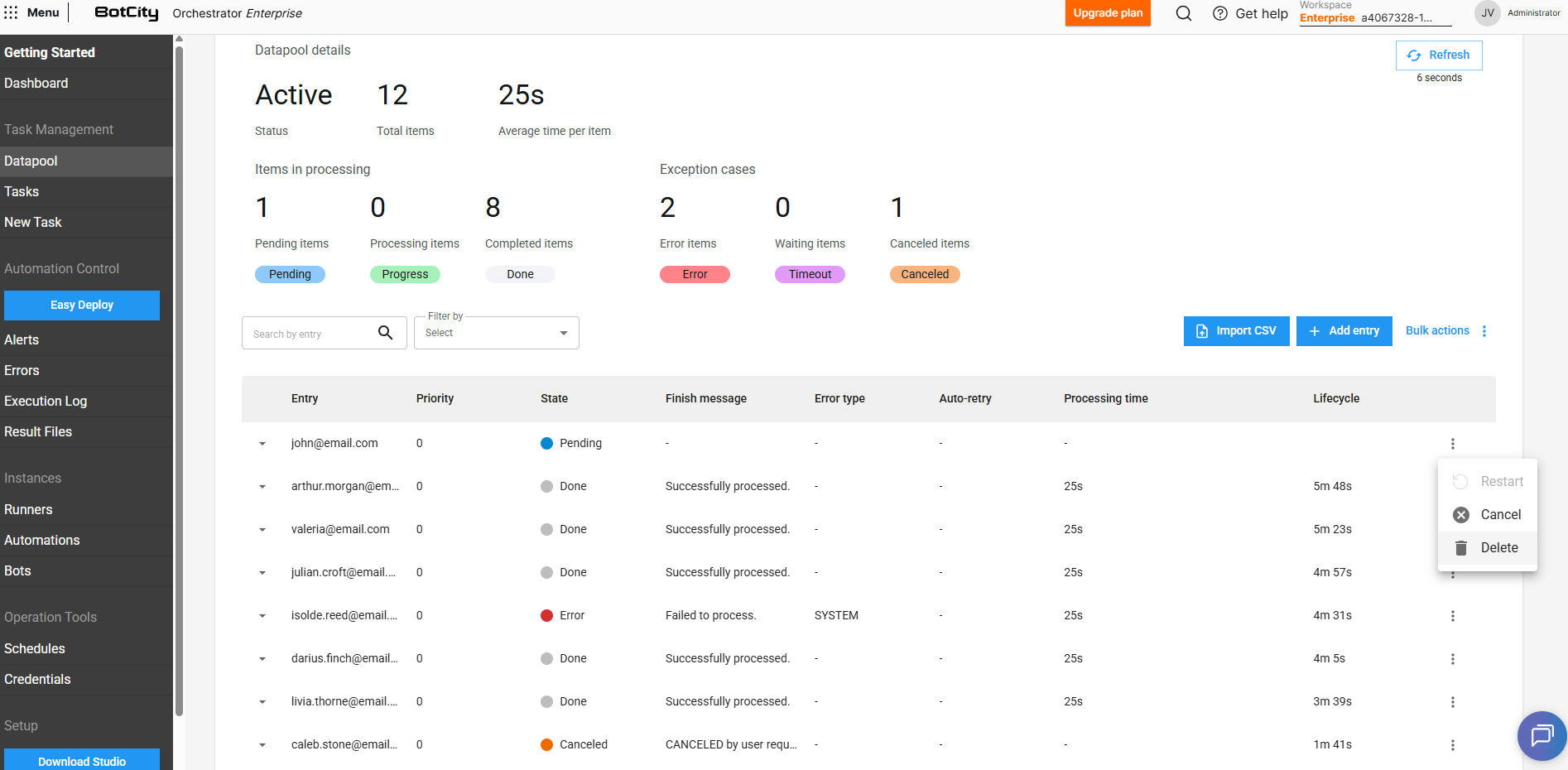
- Restart: Re-queues an item that has already been processed and is in
DONEorERRORstate. - Duplicate: Creates a copy of the item with
CANCELLEDstate to be processed. - Cancel: Cancels a
PENDINGitem. In this case, the item will be ignored during queue consumption. - Delete: Removes the item from the queue and from the Datapool history. It is not possible to delete items in
PROCESSINGorTIMEOUTstate.
Restarting items that have unique ID fields
If you are using fields with a unique ID function, it will not be possible to restart or duplicate an item that has already been processed.
In this case, the existing item must be deleted so that a new item using the same unique ID can be inserted into the Datapool.
Tip
Through the Bulk Actions feature, it is also possible to cancel or delete multiple items, should you need to perform these operations on a large volume of entries.
Filter items in the queue
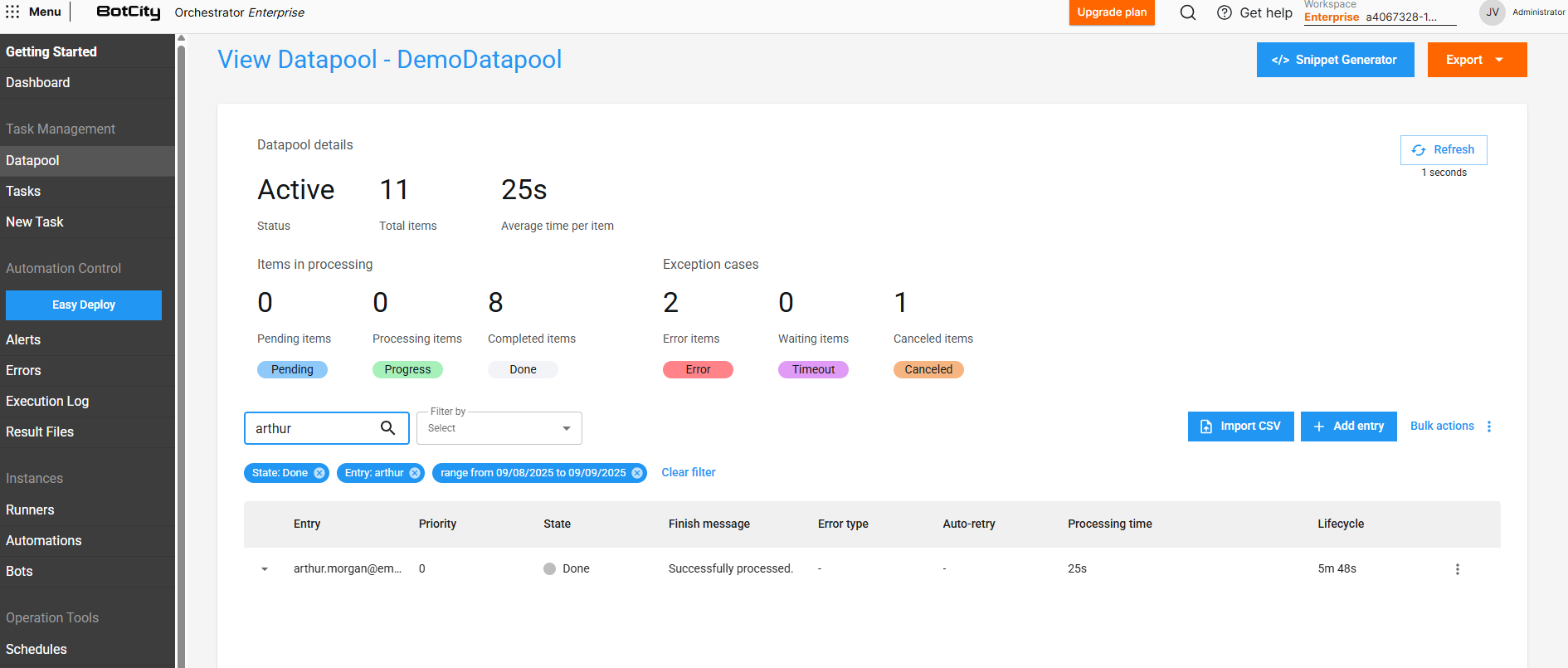
The Datapool has a filter feature that allows you to search for queue items by filtering on the insertion date or the item's current state.
Additionally, you can also search for a specific item using the values from the Entry column as filters.
Important
For a field to be used in the search, the Display value option must be checked in the field configuration within the Schema.
Export item data
It is possible to export Datapool item data for external analysis or integration with other platforms.
To export the data, follow the steps below:
- Filter the items you wish to export, if necessary
- Click the
Exportbutton - Choose the desired format:
CSV,ExcelorJSON - Download the generated file with the item data
When exporting data, all information visible in the Datapool item list is included, as well as additional processing details.
Export limit
The maximum limit of items that can be exported at one time through the BotCity Orchestrator is 30,000 items. If you wish to export a larger quantity, use the BotCity Orchestrator API to extract the data in batches.