Getting Started
Each Datapool created in the BotCity Orchestrator can have distinct characteristics and behaviors, depending on the automation scenario being implemented.
During the Datapool creation process, you can define several settings that can directly impact how items will be processed.
Creating a Datapool
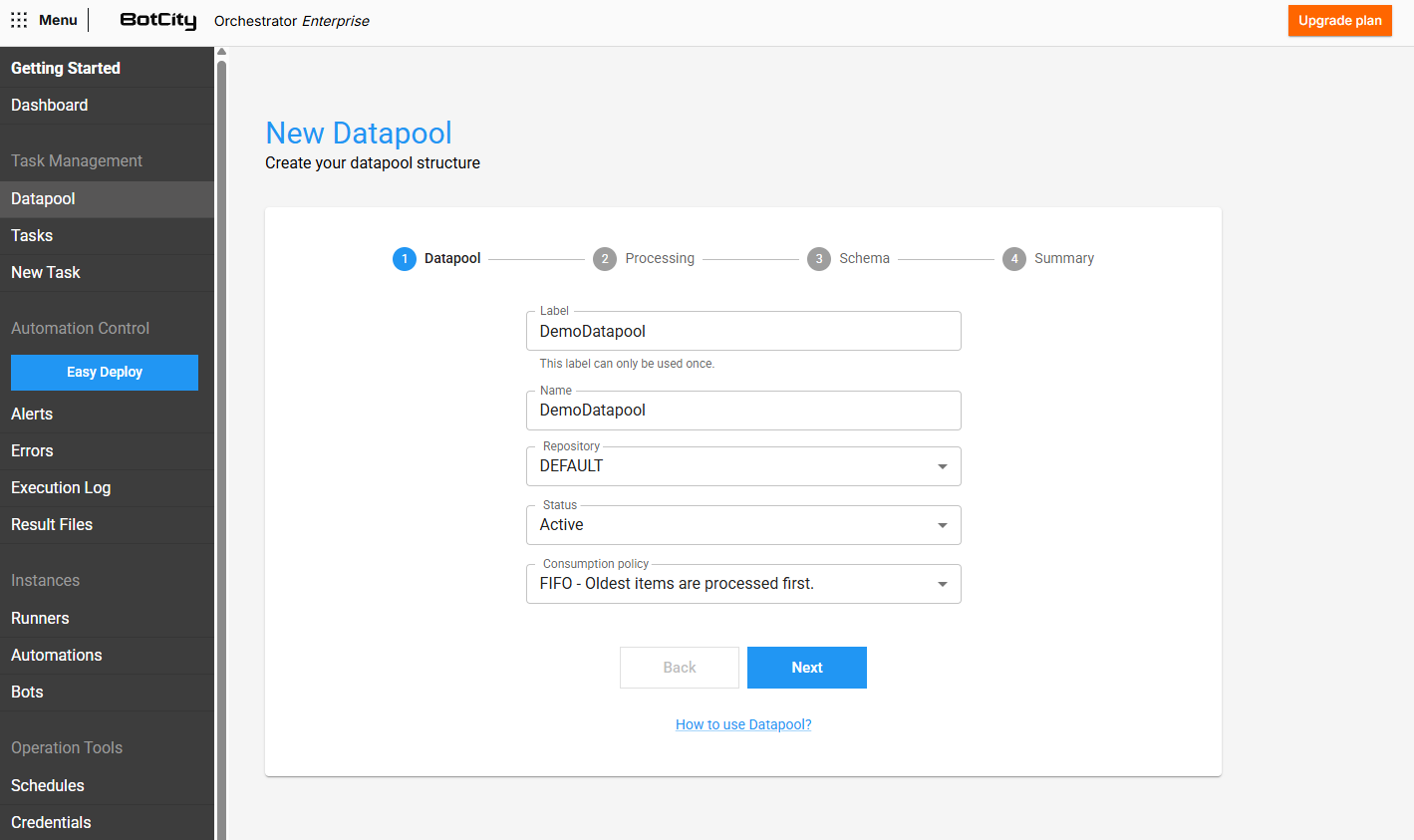
To create one, go to Datapool in the BotCity Orchestrator's side menu, click the + New Datapool button, and configure it in 4 steps:
Step 1 - Basic Information
In this step, you must provide initial information about the Datapool being created, filling in the following fields:
- Label: The unique identifier that will be used to access the Datapool.
- Name: The friendly display name of the Datapool.
- Repository: The workspace repository where the Datapool will be contained.
- Status: Determines the availability of the Datapool.
ACTIVE: Items can be added and consumed normally.INACTIVE: Blocks the consumption of items, but still allows new items to be added.
- Consumption Policy: You can choose between two consumption policies:
FIFO: The first item added to the Datapool will also be the first item processed.LIFO: The last item added to the Datapool will be the first item processed.
Attention
The label of each Datapool must be unique; if it is deleted, the label cannot be reused to create a new Datapool.
Step 2 - Processing Settings
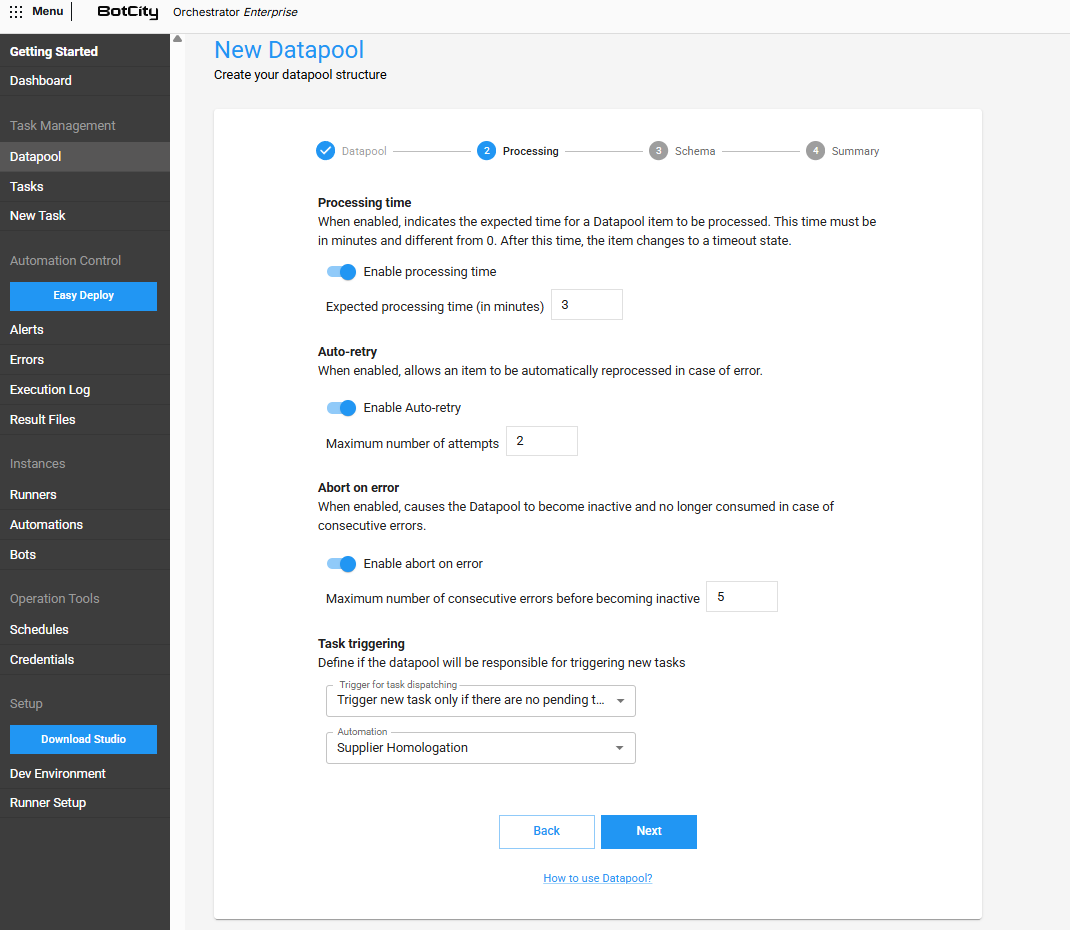
In this step, you must configure the Datapool's behavior during item processing.
Processing Time
When enabled, it allows you to define the expected time for a Datapool item to be processed under normal conditions.
- Expected processing time: The time in minutes, non-zero, expected for an item to be processed.
If an item exceeds the expected time, it will be in a Timeout state, meaning processing can continue, but the item will be flagged as having exceeded the time limit.
This state serves as an alert so you can analyze potential bottlenecks or problems in the processing flow.
Attention
After 24 hours of the item being in Timeout, it will be automatically terminated as a SYSTEM error.
Auto-retry
If enabled, allows an item to be automatically reprocessed in case of an error.
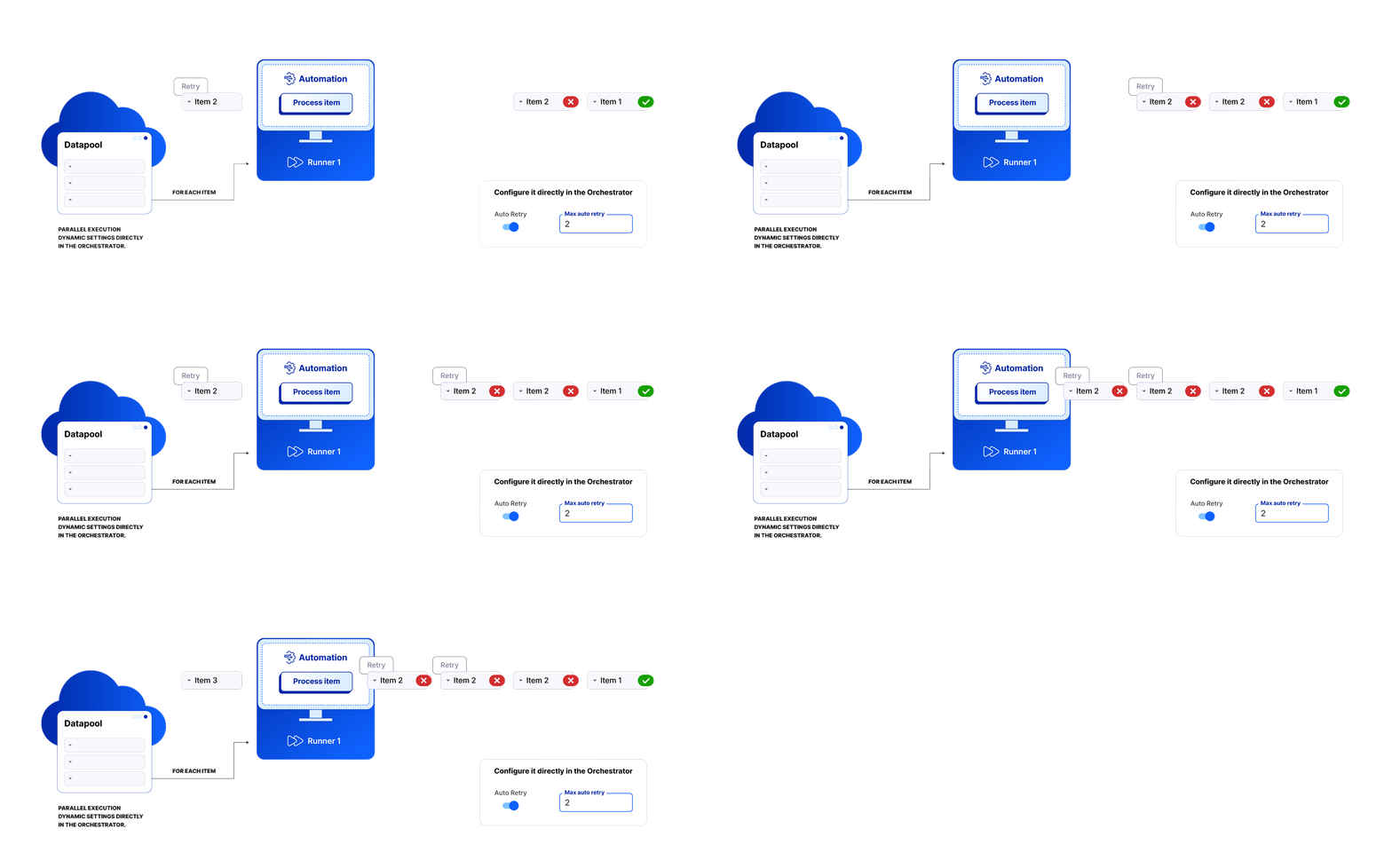
- Maximum number of attempts: The maximum number of attempts a single item can be reprocessed in case of an error.
If the item exceeds the maximum number of attempts, it will be terminated with a SYSTEM error state and will no longer be processed automatically.
Error type
Only items with SYSTEM errors will be considered for this scenario.
Abort in case of error
If enabled, causes the Datapool to become inactive and no longer be consumed in case of a consecutive number of items with errors.
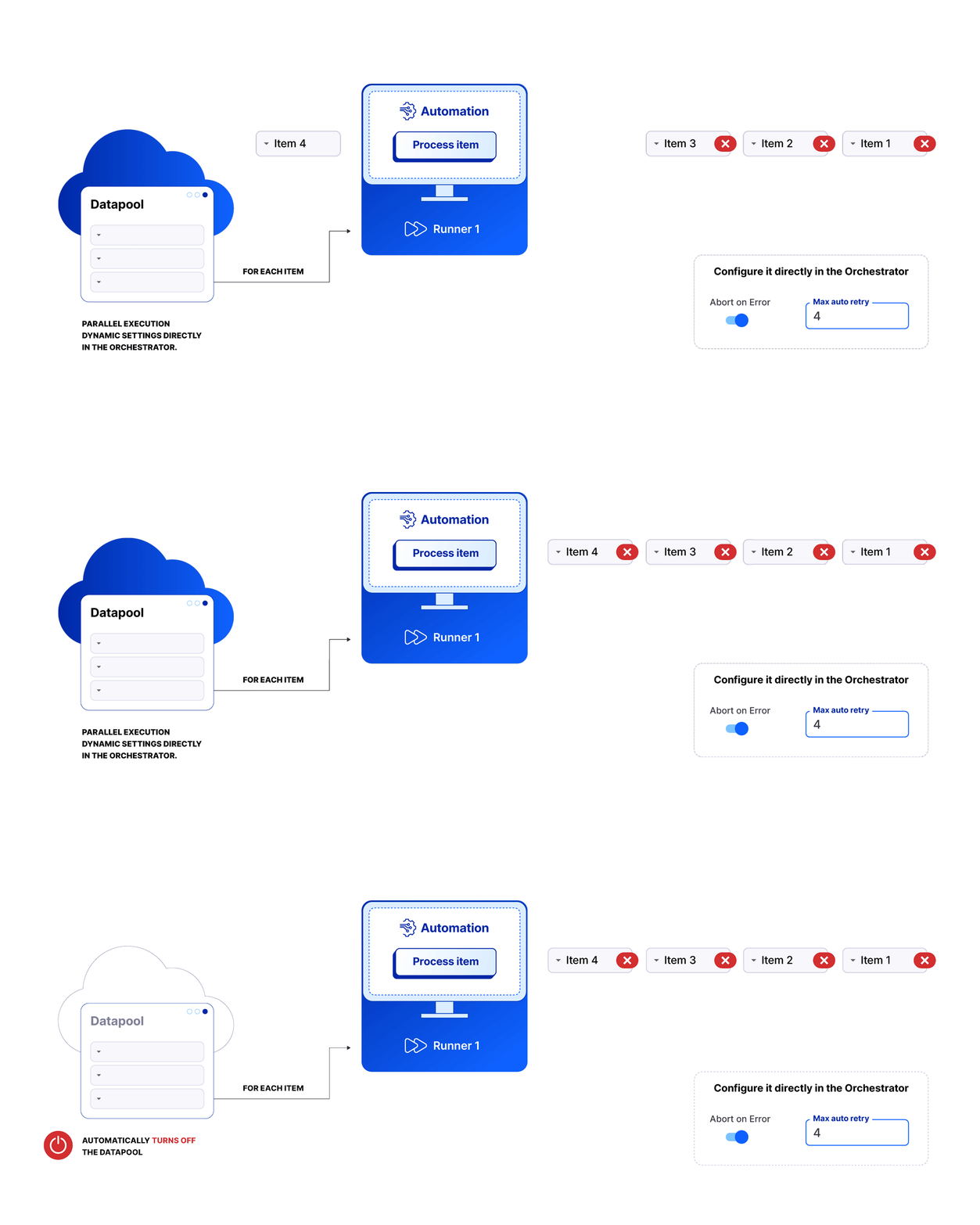
- Maximum number of consecutive errors until inactive: Maximum number of items processed with errors consecutively that will be tolerated until the Datapool becomes
INACTIVE.
Error type
Only items with SYSTEM type errors will be counted for this scenario.
Task Triggers and Task Triggering
You can define whether the created Datapool will also be responsible for creating new tasks.
Select one of the Task Trigger options:
- Never trigger a new task: The Datapool will never be responsible for creating tasks from an automation process.
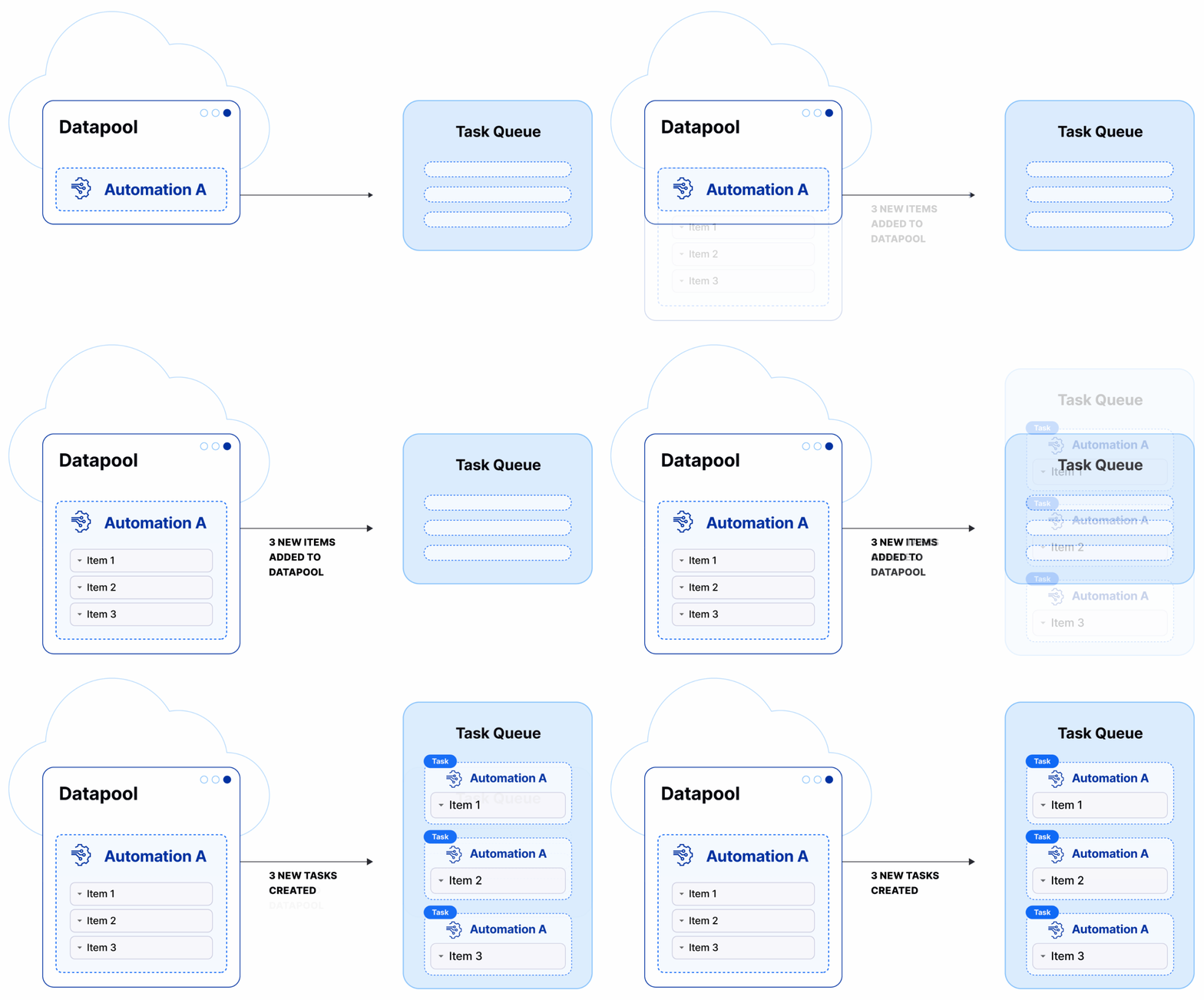
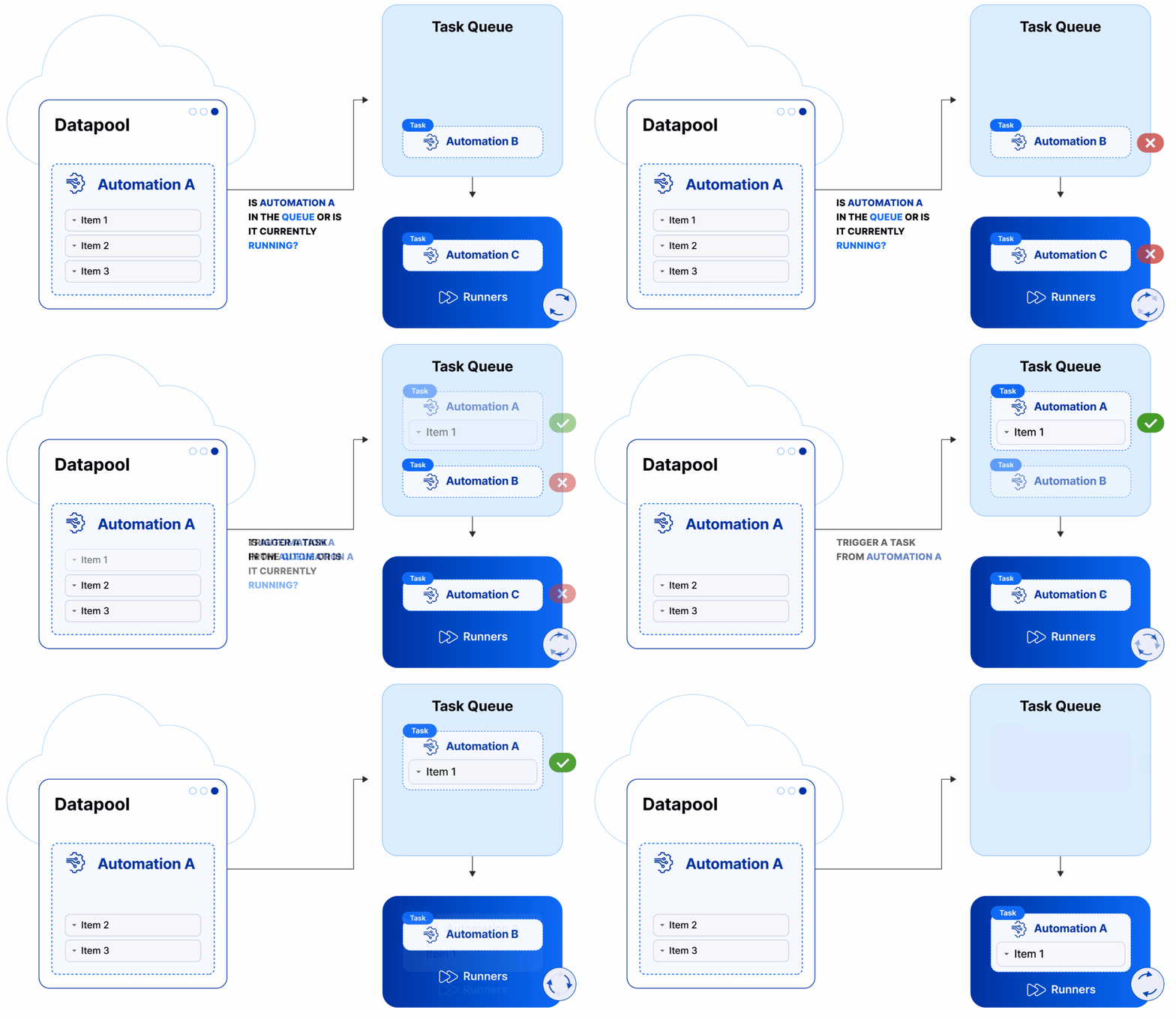
- Trigger a new task for each item added: Whenever a new item is added to the Datapool, a new task from the selected automation will be created. The ratio of the number of items added will be equivalent to the number of tasks created. See below:
- Trigger a new task only if there are no pending tasks: Whenever a new item is added, the Datapool will create a new task from the selected automation, but only if there are no tasks from that automation process being executed or waiting in the queue. The ratio is one task for every one or more items added. See below:
- Automation: Selects the automation process that will be used by the Datapool to create new tasks if any trigger is activated.
Information
To select any of the task triggers, it is important that the code is implemented in a way that supports each trigger.
Automation Parameters
When activating triggers, verify that the selected Automation requires parameters. For the trigger to fire tasks, the parameters need a default value assigned.
Step 3 - Schema Creation
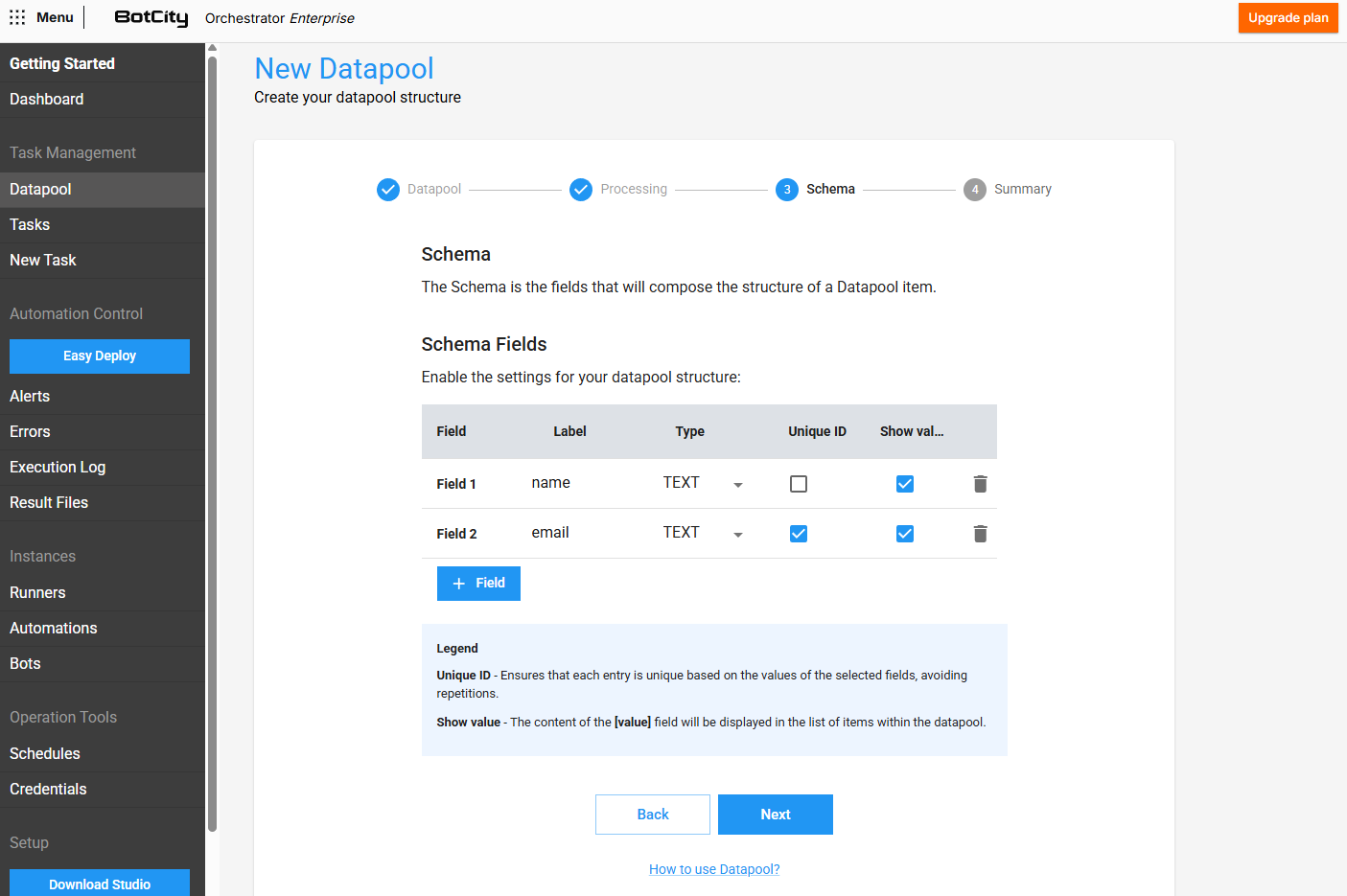
In this step, you can define the structure of the items that will be added to the Datapool, that is, which fields each item should contain.
To add new fields to the schema, click the + Field button and fill in the required information.
For each new field added, you can define:
- Label: The unique identifier that will be used to access this field.
- Type: The expected type for the value of this field:
TEXT,INTEGER, orDOUBLE. - Unique ID: If checked, the field will represent a unique key for the item, meaning that duplicate items with the same value for this specific field will not be allowed.
- Display value: If checked, the value of this field will be displayed in the
Inputcolumn of the Datapool item list, facilitating quick visualization of the most relevant data. The search field will use the values of these fields to filter the items.
Step 4 - Summary
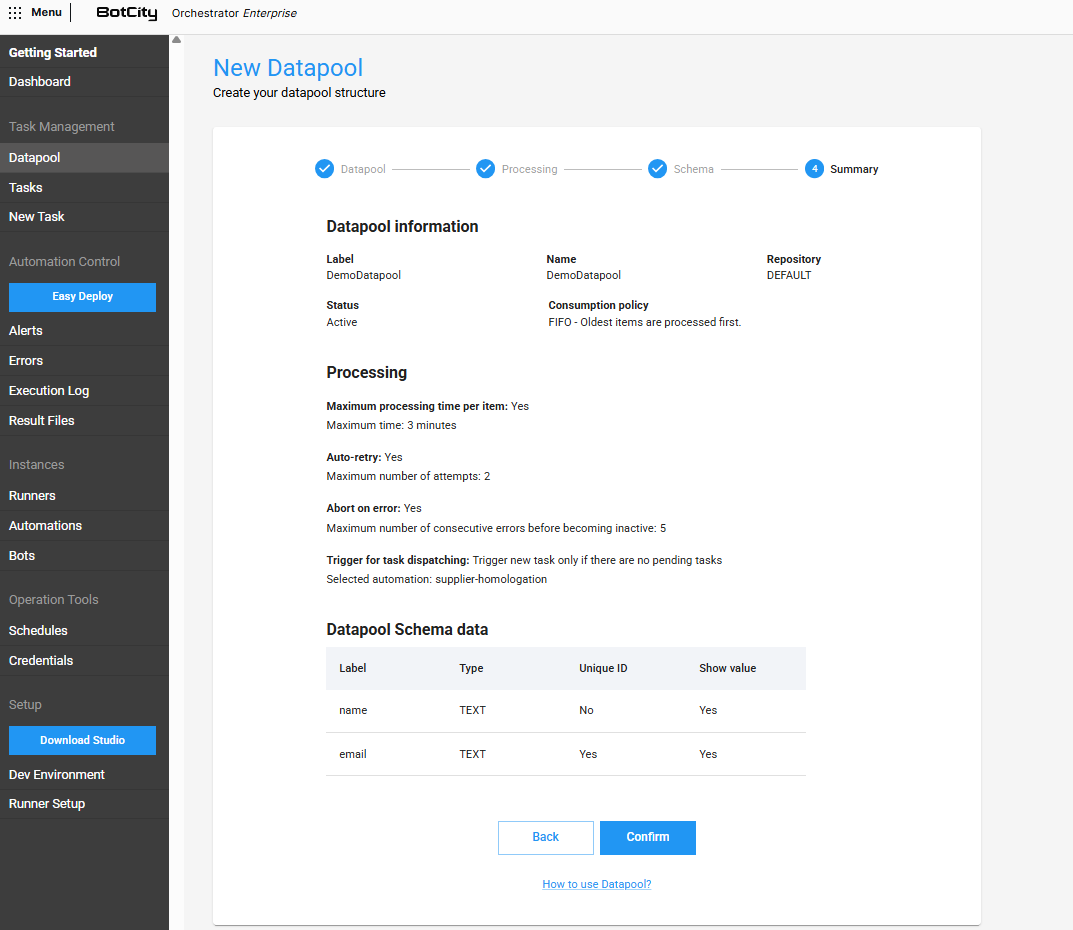
In this last step, you can review all the information defined in the previous steps.
If any information is incorrect, you can return to the desired step by clicking the Previous button to correct the information.
With everything correct, simply click Confirm to finalize the creation process.
Operations with the Datapool
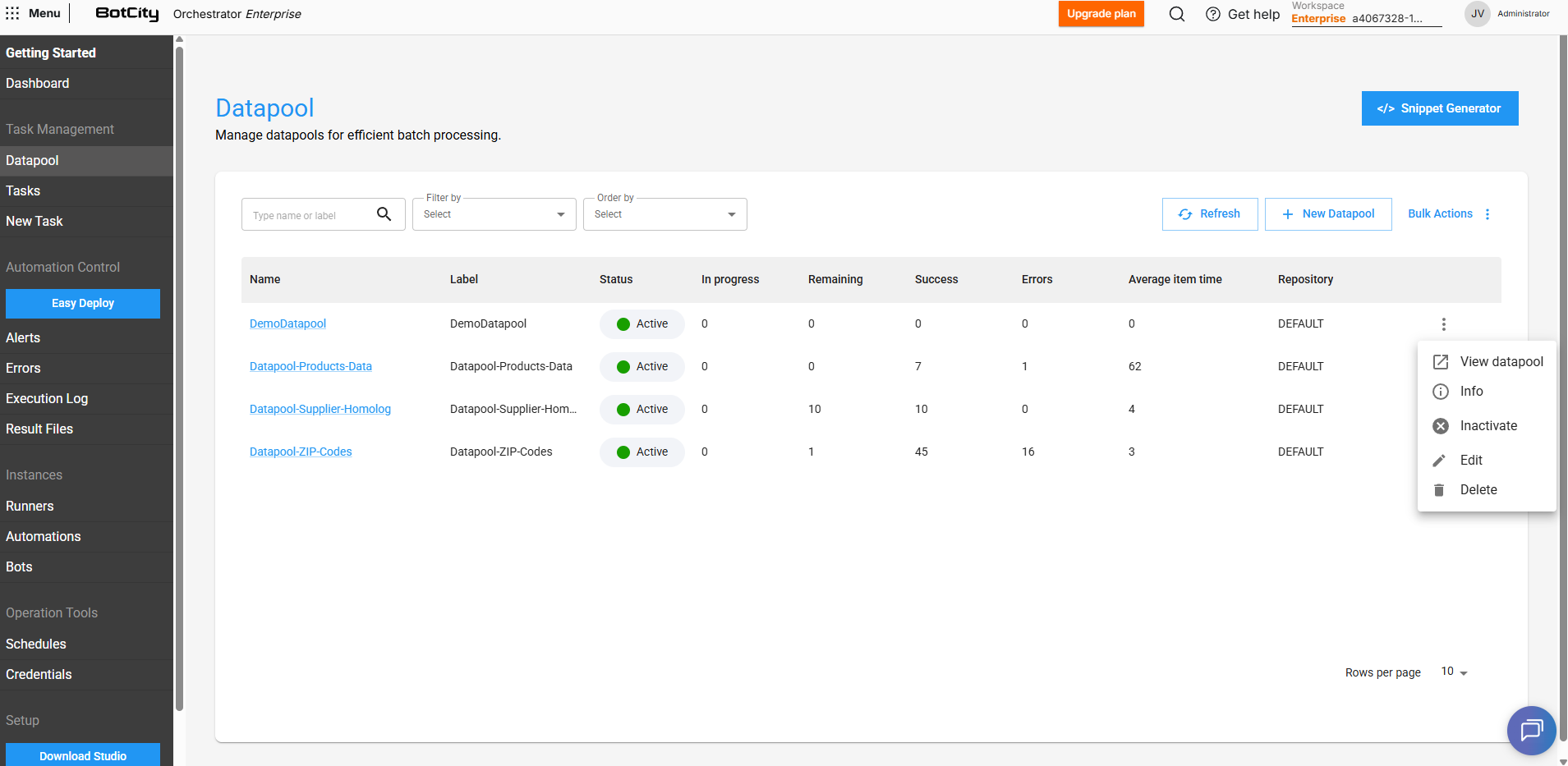
In addition to creation, you can also perform other operations with the Datapool. Through the actions menu, it is possible to:
- View Datapool: Access the main Datapool panel.
- Info: View the information currently configured for the Datapool.
- Activate/Deactivate: Defines whether the Datapool will be active or inactive, that is, whether to allow the added items to be consumed or not.
- Edit: Navigates between the Datapool configuration steps, allowing you to change them.
- Delete: Delete the Datapool, permanently removing it from the workspace in the BotCity Orchestrator.
Next Steps
With the Datapool structure created and configured, the next step is to start adding the items to be processed.