Skip to content

Variables

The first step in managing opportunities is to define the variables that will be evaluated during the qualification process of an opportunity.

The Opportunity Hub consists of these variables, which have their own weight and score. Additionally, the internal team defines which variables directly impact the score of an opportunity.

The product offers a set of default variables as a starting point. The internal team can manage, create, and modify these variables according to business needs.

To access the Opportunity Hub variables, click on Settings on the home page to open the menu, then click on Variables.
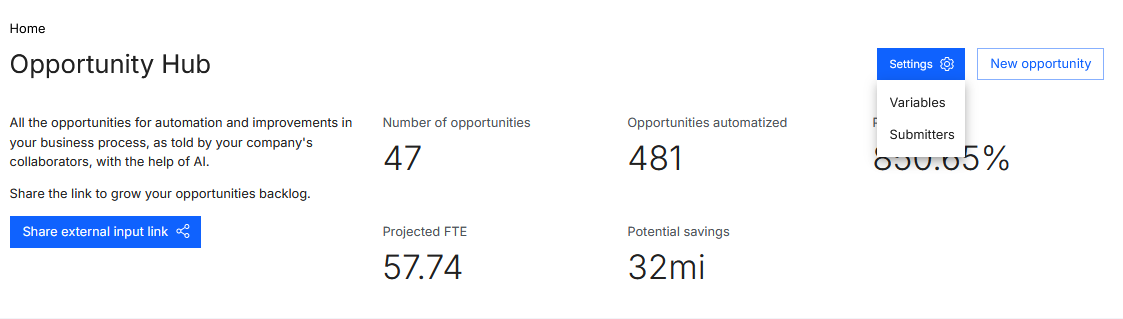
Screenshot of BotCity's "Opportunity hub". At the top, a dashboard displays aggregated metrics, focusing on the button to access the Variables Settings in the upper right corner.

Variable Categories

First Level

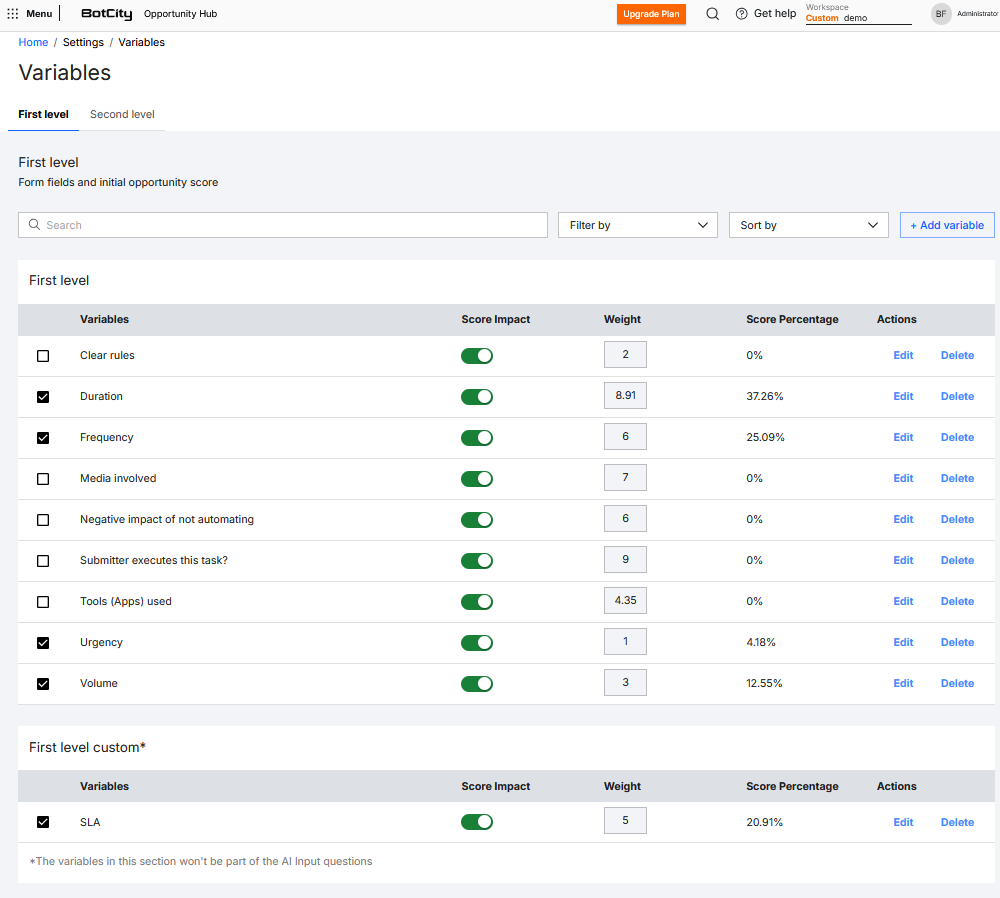
These are the simplest and most direct variables, which should be answered at the time of opportunity submission by the employee suggesting the opportunity. They help to understand the general scenario of the process.

These variables make up the external form, where the internal team can customize which ones will be displayed to the employee, the weight of each, and whether they will impact the final score of the opportunity.

Example: Screenshot of the "Variables" settings interface in the BotCity Opportunity Hub, on the "First Level" tab. The image shows a table for defining form fields and calculating the initial opportunity score. The table contains the columns: Default variables (e.g., Clear rules, Duration, Frequency, Volume), Impact on score (enabled/disabled), Weight (numeric value), Percentage of score (value with percentage impact on the total), and Actions (Edit/Delete). Below, a "Custom First Level" section with a list of variables added by users. At the top, there are search filters and a "+ Add variable" button.
Second Level

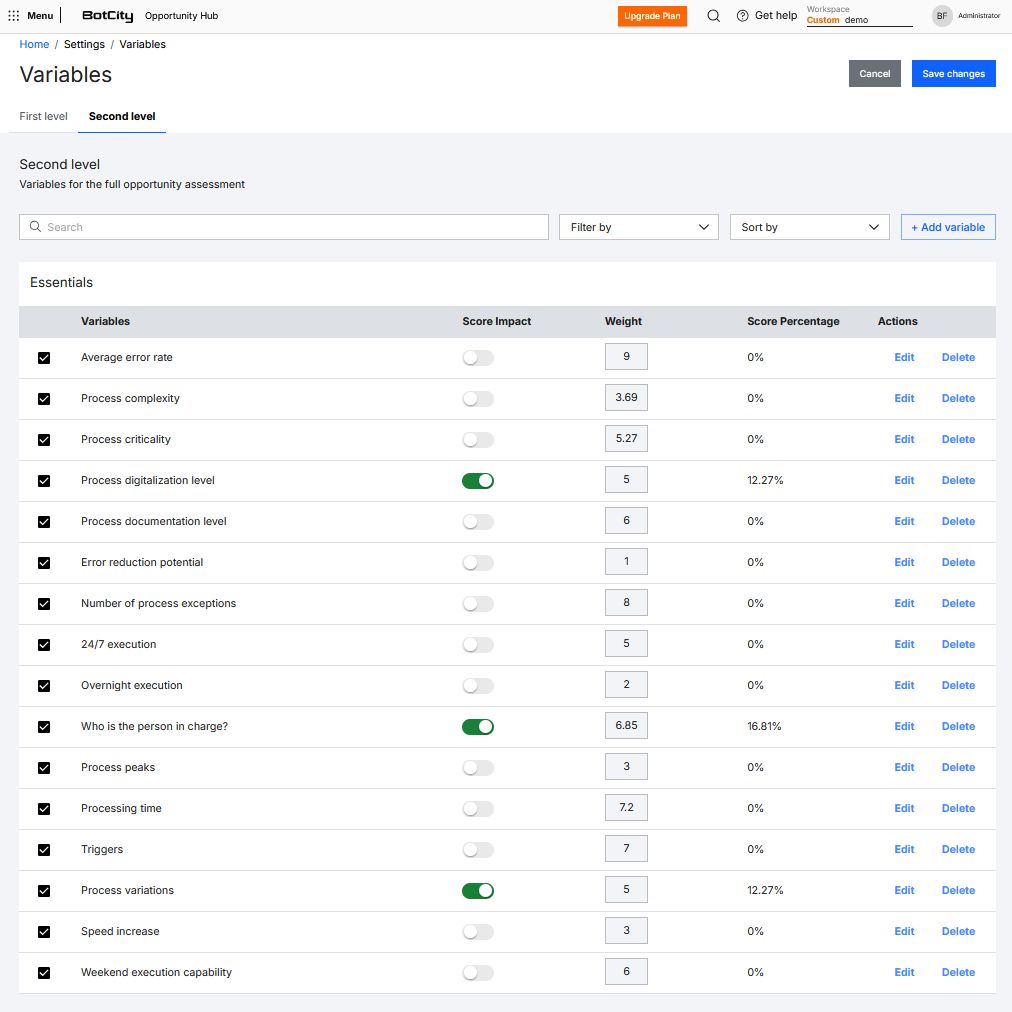
These variables help deepen the understanding of the process and are not directly displayed to employees. They serve as a basis for evaluation by the internal team, as they involve more technical questions that need to be analyzed by professionals responsible for the process.

Second-level variables are divided into:

  • Essentials
  • Financial
  • Infrastructure, Security, and Compliance
  • Customized

The Opportunity Hub offers a set of default variables for each of these categories, but the internal team can manage these variables according to business needs, including editing, deleting, or adding new variables, as well as adjusting their weight and score impact.

Example: Screenshot of the "Variables" settings interface in the BotCity Opportunity Hub, under the "Second Level" tab. The image shows a table for defining form fields and calculating the initial opportunity score. The table contains the following columns: Default variables (e.g., Average error rate, Process complexity, Process criticality), Impact on score (enabled/disabled), Weight (numeric value), Percentage of score (value with percentage impact on the total), and Actions (Edit/Delete). At the top, there are search filters and a "+ Add variable" button.
Note

The customization feature is crucial for adapting the qualification process to business needs, focusing on opportunities that best align with the company's priorities and strategies.

Actions

The internal team can manage first- and second-level variables according to the company's business needs, goals, and strategies.

The possible actions are:

Add

To add a variable, select the first- or second-level tab and click the + Add Variable button, then fill in:

  • Variable Name: The name that will be visible for this variable
  • Question: What should be answered by the employee
  • Answers: Each alternative determines the variable's score from -2 to +2
  • Impacts Score: Enables or disables the variable's impact on the score
  • Weight: Determines the variable's weight
  • Score Percentage: Automatically calculated based on the weight

Once everything is filled out, click Add Variable.
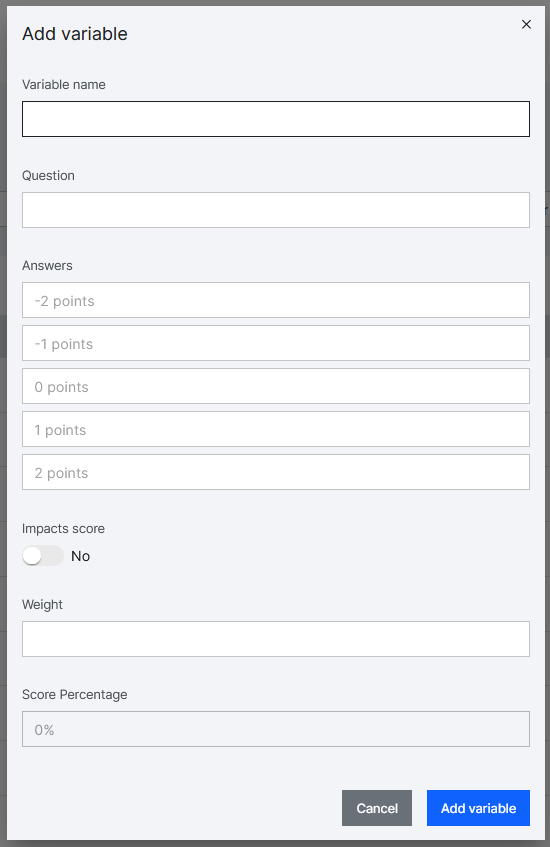
Screenshot of the form to add a new variable. Available fields: Variable name, Question, Answers (5 fields with scores from -2 to 2), Impacts score (Yes/No), Weight. Last field with percentage of the score calculated automatically. At the end, Cancel and Add variable buttons.

Edit

To edit, locate or search for the desired variable in the list, click the Edit action, modify the necessary fields, and click Save Changes.
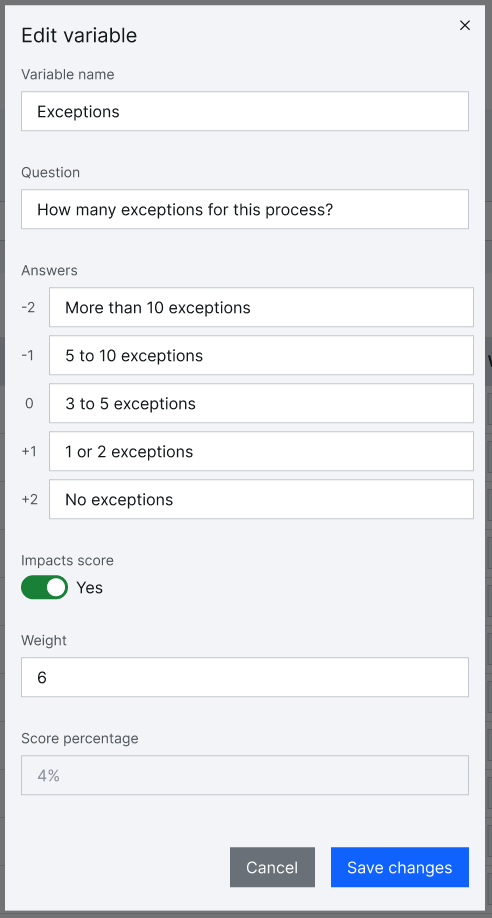
Screenshot of the form to edit a new variable. Available pre-filled fields: Variable Name, Question, Answers (5 fields with scores from -2 to 2), Impacts score (Yes/No), Weight. Last field with percentage of the score calculated automatically. At the end, Cancel and Save changes buttons.

Delete

To delete, locate or search for the desired variable in the list, click the Delete action, then click Confirm Deletion.

Attention

The delete action is permanent.
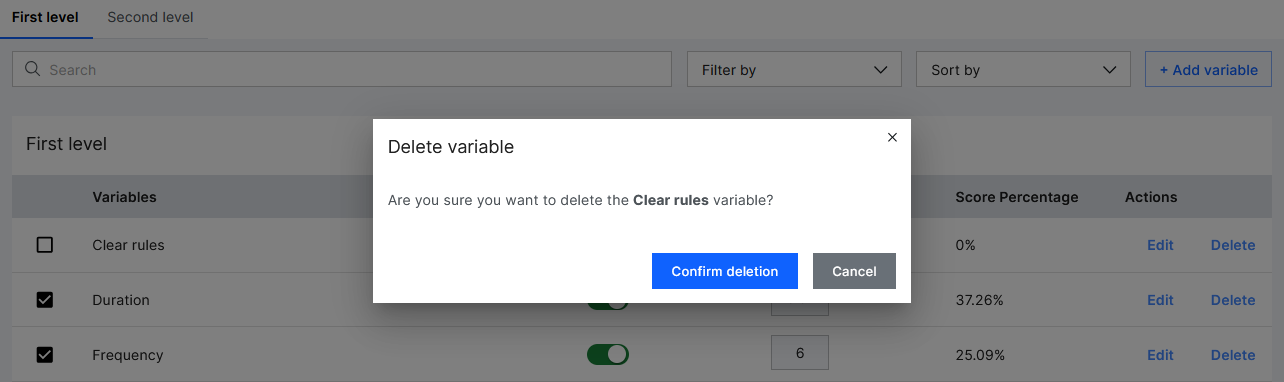
Screenshot of the "Variables" settings interface displaying a deletion confirmation modal overlaid on the variables table. The modal title is "Delete Variable" and contains the message: "Are you sure you want to delete the variable? This variable name cannot be used." Below the text, there are two action buttons: "Confirm deletion" (highlighted) and "Cancel." The main screen background is darkened to focus the user's attention on the modal.

Score Impact and Weight

These settings can be adjusted both in the create and edit forms or directly in the variable list under their respective columns.

After changing values in the columns, click the Save Changes button.
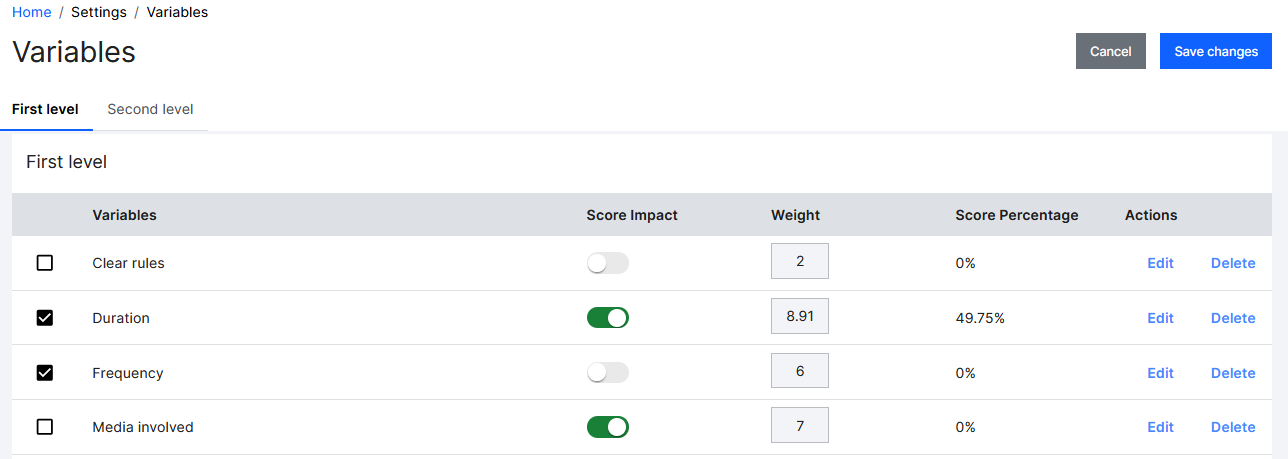
Screenshot of the "Variables" settings interface in the BotCity Opportunity Hub, on the "First level" tab. The image shows a table for defining form fields and calculating the initial opportunity score. The table contains the following columns: Default variables (e.g., Clear rules, Duration, Frequency, Volume), Impact on score (enabled/disabled), Weight (numeric value), Percentage of score (value with percentage impact on the total), and Actions (Edit/Delete). The focus is on the Impact on score and Weight columns, which can be changed directly in the list. At the top, there are two buttons: Cancel and Save changes.

Select Variables

It is possible to choose which variables will be part of the first- and second-level evaluations.

Select the desired variables and click the Save Changes button.
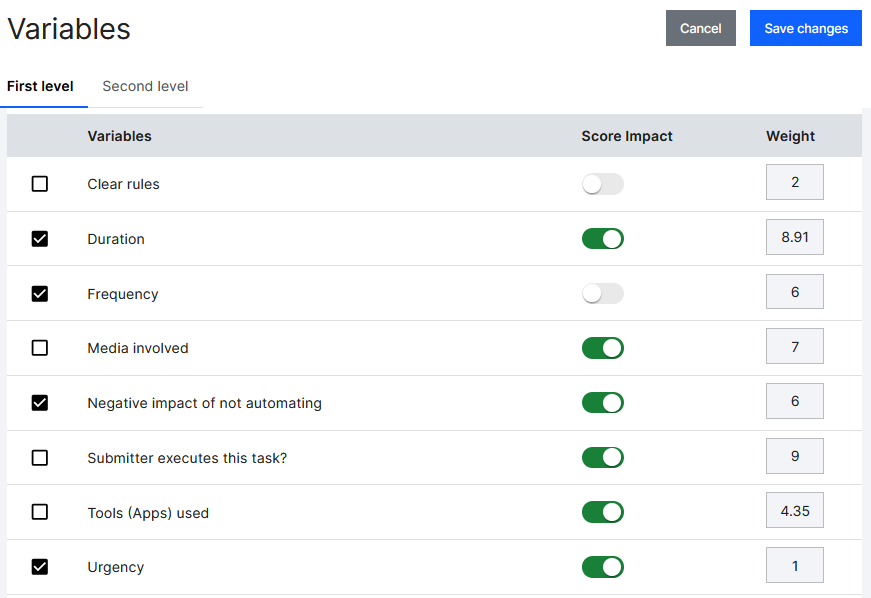
Screenshot of the "Variables" settings interface in the BotCity Opportunity Hub, on the "First level" tab. The image shows a table for defining form fields and calculating the initial opportunity score. Note the variable selection checkbox in the list (e.g., "Clear rules" and "Duration" checked; "Frequency" and "Volume" unchecked). At the top, there are two buttons: Cancel and Save changes.