Webhooks
Webhooks let the BotCity Orchestrator send operational events in real time to any HTTP endpoint you configure, whether it's Slack, Microsoft Teams, Datadog, Power BI, Google Chat, or any other tool. This way, you receive notifications as soon as they happen, without having to poll the Orchestrator API periodically or maintain a helper automation just for that.
Who has access?
Webhooks are available only on paid plans. Only users with the Administrator role can create, edit, delete, activate, or deactivate webhooks.
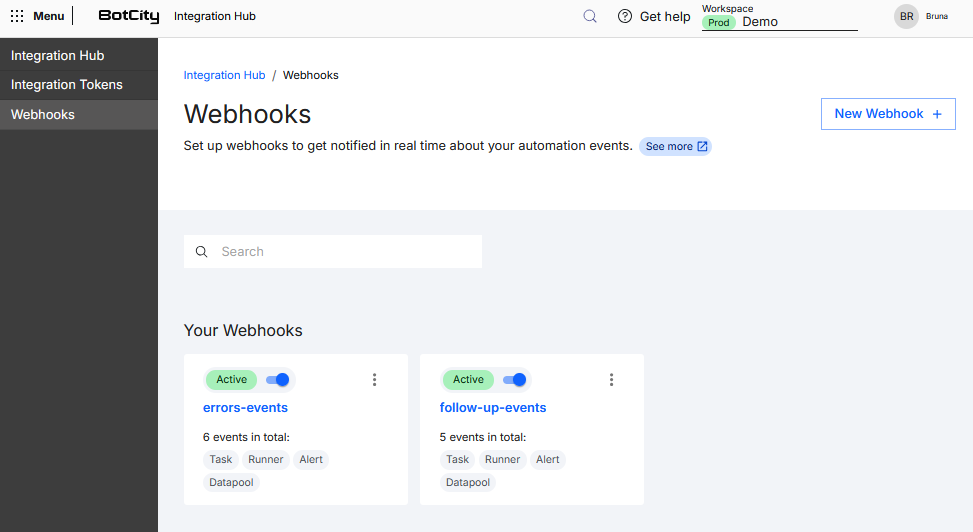
Creating a webhook
- Go to Integration Hub > Webhooks in the side menu.
- Click
New Webhook +. - Provide:
- Name: a descriptive name to identify the webhook.
- Endpoint URL: the HTTP URL that will receive the events.
- Select the events: at least one of the supported events, from any category.
- Click
Savein the top right corner. -
The platform generates an HMAC signing key and displays a copy button.
Save the key
The signing key is only shown in plain text at this moment. Copy it and store it in a safe place, it won't be shown again.
-
A card is created on the webhooks page, which you can activate and deactivate whenever needed.
- While active, whenever one of the selected events occurs, the platform sends a
POSTto the URL you provided.
Organizing notifications
You can combine events from different categories in a single webhook or create separate webhooks by category, or destination.
For example:
- Failures:
Task failed,Runner offline, andItem with business error - Follow-up:
Task started execution,Runner came online, andItem finished successfully
Supported events
Each webhook listens to the events you select from the four categories below.
Task
| Event | When it's triggered |
|---|---|
| Task started execution | When the Runner starts executing a task. |
| Task finished successfully | When a task is completed successfully. |
| Task failed | When a task fails during execution. |
| Task partially finished | When a task finishes with some items processed and some unprocessed. |
| Task timed out | When a task exceeds the configured execution time. |
| Task cancelled | When a task is cancelled before starting execution. |
Runner
| Event | When it's triggered |
|---|---|
| Runner went offline | When a Runner loses its connection with the Orchestrator. |
| Runner came online | When a Runner establishes a connection with the Orchestrator. |
Alert
| Event | When it's triggered |
|---|---|
| Error alert issued | When an error-type alert is issued during an automation's execution. |
| Warning alert issued | When a warning-type alert is issued during an automation's execution. |
Datapool
| Event | When it's triggered |
|---|---|
Item finished with SYSTEM error type |
When a Datapool item finishes with a system error. |
Item finished with BUSINESS error type |
When a Datapool item finishes with a business rule error. |
| Item timed out | When a Datapool item exceeds the configured processing time. |
| Item finished successfully | When a Datapool item finishes successfully. |
| Datapool with high error volume | When 50% of the total processed items result in a Datapool error. |
Configuring the event destination
Every webhook sends the BotCity Orchestrator's event payload to the HTTP URL you configure.
Specific tools
In this version, there is no native integration that translates this payload into the message format of a specific tool such as Slack, Microsoft Teams, or Google Chat.
To receive events, you maintain your own HTTP endpoint, responsible for processing the BotCity Orchestrator's payload and, if applicable, forwarding the information to the destination tool (Slack, Microsoft Teams, Datadog, Power BI, Google Chat, among others) in the format it expects.
Your endpoint needs to:
- Be publicly accessible via HTTPS, at the URL provided when creating the webhook.
- Accept
POSTrequests with aJSONbody. - Validate the HMAC signature sent in each request, as described in Authentication.
- Respond within the 1-second timeout, according to the retry and timeout policy.
The following sections detail the contract between the Orchestrator and your endpoint: how to validate the authenticity of requests, the payload structure sent for each event type, and how the Orchestrator handles failures and redeliveries.
Authentication
Every delivery is signed with HMAC-SHA256 and sent in the X-BotCity-Signature-256 header. Use the signing key generated when the webhook was created to validate this signature on your endpoint before processing the payload.
Always validate the signature
If your endpoint doesn't validate the signature, anyone who discovers the URL can send forged requests to it. Validation is the responsibility of the application receiving the webhook.
Validation example
import javax.crypto.Mac;
import javax.crypto.spec.SecretKeySpec;
import java.nio.charset.StandardCharsets;
import java.security.MessageDigest;

public boolean validateSignature(byte[] payload, String receivedSignature, String secretKey) throws Exception {
    Mac mac = Mac.getInstance("HmacSHA256");
    mac.init(new SecretKeySpec(secretKey.getBytes(StandardCharsets.UTF_8), "HmacSHA256"));

    StringBuilder hex = new StringBuilder();
    for (byte b : mac.doFinal(payload)) {
        hex.append(String.format("%02x", b));
    }

    return MessageDigest.isEqual(
        hex.toString().getBytes(StandardCharsets.UTF_8),
        receivedSignature.getBytes(StandardCharsets.UTF_8)
    );
}
Always validate against the raw body
Calculate the signature over the raw request body (before any JSON parsing). Parsing it first and serializing it back can produce a different string than the one the BotPlatform signed.
Payload structure
Every event arrives with the same structure: id, type, date, and body. The content of body varies according to the event type.
Payload example
Avoid processing duplicate events
Each event has a unique id. Use it to check for duplicates on your side, the delivery model is at-least-once, meaning the same event can, in rare cases, arrive more than once.
Retry and timeout policy
The delivery is asynchronous: a failure on your endpoint never affects the automation's execution.
- Timeout: your endpoint has 1 second to respond.
- Retry: up to 3 attempts, with exponential backoff between them.
- 4xx error: this type of error is treated as a definitive failure, with no retry.
- Example: authentication failure or invalid payload on your side.
- Status Code: the Orchestrator only validates the response's status code, the response body is not read.
- Success =
2xx
- Success =
Respond fast, process later
Your endpoint should only receive and queue the event. Any heavier processing should happen outside the webhook's synchronous path, so it doesn't exceed the 1-second timeout.
Webhook details
After creating your webhooks, you have the option to:
- Activate / deactivate: toggle the webhook's status directly from the card, without needing to delete and recreate it.
- View: click the webhook's name to open the details page.
- Options menu:
Edit: change the name, the endpoint URL, or the selected events.Delete: permanently removes the webhook. This action cannot be undone.
View
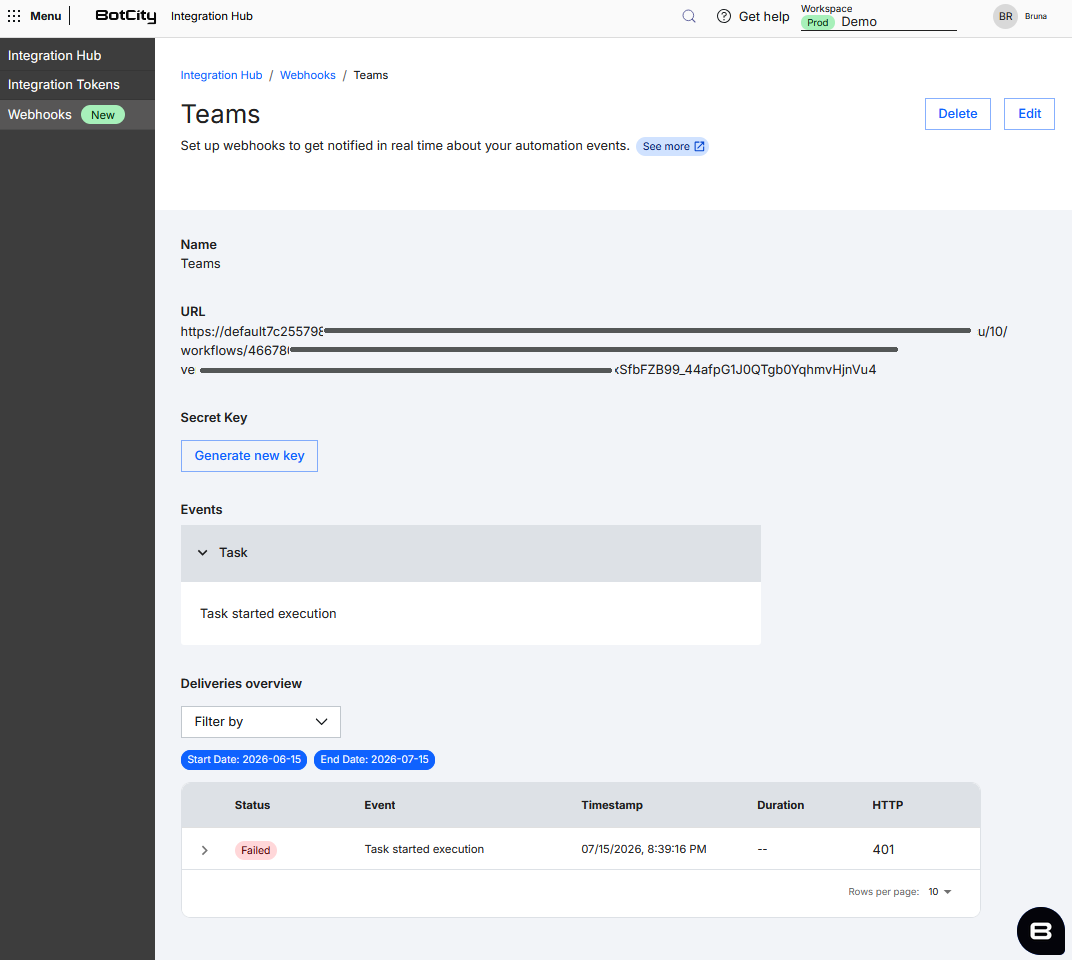
When you access your Webhook's page, you'll find the information organized in blocks.
General information
- Name: the name defined for the webhook.
- URL: the endpoint that receives the events.
- Secret Key: lets you generate a new HMAC signing key, invalidating the previous one.
- Events: the events selected for that webhook, grouped by category.
Deliveries overview
In this block you'll find a table with all the delivery attempts:
- Status: whether the delivery was completed successfully or failed.
- Event: the event that triggered the delivery.
- Date and time: when the delivery attempt occurred.
- Duration: how long your endpoint took to respond.
- HTTP: the HTTP status code returned by your endpoint.
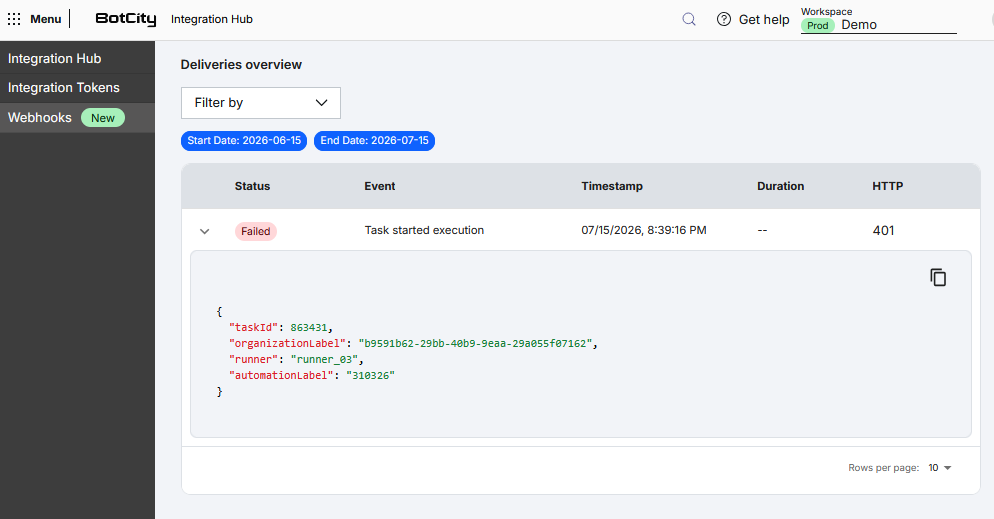
- Payload: each row can be expanded to show the payload sent in that attempt, with a button to copy it.
You can also filter deliveries by status or event, and by period using Start Date and End Date.
Your endpoint's response is not shown
The table shows the payload sent by the Orchestrator, but not the response body from your endpoint, since the platform only validates the status code.
Automatic deactivation
If a webhook accumulates 10 consecutive failed deliveries, it is automatically deactivated. A banner on the webhook's screen explains the reason, with a link to the delivery history.
Reactivation is always manual, performed by an Administrator.
Limits and permissions
- Available only on paid plans.
- Only the Administrator role can create, edit, delete, activate, or deactivate webhooks.
- Limit of 10 webhooks per workspace. Once the limit is reached, the create button is disabled.