Preferences
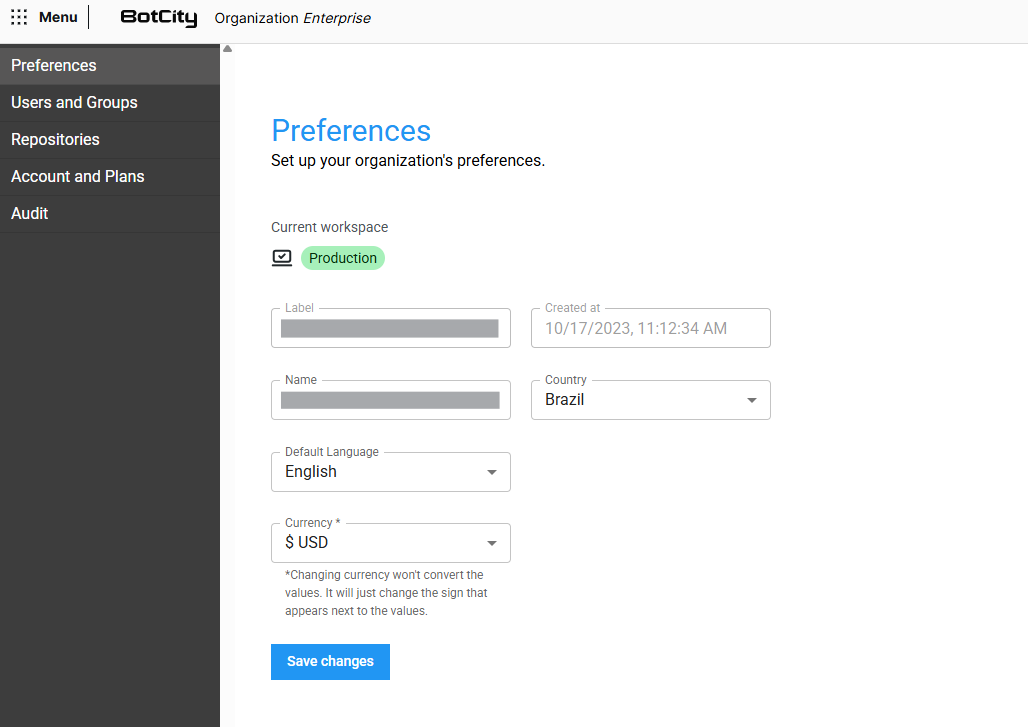
In the Preferences menu you can view your workspace's data:
- Current workspace: Tag that identifies the workspace type, making it easier to quickly recognize the resources linked to each environment:
Production: workspace used for processes and automations in real operation.Development: intended for creating and testing automations before they go to production.Validation: used for homologation of automations before deploying to production.Community: linked to the free BotCity Community plan.Trial: linked to the platform's free trial period.
- Label: Unique identifier of the workspace.
- Creation date: Date on which the workspace was created on the platform.
- Name: Editable display name of the workspace, shown in the menu and on the platform's screens.
- Country: Editable country linked to the organization, used for localization and compliance purposes.
- Default language: Editable language used as the default for displaying the platform to the workspace's users.
- Currency: Editable default currency used to display values related to the organization's plan and billing.
- Changing the currency will not convert the values. It will only change the symbol that appears next to the values.
Security policy password rules
You can also choose to enable a strict password policy for your organization.
By default, the BotCity Platform only requires a minimum password length of 8 characters. You can request a strict password policy for your organization through a support ticket on our customer service portal.
This policy enforces the following rules:
- Minimum password length of 12 characters;
- At least one uppercase letter;
- At least one lowercase letter;
- At least one number;
- At least one special character;
- Passwords cannot be the same as the two previous passwords;
- Passwords expire after 90 days;
Attention
Applying the strict password policy will also trigger a mandatory password change for all users in your organization.
This means that all users will be logged out and will have to change their password before they can log in again.