Integration Tokens
Configure the authentication tokens that connect the BotCity Orchestrator to external services. In this tutorial you configure the Slack Bot token and the Microsoft Teams webhook so the Orchestrator sends event alerts directly to those channels — such as task completion, reported errors, and Runner offline.
Platform notifications, not automation webhooks
The tokens configured here enable notifications generated by the Orchestrator (infrastructure and execution events). They are not related to webhooks triggered by your automations via code.
What you'll need
- Access to the BotCity Orchestrator with permission to edit workspace settings
- OAuth token and Slack channel ID (for Slack integration)
- Microsoft account with access to Microsoft Teams (for Teams integration)
Slack Bot Token
The Slack Bot token allows the Orchestrator to send event alerts to a Slack channel. Events covered: task completion, new result file, new bot release, new error event, and Runner offline. See the full list in Notifications.
1. Get the OAuth token and channel ID
Follow the step-by-step guide to obtain the OAuth token and the channel ID from Slack.
2. Enter the token in the Orchestrator
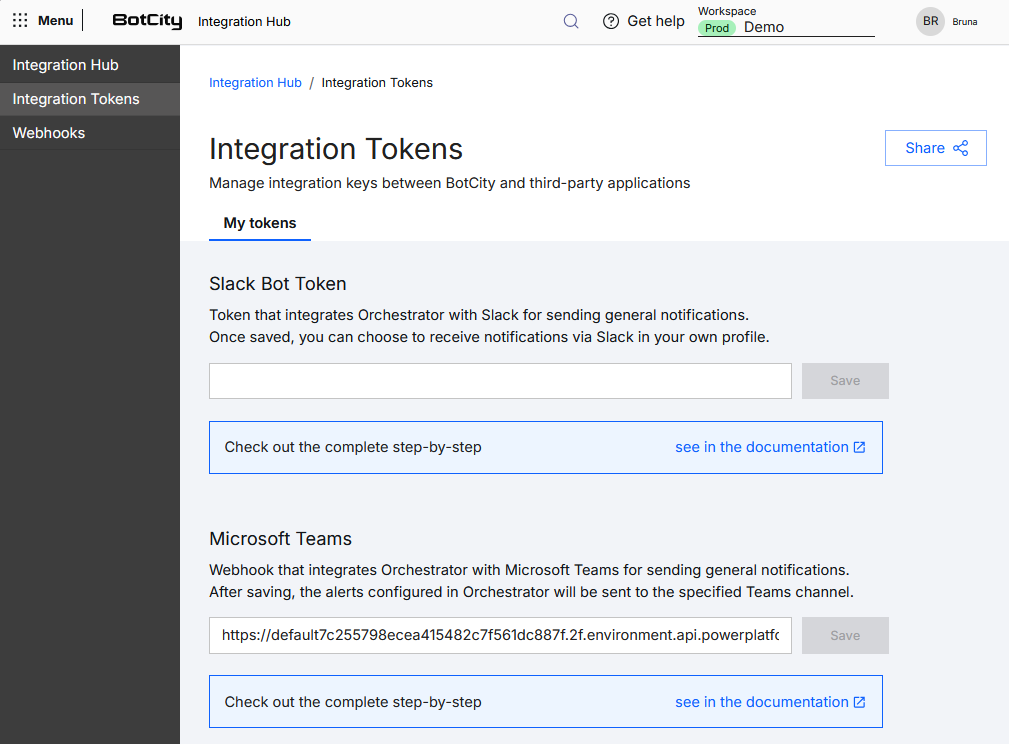
Access the Integration Hub page in your workspace. Locate the Integration Tokens field in the upper right corner, paste the OAuth token into Slack Bot Token and click Save.
3. Link the channel to your profile
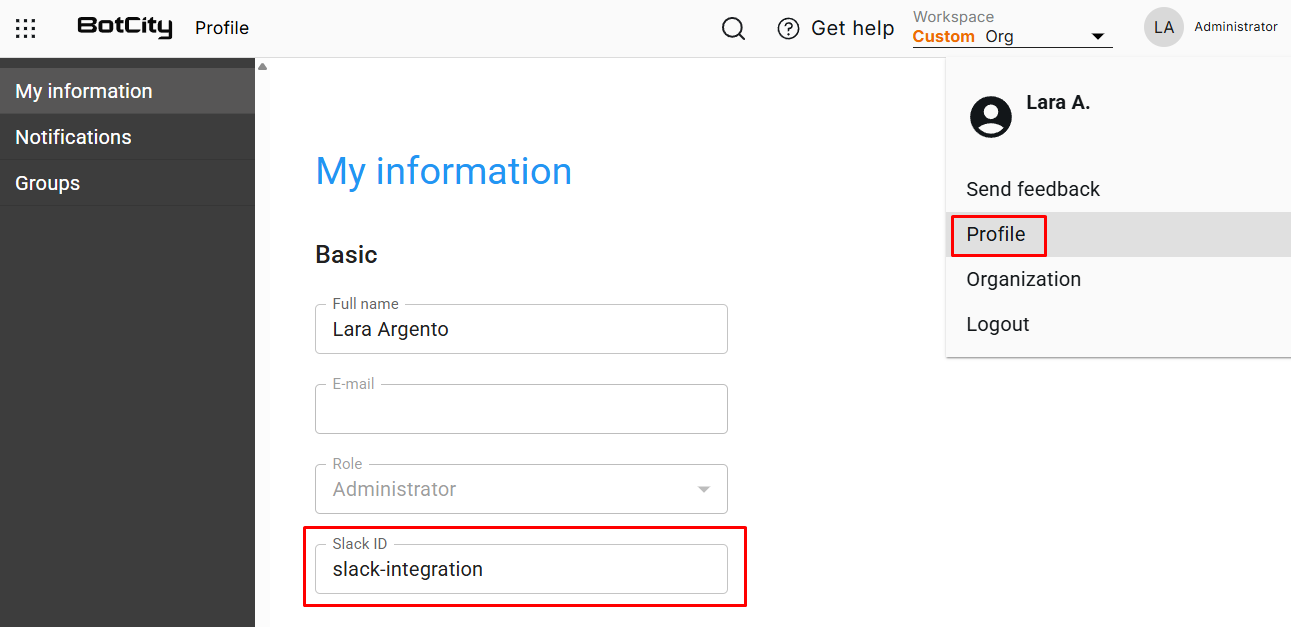
In the Orchestrator, click on your profile avatar in the upper right corner and select Profile. Find the Slack ID field, enter the Slack channel ID and click Save.
4. Enable notifications
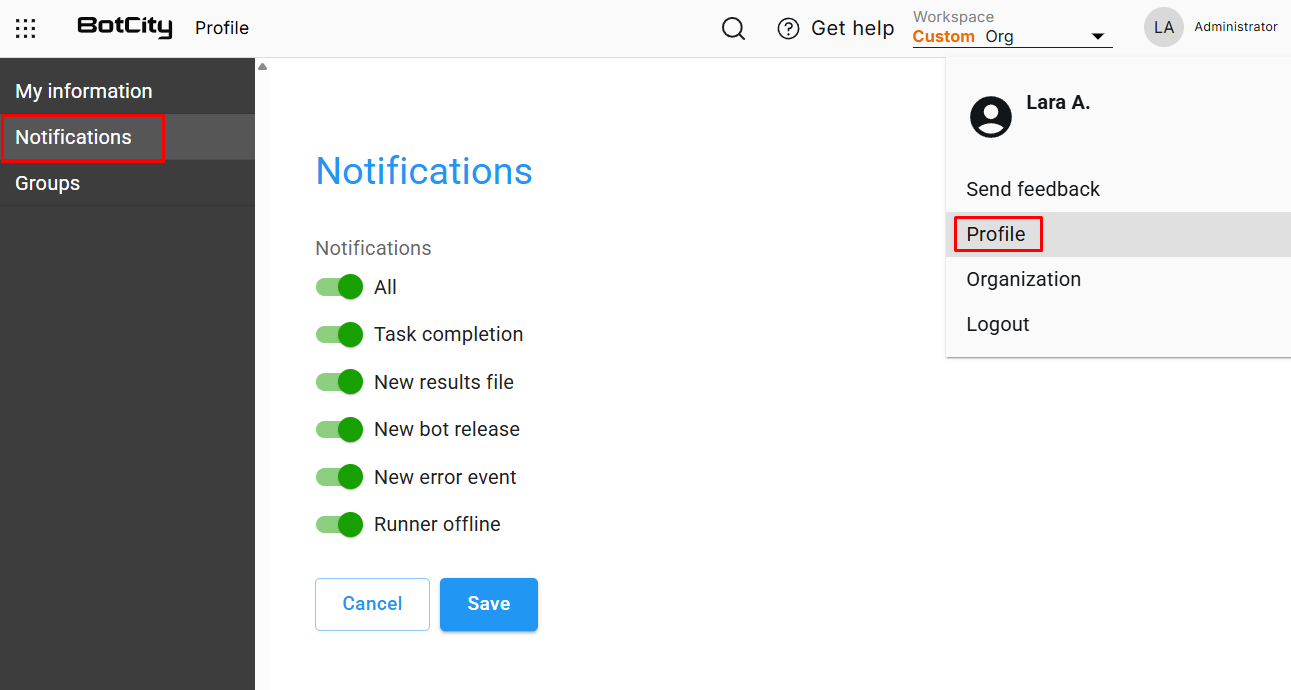
On the same Profile page, make sure notifications are enabled for your account.
Microsoft Teams
The Microsoft Teams integration allows the Orchestrator to send event alerts directly to a Teams channel or chat. Events covered are the same as Slack: task completion, new result file, new bot release, new error event, and Runner offline. See the full list in Notifications.
Connectors discontinued
Microsoft permanently discontinued the Microsoft 365 Connectors (formerly Office 365 Connectors) in May 2026. The old flow — ⋯ > Connectors > Incoming Webhook — is no longer available. Use the Workflows-based method described below.
Open Workflows
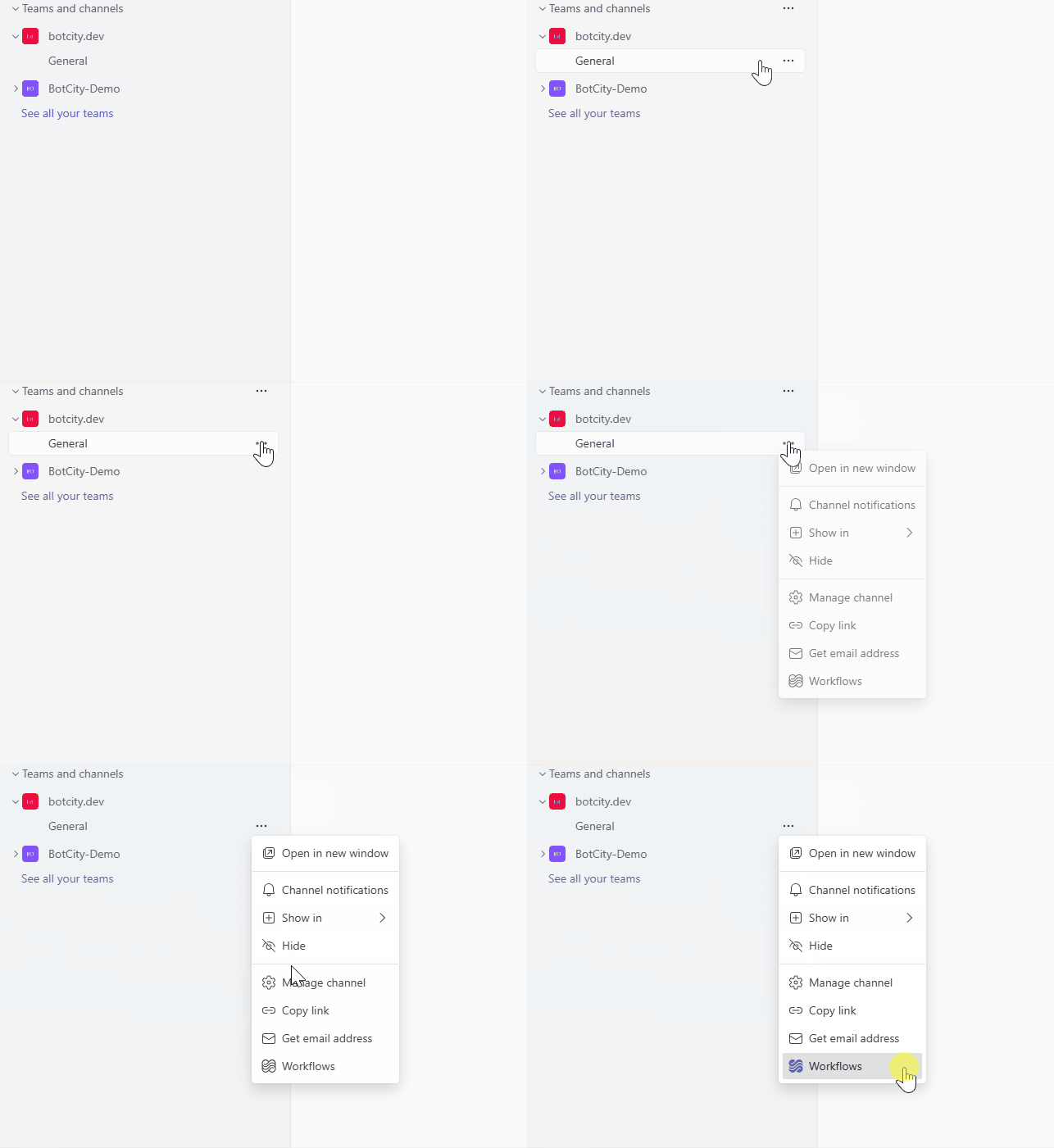
In Microsoft Teams, navigate to the channel or chat where you want to receive notifications. Click ⋯ (More options) next to the name and select Workflows.
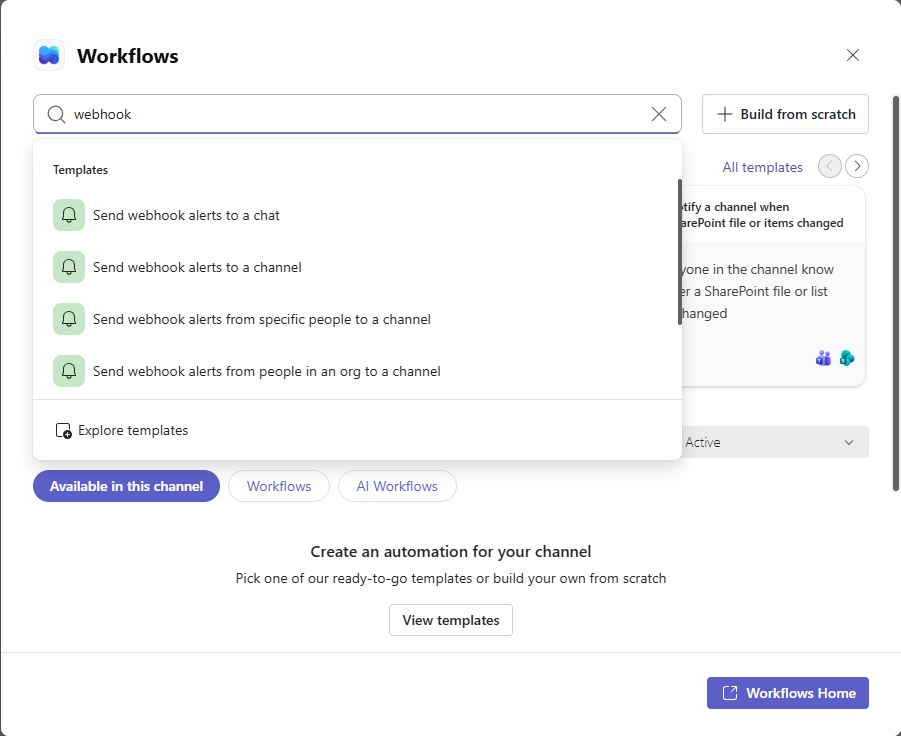
Option 1 — Ready-made template
Use the template "Send webhook alerts to a channel" for channels or "Send webhook alerts to a chat" for chats.
- In the Workflows screen, select the desired template.
- Update the flow name if you want.
- Authenticate with your Microsoft account (or click Switch account) and click Next.
- Choose the Team, Channel, or Chat destination. If you opened Workflows from a channel, those fields will already be filled in.
- Click Add workflow.
Option 2 — Custom Workflow
- Click View more apps in Teams and open the Workflows app.
- Go to the Create tab and select Create from blank.
- Search for and select the trigger "When a Teams webhook request is received".
- Choose the authentication type: Anyone, Any user in tenant, or Specific users.
- Click New step and select the action "Post card in chat or channel".
- Configure the destination and other required fields.
- Click Save.
Save the URL in Maestro
After saving the flow, a dialog box displays the generated webhook URL. Copy this URL before closing the screen.
Retrieve the URL later
Open Workflows in Teams, find the created flow, click Edit, and expand the trigger "When a Teams webhook request is received" — the URL will appear in that block.
Paste the URL into the Microsoft Teams url field within the Integration Tokens of Maestro and click Save.
Workflows limitations
- Action buttons not supported: cards with interactive buttons (Adaptive Cards with actions) do not work — only display cards are sent.
- Private channels not supported: the Workflows app does not support private channels in Microsoft Teams.
- Orphan flow risk: the flow belongs to the user who created it. If that person leaves the organization, the flow may stop working. Add co-owners to the flow or use a service account as the owner.