FAQ
Frequently asked questions
This page brings together the most common questions from people who develop, run, and orchestrate automations with the BotCity tools. Each entry describes a specific scenario, explains what usually causes the behavior, and presents the solution or a way to work around the problem.
The questions are grouped by theme, from installation and environment setup to execution by the Runner, remote connection scenarios, automation development, platform access via SSO, and questions about plans on the Orchestrator. Click a question to expand the answer.
Sharing a specific answer
Each entry has its own link, so you can share a specific answer with other people on your team. To copy that link:
- Click the question to expand the answer.
- Hover over the question title and click the link icon (¶) that appears next to it.
- Copy the address from your browser bar, which now points straight to that question.
Did not find your question?
If your scenario is not listed here, choose the channel according to the type of question:
- Technical question, with a contracted plan: open a ticket on the support portal. Portal access is sent by email to the users in your organization, and each plan has its own service rules, described in the contract. Enterprise customers also have a direct channel with the Automation Experience team.
- Technical question, without a contracted plan: ask in the WhatsApp group, where the BotCity team and other users answer. The other open channels are gathered on the Community page.
- Contract, account limits, or plan upgrade: talk to your sales representative or use the contact form on the website.
Installation and environment setup
How to solve the problem of installation stuck at 0%?
How to solve the problem of installation stuck at 0%?
This type of problem is more common in cases where there are blockages in the company's environment where the tools are being used. Here are some of the behaviors observed:
- Installation through the Wizard is stuck at 0%.
- Error when starting the Runner.
- Authentication problem when trying to log in to BotCity Studio.
Before opening a request with the IT team, confirm the source of the problem with the diagnostic tool. The BotCity - Diagnostic comes with the Wizard package and validates connectivity with the BotCity Platform, as well as the Java and Python versions installed on the machine:
- Run the
diagnostic.jar, which is in the same folder as the Wizard. - Enter your server URL and click
Run Tests. - Check the result of each verification in the
Test,Result, andNotescolumns.
A FAIL result in any connection test indicates that the machine is in an environment with blockages, and the Notes column shows what failed in each case. Use the Export button to generate a CSV file with the results and forward it to the IT team along with the access request.
The ideal solution in this case is to ask the company's IT team for some access permissions. See more details about the URLs that require access in the section Problems with blocking environments.
Still need help?
If this does not solve your case, or your question is not listed here, open a ticket with the support team.
What to do when the Wizard shows the error Not a valid BotCity Orchestrator hostname.?
What to do when the Wizard shows the error Not a valid BotCity Orchestrator hostname.?
This error appears in the login step of the installation Wizard, after you enter the BotCity Platform URL in the Server field:
To validate the field, the Wizard sends a GET request to <orchestrator-url>/api/v2/maestro/version and only considers the server valid if the response contains the Orchestrator version. Any failure in this request produces the same message, even when the URL is correct. The most common causes are:
| Cause | How to resolve |
|---|---|
| Mistyped URL | Enter only your workspace address, with https:// and no additional paths, for example https://yourcompany.botcity.dev. |
| Corporate proxy | Configure the proxy in the BotCity tools. |
| Firewall blocking | Ask the IT team to allow the BotCity domains on port 443. |
| IP restriction on the workspace | If the workspace uses the IP Allowlist in the Security Center, confirm that the machine's outbound IP is allowed. |
| DNS failure or timeout | Check that the machine resolves the workspace domain and that the network is not interrupting the connection. |
Test access to the Orchestrator from the machine itself
On the machine where the Wizard is running, open the address https://<your-workspace>.botcity.dev/ in the browser. If the page does not load, the problem is the machine's access to the BotCity Platform, not the installation.
If the error persists, run the diagnostic tool and check whether all requirements and access permissions are being met.
Still need help?
If this does not solve your case, or your question is not listed here, open a ticket with the support team.
Why does the installation work on one machine (or VDI) and fail on another?
Why does the installation work on one machine (or VDI) and fail on another?
When the same Wizard version works on one machine and fails on another, including in earlier versions, the cause is usually in that machine's network environment, not in the installation. It is common for VDIs and servers in the same environment to have different proxy, firewall, or outbound IP rules.
Compare the two machines on the following points:
- Proxy: whether the failing machine uses a different proxy, or a proxy that requires authentication.
- Firewall: whether the BotCity domains are allowed for that machine.
- Outbound IP: whether that machine's IP is allowed in the workspace's IP Allowlist, when it is active.
- Workspace: whether both machines access the same workspace. Staging and production environments may have different IP restrictions.
Compare the diagnostic tool results
Run the diagnostic tool on both machines and compare the connectivity tests. The difference between the results usually points to the network rule that is blocking access.
Once you identify the difference, ask the IT team responsible for the machine for the necessary adjustment. See more details in Problems with blocking environments.
Still need help?
If this does not solve your case, or your question is not listed here, open a ticket with the support team.
What to do when the Wizard.exe is blocked by the company's security policies?
What to do when the Wizard.exe is blocked by the company's security policies?
When starting the installation, configuration, or authentication of the BotCity Runner through the Wizard in .exe format, you may not be able to open the file. This usually happens because of security policies that block the execution of executable files, a common measure to prevent the spread of malware and the use of unauthorized software.
To work around the restriction, use the Wizard version distributed for Linux, in .jar format. It depends on the Java Runtime Environment and usually passes the policies without being blocked:
- Download the Wizard in
.jarformat, available in the downloads section for Linux. - Open the
.jarfile. - If the Wizard starts normally, continue with the installation or configuration as usual.
If you prefer to continue with the .exe file, you will need to open a request with your company's security team asking for permission to run .exe files in the environment.
The .jar Wizard has no functional limitation
Using the Wizard in .jar is perfectly valid and does not compromise the expected behavior of the tools. If you want to avoid new requests to the security team, you can continue with the .jar version without any limitation.
Still need help?
If this does not solve your case, or your question is not listed here, open a ticket with the support team.
How to resolve dependency installation issues when running the automation (ModuleNotFoundError)?
How to resolve dependency installation issues when running the automation (ModuleNotFoundError)?
When you run the automation, Python stops the execution right at the beginning and reports that it did not find a package you have already installed:
In most cases, this means the dependencies were installed in a Python interpreter different from the one that runs the code. It is common for the IDE itself to create a virtual environment for the project: if the dependencies are installed in that virtual environment, but the code runs with the system's "global" Python (or the other way around), the packages are not found.
To solve it, use the same interpreter in both steps:
- Find out which interpreter is active in the terminal with
python -c "import sys; print(sys.executable)"and compare it with the interpreter selected in your IDE. - With the correct interpreter active, install the dependencies:
pip install --upgrade -r requirements.txt. - Run the automation with that same interpreter.
Similar error with another dependency
If you are having a similar problem with another dependency when running your automation using BotCity Runner, check whether the dependency was correctly defined in the robot's requirements.txt file.
Still need help?
If this does not solve your case, or your question is not listed here, open a ticket with the support team.
How to resolve SSL certificate verification issues when running commands using pip?
How to resolve SSL certificate verification issues when running commands using pip?
When installing dependencies with pip, manually or through the Runner, the command fails because Python cannot validate the SSL certificate of the connection to PyPI. The error appears in the Runner log or in the terminal itself:
WARNING: Retrying (Retry(total=0, connect=None, read=None, redirect=None, status=None)) after connection broken by 'SSLError(SSLCertVerificationError(1, '[SSL: CERTIFICATE_VERIFY_FAILED] \
certificate verify failed: unable to get local issuer certificate (_ssl.c:1000)'))': /simple/pip/

Could not fetch URL https://pypi.org/simple/pip/: There was a problem confirming the ssl certificate: HTTPSConnectionPool(host='pypi.org', port=443): \
Max retries exceeded with url: /simple/pip/ (Caused by SSLError(SSLCertVerificationError(1, '[SSL: CERTIFICATE_VERIFY_FAILED] \
certificate verify failed: unable to get local issuer certificate (_ssl.c:1000)'))) - skipping
This scenario is common in corporate environments, where the company's proxy or firewall intercepts the connection and presents an internal certificate that pip does not recognize. Until that is handled, no package is installed directly from PyPI (Python Package Index).
To solve it, mark the PyPI domains as trusted in the global pip configuration:
pip config set global.trusted-host \
    "pypi.org files.pythonhosted.org pypi.python.org" \
    --trusted-host=pypi.python.org \
    --trusted-host=pypi.org \
    --trusted-host=files.pythonhosted.org
With the configuration applied, the next dependency installation, including the one the Runner performs before executing the task, should no longer fail because of the certificate.
Validate the configuration with the IT and security teams
If this alternative is not enough, validate with your company's IT team whether this is an appropriate solution for your environment.
Also remember to check with the IT team whether additional configurations regarding the use of pip are necessary.
You can find more details about blocking environments in the prerequisites section of the documentation.
Still need help?
If this does not solve your case, or your question is not listed here, open a ticket with the support team.
How to set up an authenticated proxy for the BotCity tools?
How to set up an authenticated proxy for the BotCity tools?
In corporate environments with an authenticated proxy, which requires a username and password, allowing the URLs on the firewall may not be enough. The Wizard, the Runner, the BotCLI, BotCity Studio, and the Python automations also need to know which proxy to use and with which credentials, to communicate with the Orchestrator and install dependencies.
To resolve it, configure the proxy in two places:
- Java tools (Wizard, Runner, BotCLI, and BotCity Studio): set the JVM proxy properties, per application or through the
JAVA_TOOL_OPTIONSenvironment variable. - Python automations: create the
HTTP_PROXYandHTTPS_PROXYenvironment variables in the formathttp://user:password@host:port. They are read bypipand by therequestslibrary in any virtual environment.
The complete step-by-step, including how to handle special characters in the password, is in the guide Set Up an Authenticated Proxy for the BotCity Tools.
Still need help?
If this does not solve your case, or your question is not listed here, open a ticket with the support team.
How to trust a corporate SSL certificate (SSL Inspection) in the BotCity Java and Python tools?
How to trust a corporate SSL certificate (SSL Inspection) in the BotCity Java and Python tools?
In environments with an SSL inspection proxy (SSL Inspection), the company replaces the servers' original certificate with a certificate issued by an internal CA. The Java and Python tools do not recognize this CA and reject the connection, with errors such as PKIX path building failed in Java or CERTIFICATE_VERIFY_FAILED in Python.
In this scenario, configuring the pip trusted-host does not fully resolve the problem, because it only affects package installation. The Wizard, the Runner, and BotCity Studio keep rejecting the certificate.
To resolve it, register the internal CA's root certificate in the truststore of each technology:
- Java (Wizard, Runner, and BotCity Studio): import the certificate into the
cacertsof the JVM used by the tools, withkeytool. - Python (
requests): create a custom bundle fromcertifi, with the internal CA's certificate, and point theREQUESTS_CA_BUNDLEenvironment variable to it.
The complete step-by-step is in the guide Set Up a Corporate SSL Certificate.
Certificate provided by the security team
The internal CA's root certificate is usually provided by your company's infrastructure or security team. Request the file (.crt, .cer, or .pem) before starting the configuration.
Still need help?
If this does not solve your case, or your question is not listed here, open a ticket with the support team.
Execution by the Runner
How to install multiple Runners in a single execution environment?
How to install multiple Runners in a single execution environment?
Each Runner executes one task at a time. To process more than one task at the same time on the same machine, you can install several Runners in the same execution environment. There is no limit on the number, but each Runner needs its own BotCity Studio SDK installation, in a separate folder, and a unique identifier (machineId).
To set up the Runners:
- Create a Runner in the Orchestrator for each instance to be installed, each with its own
Label. - Run the Wizard and, in the Choose where to install step, enter a different folder for each Runner, for example
BotCity\runner-01andBotCity\runner-02. - At the end of each installation, click
Setup Runnerand select the Runner that corresponds to that folder. - In the
conf.bcffile in theconffolder of each installation, check that themachineIdpoints to the expected Runner. - Start each Runner from its own folder, with the
BotRunnerorBotRunner-guiscript.
If you prefer to automate the setup, use the Wizard's silent install, repeating the command with different --dir and --runner parameters for each instance:
wizard-x.y.z.exe install --dir "D:\BotCity\runner-01" --email "user@server.com" --runner "runner-01"
wizard-x.y.z.exe install --dir "D:\BotCity\runner-02" --email "user@server.com" --runner "runner-02"
Since each installation has its own bots, venvs, and logs folders, the Runners do not compete for the same virtual environment or mix their execution logs.
Automations with a graphical interface do not run in parallel
Automations that manipulate the screen, mouse, or keyboard share the same graphical session and conflict when they run at the same time. Combine at most one automation of this type with automations that run in the background, such as headless Web, API integrations, and file processing. To parallelize automations with a graphical interface, use separate machines or sessions.
Size the machine's resources
Each running Runner consumes CPU and RAM. See the sizing references for parallel executions in Machine sizing for running a process via Runner.
Runners in containers
If the environment uses Docker, you can also start several Runner instances with Docker Compose, each with its own MACHINE_ID.
See more at:
Still need help?
If this does not solve your case, or your question is not listed here, open a ticket with the support team.
How to resolve the Python environment preparation failed error when running an automation through the Runner?
How to resolve the Python environment preparation failed error when running an automation through the Runner?
Before running a task, the Runner prepares the robot's Python environment. When that step fails, the task is never executed and the log records Python environment preparation failed. Three causes account for most cases, and the Runner log itself indicates which one is yours.
1. The Runner cannot reach PyPI
The log shows connection attempts to pypi.org that end in timeout:
WARNING: Retrying (Retry(total=4, connect=None, read=None, redirect=None, status=None)) after connection broken by 'ReadTimeoutError("HTTPSConnectionPool(host='pypi.org', port=443): Read timed out. (read timeout=15)")': /simple/pip/
...
Python environment preparation failed.
Error executing task: Python environment preparation failed...
Without access to PyPI, pip install cannot download the robot's packages. This is common in corporate environments with outbound blocking. Ask the infrastructure team for the firewall permissions listed in the section Using Python in automation development.
2. Python is not correctly installed on the machine
The log brings the message below right after the attempt to create the virtual environment:
In this case, Python is not installed, is not in the system PATH, or is missing the packages the Runner uses to build the virtual environment. Confirm the installation:
If the commands respond, install the required packages:
3. The Runner calls the wrong Python command
When the machine has more than one version installed, each one usually responds to a different command. Test py and python in the terminal to find out which one calls the version the robot needs. If it is py, tell the Runner in the conf.bcf file, inside the conf folder where the BotCity SDK was installed:
You can also point to the full path of the executable in the same parameter, for example pythonBinary=C:\\Python312\\python.exe.
Use double backslashes in the Python path
When entering the full path in pythonBinary, write it with double backslashes, so that the single backslash is not interpreted as an escape character during execution.
See all the parameters accepted by conf.bcf in the section Customizing Runner configuration.
Still need help?
If this does not solve your case, or your question is not listed here, open a ticket with the support team.
How to handle the No pyenv.cfg file error in the Runner logs?
How to handle the No pyenv.cfg file error in the Runner logs?
This error appears in the Runner logs when the creation of the robot's virtual environment is not completed: the pyenv.cfg file, which identifies the environment, was not generated or was left incomplete.
Always start with the Runner log to confirm the message. If it is not enough to identify the cause, add debugEnabled=true to the conf.bcf file to generate a more detailed log output and reproduce the problem. The parameter is available from Runner version 2.7.0 onwards and is described in the section Customizing Runner configuration.
With the log at hand, check the most common causes:
| Likely cause | What to check |
|---|---|
setup.py file in the project folder |
Rename the setup.py and run the task again. |
| Environment creation interrupted by lack of RAM, lack of disk space, timeout, or lack of permission | Check the machine resources and the write permission on the target folder. In these cases, the virtual environment folder may even be created, but with pending files. |
| Blocking by antivirus or EDR | Create the virtual environment manually in the target folder to confirm whether there is any blocking. |
| Folder cleanup by another tool | Check whether any cleanup tool acts on the target folder. |
| Two Runners creating the environment in the same folder | Make sure only one Runner works on the same virtual environment. |
| Environment created with a Python version different from the current one | Confirm that the Python version in use on the machine is the same one that generated the virtual environment. |
Where the virtual environments are
The virtual environments are created in the SDK installation directory, inside the venvs folder. If the SDK was installed in Documents, for example, the path will be C:\Users\{user_name}\Documents\BotCity\venvs\. See the complete folder structure in the section Exploring the Contents.
Still need help?
If this does not solve your case, or your question is not listed here, open a ticket with the support team.
What to do when the Runner seems stuck after pulling a task for execution?
What to do when the Runner seems stuck after pulling a task for execution?
In sporadic situations, the Runner pulls a new task, but the execution does not start: the status stays as Executing task... until the Runner is restarted.
In most cases, the cause is resources from the previous execution that were not finalized correctly. When the code tries to use those resources again, the operating system considers them "in use" and the new execution does not move forward. The most common example is the WebDriver in Web automations: without proper shutdown, it keeps running even after the process ends and affects the following executions.
To solve it, make sure in the code that every resource allocated by the robot is released at the end of the execution, including when an exception occurs. In Web automations, that means closing the browser with bot.stop_browser(), as described in the section Stop browser, preferably inside a finally block, so the cleanup happens even when the robot fails in the middle of the process.
Always check whether every resource used in the execution was properly closed. With a clean environment at the end of each execution, the Runner can start the next task without conflicting with the previous resources.
Checking the Runner's log.txt
You can also always consult the log.txt file generated by the Runner to check for any exceptions thrown during the environment preparation and the process execution.
Still need help?
If this does not solve your case, or your question is not listed here, open a ticket with the support team.
How to fix a task left with the wrong status on the Orchestrator?
How to fix a task left with the wrong status on the Orchestrator?
The task remains on the Orchestrator with a status that does not match reality, usually Running, even with no execution in progress on the Runner.
The Runner has internal handling that finishes the task in an error state when the failure is not reported by the code or when there is a forced cancellation. That handling is not triggered when the Runner is closed abruptly, for example in a restart or machine shutdown without closing the Runner first. That is the scenario in which the status becomes outdated.
The wrong status does not affect the following executions, the impact is only visual and administrative. To fix it, finish the task through the BotCLI, which comes with the BotCity Studio SDK:
- Open a terminal in the folder where the SDK was installed.
- Copy the task ID on the Orchestrator, available in Task information.
- Run the command below, replacing
123with the copied ID and the number of processed tasks:
The command finishes the task and updates the indicators of total, successfully processed, and failed items, so that it no longer appears as Running in the queue.
Other arguments of the command
The task finish also accepts a finish message and the completion type (SUCCESS, FAILED, or PARTIALLY_COMPLETED). See all the arguments in the section task finish and the general syntax of the tool in Getting Started.
Still need help?
If this does not solve your case, or your question is not listed here, open a ticket with the support team.
Remote environments and RDP sessions
What to do when getting the error OSError: screen grab failed when running an automation using the Runner in a remote environment?
What to do when getting the error OSError: screen grab failed when running an automation using the Runner in a remote environment?
The error appears when the automation uses computer vision to find elements on the screen, but the remote connection to the execution machine has already been closed. With no one connected, the operating system leaves the screen black, and the robot cannot capture the screen to look for the graphic elements.
The way out is to ensure the machine has an active graphical session at execution time. You have two options.
1. Session scripts from the BotCity SDK
BotCity distributes two scripts that disconnect the user's current session and redirect it to a terminal session, keeping the session and the graphical interface active for the Runner. They are in the SDK folder and are indicated in the Runner configuration file: use the startup parameter to run them when the Runner starts, or beforeTask to run them before each task.
| Script | Where it is | What it does |
|---|---|---|
startup.bat |
startup folder |
Disconnects the current session and redirects it to a terminal session. |
console_session.bat |
scripts folder |
Performs the same redirection and also sets a specific screen resolution for the new session. |
See the use and implementation of each one in the section Keeping your remote session active.
2. BotCity Session Manager
Instead of keeping the session open all the time, the Session Manager activates the session on the remote machine as tasks enter the Orchestrator queue and deactivates it when there is nothing left to run. The graphical interface is available during the execution, with no idle session afterwards, which also reduces the cost of the machines and meets security policies that limit active user sessions.
See what the tool does in BotCity Session Manager and how to configure it in Getting Started.
Still need help?
If this does not solve your case, or your question is not listed here, open a ticket with the support team.
How to find elements using computer vision in remote connections?
How to find elements using computer vision in remote connections?
For security reasons, it is common for the customer not to allow direct access to the environment, so the automation has to be built through a remote connection. In this scenario, the robot finds the elements in one connection and stops finding them in the next one.
The reason is that the captured image changes from one connection to another. If the RDP session resolution is adaptive, or if the connection quality is set automatically by the network speed, each session presents the screen in a slightly different way, and the images captured in BotCity Studio no longer match what appears on the screen.
So that the captures are constant between connections, configure the RDP session before mapping the elements:
- In the remote connection client, click
Show Options. - On the
Displaytab, set a fixed resolution instead of an adaptive option such as full screen. - On the
Experiencetab, choose a fixed quality parameter instead of leaving automatic detection by connection speed.
Recapture the elements after changing the connection
Any change in the resolution or experience settings alters the screen image. Always update the visual elements in BotCity Studio by capturing them again after adjusting the remote access, otherwise the old images will not be found.
With a fixed resolution, you can capture the screen through BotCity Studio and use the computer vision methods of the Desktop Framework to manipulate an application that is running in the remote environment.
Still need help?
If this does not solve your case, or your question is not listed here, open a ticket with the support team.
What to do when the startup script returns Session not found?
What to do when the startup script returns Session not found?
The script that should disconnect the user's session and redirect it to the console fails with the message Session not found, and the session stays as it was.
The cause is usually a user name with spaces, such as USER NAME. The console_session.bat script, which is in the scripts folder of the BotCity Studio SDK, locates the active session by the user name:
FOR /F "skip=1 tokens=3 usebackq" %%X in (`query session %USERNAME%`) DO tscon %%X /dest:console
powershell.exe -Command Set-DisplayResolution -Width 1600 -Height 900 -Force
With a compound name, the space breaks the query session lookup and no session ID is left for tscon to redirect.
To solve it, replace %USERNAME% with the %User*Name% wildcard in the first line of the script, keeping the rest as it is:
FOR /F "skip=1 tokens=3 usebackq" %%X in (`query session %User*Name%`) DO tscon %%X /dest:console
powershell.exe -Command Set-DisplayResolution -Width 1600 -Height 900 -Force
The wildcard locates the session even when the name has spaces or other special characters. The skip=1 tokens=3 snippet still extracts the session ID, and tscon redirects it to the console.
Variation for the startup.bat
The startup.bat, which is in the startup folder of the SDK, performs the same redirection through PowerShell:
@powershell -NoProfile -ExecutionPolicy unrestricted -Command "$sessionid=((quser $env:USERNAME | select -Skip 1) -split '\s+')[2]; tscon %sessionname% /dest:console"
In this script, tscon uses the %sessionname% variable, and not the result of quser, so a user name with spaces does not prevent the redirection. The quser lookup only feeds the $sessionid variable, which the script never uses.
If you adapted the startup.bat to use the $sessionid
A compound user name takes up two columns in the quser output and shifts the positions of the -split. In that case, index [2] no longer points to the session ID and needs to be adjusted according to the command output on your machine.
See the original content of the scripts and how to indicate them in the Runner configuration in the sections Session disconnect script and Environment configuration script.
Still need help?
If this does not solve your case, or your question is not listed here, open a ticket with the support team.
How to configure the encoding to avoid problems typing characters in RDP sessions on MacOS?
How to configure the encoding to avoid problems typing characters in RDP sessions on MacOS?
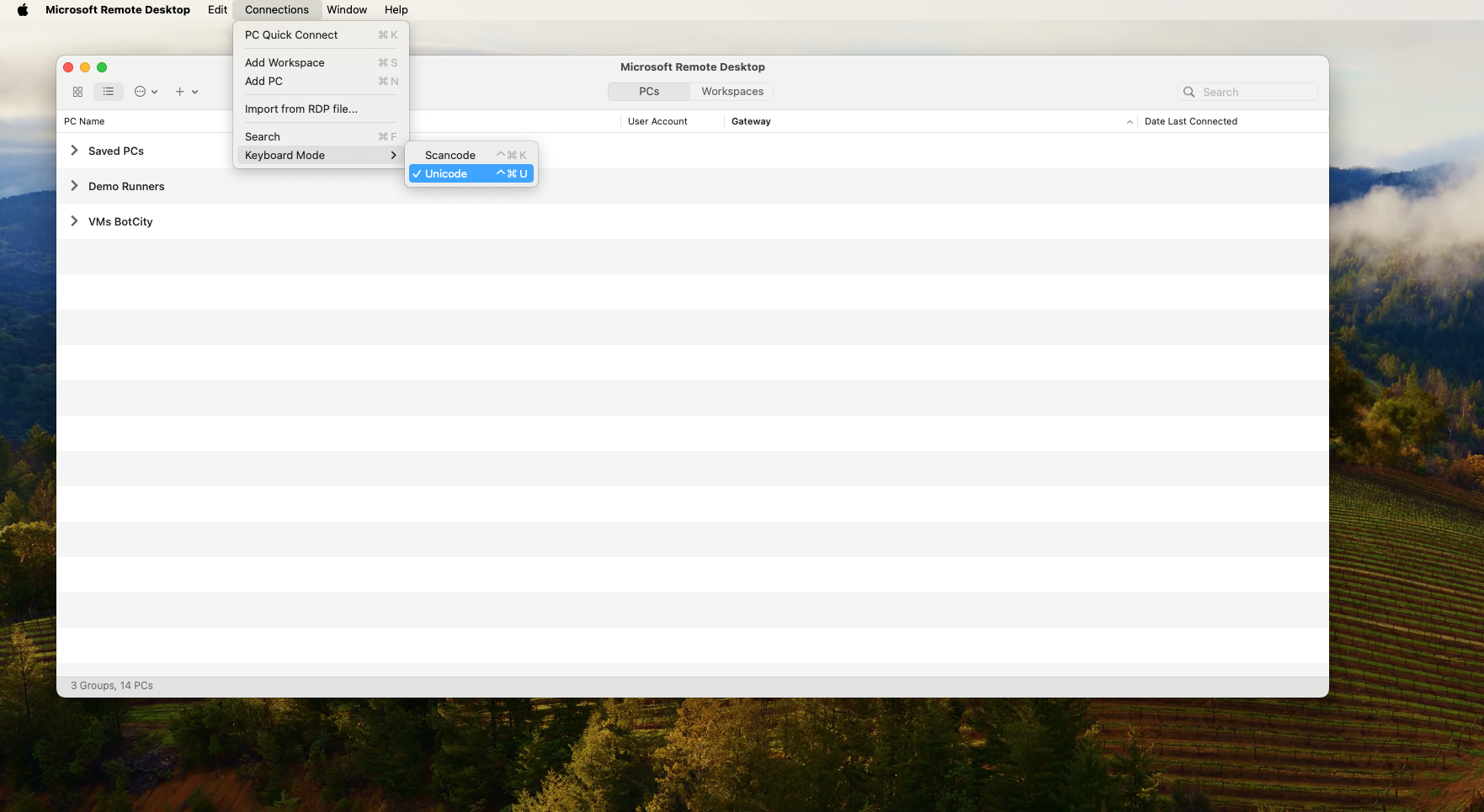
The robot types the text in the VM, but uppercase characters and special characters come out wrong or simply do not appear. The typical case is the kb_type() method of the Desktop Framework, used in a process that runs in a VM accessed from MacOS.
The cause is the keyboard encoding that Microsoft Remote Desktop for MacOS uses by default in the RDP session: it does not match what the VM expects to receive, and part of the keys sent by the robot is lost along the way.
To fix it, change the encoding in the Microsoft Remote Desktop application:
- Access the
Connectionstab. - Check the
Keyboard Mode > Unicodeoption.
Still need help?
If this does not solve your case, or your question is not listed here, open a ticket with the support team.
Automation development
What to do when the Print Screen key does not capture the screenshot in BotCity Studio?
What to do when the Print Screen key does not capture the screenshot in BotCity Studio?
You press Print Screen to bring the application screen to the Studio's UI tab, as described in Bringing interact screen to the Studio, but the capture is not loaded.
Most of the time, another running application is intercepting the Print Screen key and BotCity Studio never receives the image.
Start by checking the key itself:
- Confirm that
Print Screenis active and functional in other applications on the machine. - Close or disable programs that capture the screen and may be intercepting the key.
If the key remains unavailable, use one of the capture alternatives:
| Alternative | Description |
|---|---|
| Capture button in Studio | Besides Print Screen, you can also capture the screen through the button in the top right menu of BotCity Studio. |
| Custom keyboard shortcut | Studio allows you to set another key or combination for the capture. See how in Custom print shortcut. |
| Extension for VSCode | BotCity Studio is also available as an extension to install directly in VSCode. See more in BotCity Studio for Visual Studio Code. |
On macOS the key is another one
On macOS, the capture is not made with Print Screen, but with the F9 key, due to a limitation of the operating system itself.
Still need help?
If this does not solve your case, or your question is not listed here, open a ticket with the support team.
Why does the Edge browser not start when the automation runs through the Orchestrator?
Why does the Edge browser not start when the automation runs through the Orchestrator?
The Web automation with Microsoft Edge runs normally in local execution, but fails when the robot runs through the Orchestrator. The browser never opens and the execution stops with the following message in the log:
Message: session not created: probably user data directory is already in use, please specify a unique value for --user-data-dir argument, or don't use --user-data-dir
Although the text points to the profile directory, the behavior comes from a Selenium bug, reported in issue #15340 of the official repository: Edge tries to relaunch its own processes through the compatibility layer, and it is the relaunch that fails. That is why the error appears in executions controlled by the Runner and not in the local environment.
Versions in which the problem was reported
The issue was opened with Selenium version 4.29.0, Edge and msedgedriver version 133.0.3065.82, on Windows 10. So far there is no Selenium version indicated as a fix, so keep the argument applied even after updating the browser or the driver. Follow the issue to check whether the situation has changed.
To work around it, add the --edge-skip-compat-layer-relaunch argument to the browser options, following the same format as the section Customizing browser options:
def_options = default_options(
    headless=bot.headless,
    download_folder_path=bot.download_folder_path,
    user_data_dir=None,  # Passing 'None' here will generate a temporary directory
)

# Prevents Edge from relaunching the processes through the compatibility layer
def_options.add_argument("--edge-skip-compat-layer-relaunch")

bot.options = def_options
With the argument applied, the robots run again in the orchestrated environment, without having to change local settings or machine execution policies.
Still need help?
If this does not solve your case, or your question is not listed here, open a ticket with the support team.
How to resolve the SSL certificate error when connecting to the Orchestrator through the Python code?
How to resolve the SSL certificate error when connecting to the Orchestrator through the Python code?
The robot fails to connect to the Orchestrator through BotMaestroSDK because Python does not recognize the SSL certificate presented on the connection. The log usually shows an SSLError with the message CERTIFICATE_VERIFY_FAILED.
This scenario is common in corporate environments, where the server uses a self-signed certificate or the company's proxy intercepts the traffic and presents a certificate issued by an internal CA.
To work around it, disable the certificate validation right after instantiating the SDK, before any call to the Orchestrator:
from botcity.maestro import BotMaestroSDK

maestro = BotMaestroSDK.from_sys_args()
maestro.VERIFY_SSL_CERT = False  # Ignores the certificate validation
Minimum SDK version
For the VERIFY_SSL_CERT flag to work correctly, the botcity-maestro-sdk dependency must be on version 0.7.0 or higher.
Disabling the validation reduces the connection protection
With VERIFY_SSL_CERT = False, the robot stops validating the certificate presented by the server. Validate with your company's security team whether this solution is appropriate for your environment. The safer alternative is to make the execution machine trust the internal certificate, as shown in the guide Set Up a Corporate SSL Certificate.
Still need help?
If this does not solve your case, or your question is not listed here, open a ticket with the support team.
Access, SSO, and user management
Does the BotCity Platform support SSO?
Does the BotCity Platform support SSO?
Yes. With SSO (Single Sign-On) enabled, users access the platform with the credentials they already use in the company's identity provider (IdP), without needing a separate password for BotCity.
You can configure one or more providers, among the options:
- Social IdPs:
MicrosoftandGoogle. - User-defined IdPs:
SAML v2.0andOpenID Connect v1.0, which support providers such as Microsoft Entra ID, Okta, and Google Workspace.
The configuration is done in Security Center > SSO > Provider Configuration. At the end, copy the Redirect URL shown in the providers table and register it in your IdP to complete the integration.
See the step-by-step for each provider in the section SSO (Single Sign-On).
Only administrators configure SSO
Only users with the Administrator role in the Organization have access to the SSO settings.
SSO and local accounts can coexist
In the Local Accounts tab, you define whether users registered with email and password keep accessing the platform alongside SSO. When you disable local accounts, anyone who accessed exclusively by email and password loses access. The same applies when you disable SSO for anyone who accessed exclusively through it.
Still need help?
If this does not solve your case, or your question is not listed here, open a ticket with the support team.
Which SSO option should I use with Microsoft Entra ID?
Which SSO option should I use with Microsoft Entra ID?
You can integrate Microsoft Entra ID in three ways, all configured in Security Center > SSO:
| Option | Description |
|---|---|
| Microsoft (social IdP) | Native integration. Requires an App Registration in Azure, with Client ID and Client Secret. |
| OpenID Connect v1.0 | Integration via OIDC, with the Discovery Endpoint URL and the IdP .json configuration file. |
| SAML v2.0 | Integration via SAML, with the IdP .xml configuration file. Requires attention to the email claim mapping. |
Any of them handles user authentication. The Microsoft option is the simplest to configure, because it does not require manual claim mapping.
See how to do the provider configuration.
Authentication, not authorization
None of the options defines roles or groups on the platform.
See more at:
Still need help?
If this does not solve your case, or your question is not listed here, open a ticket with the support team.
Do I need to register the user on the platform before the first SSO login?
Do I need to register the user on the platform before the first SSO login?
Yes. There is currently no automatic user provisioning, so the user needs to exist on the platform before the first SSO access.
BotCity links the IdP account to the platform account by email. Therefore, the email registered in BotCity must be identical to the email the IdP sends during authentication.
To grant access:
- Go to Organization > Users and Groups and click
Invite user. - Enter the user's email, define the roles, and enable the SSO option.
- Ask the user to log in via SSO.
See more at:
Still need help?
If this does not solve your case, or your question is not listed here, open a ticket with the support team.
What to do when the SSO login redirects to the user-not-found page?
What to do when the SSO login redirects to the user-not-found page?
This behavior indicates that authentication in the IdP worked, but BotCity did not find a user with the email received. The platform ends the session in the IdP (in Microsoft Entra ID, the Sign Off Redirect screen appears) and redirects to an address such as:
The most common causes are:
- User not registered: the user does not exist on the platform yet.
- Empty email in the assertion: the IdP is not sending the email attribute.
- Different email: the IdP sends another value, such as the UPN (
user@company.onmicrosoft.com) or an alias, instead of the email registered in BotCity.
If you use SAML v2.0 with Microsoft Entra ID, open the Enterprise Application in Single sign-on > Attributes & Claims and check that:
- The Unique User Identifier (Name ID) is mapped to
user.mail, or to the attribute that contains exactly the email registered in BotCity. - The claim
http://schemas.xmlsoap.org/ws/2005/05/identity/claims/emailaddressexists and is mapped touser.mail. - The user's
mailattribute is filled in Entra ID and matches the email registered in BotCity, including domain and alias. - The user is assigned to the Enterprise Application, in Users and groups.
See more at:
Check which attributes arrive in the SAML assertion
If the error persists, capture the login with the SAML-tracer extension and check the email sent in the SAML Response.
Still need help?
If this does not solve your case, or your question is not listed here, open a ticket with the support team.
Does BotCity SSO control users' roles and access groups?
Does BotCity SSO control users' roles and access groups?
No. Currently, SSO (OpenID Connect v1.0, SAML v2.0, or the Microsoft and Google social IdPs) handles only user authentication. Authorization is still managed manually within the platform, with three features that work together:
- Roles: define what the user can do in the Organization and in each BotCity Platform product, such as the Orchestrator and Insights. The available roles vary by module, among Administrator, Manager, Developer, and Operator.
- Groups: bring together the users of the same team, department, or area. A user can belong to several groups and accumulates the access of each one.
- Repositories: group Orchestrator resources, such as automations, bots, credentials, and execution logs. Each repository grants access to one or more groups, and only the users of those groups can view and operate the resources linked to it.
In practice, the role defines what the user can do, and the combination of groups and repositories defines on which resources they can do it. Roles and groups are assigned in Organization > Users and Groups, and the groups' access to repositories is configured in Organization > Repositories.
See more at:
Still need help?
If this does not solve your case, or your question is not listed here, open a ticket with the support team.
Is it possible to use identity provider (IdP) groups to assign roles and access in BotCity?
Is it possible to use identity provider (IdP) groups to assign roles and access in BotCity?
Not yet. If your IdP (Microsoft Entra ID, Okta, Google Workspace, etc.) sends a groups claim in the token or in the SAML assertion, this attribute is ignored. It does not define the user's role or groups on the BotCity Platform.
The platform will accept IdP groups as the source of truth for roles and access, in two complementary ways:
- Sync at login: at each authentication, the IdP informs the user's groups and BotCity applies the corresponding role and access, according to a mapping defined by your company. Changes made in the IdP take effect at the next login.
- Automatic provisioning via SCIM: creation, update, and removal of users, as well as the association between users and groups, are replicated on the BotCity Platform in real time, without depending on a new login.
To use this feature, you will need to:
- In the IdP, enable sending the user's groups in the authentication token and, for SCIM, configure the provisioning connection with BotCity.
- In BotCity, define the mapping between the IdP groups and the platform's roles and groups.
Availability forecast
The feature is under development and will be available soon. Until then, manage roles and groups in Users and Groups.
Still need help?
If this does not solve your case, or your question is not listed here, open a ticket with the support team.
Does BotCity support SCIM 2.0?
Does BotCity support SCIM 2.0?
Not yet. Automatic provisioning via SCIM is under development and will be available soon.
With SCIM, the creation, update, and removal of users and the association between users and groups in the IdP will be replicated in BotCity in real time. In practice, offboardings and team changes will be reflected immediately in platform access.
Availability forecast
The feature is under development and will be available soon. Until then, manage roles and groups in Users and Groups.
Still need help?
If this does not solve your case, or your question is not listed here, open a ticket with the support team.
Is there an API to manage users and roles in BotCity?
Is there an API to manage users and roles in BotCity?
No. Currently, the BotCity Platform has no API route to create, deactivate, or remove users, or to assign roles per product. User and permission administration is done manually, in Organization > Users and Groups.
To automate granting and revoking access from your identity management tool, the planned path is provisioning via SCIM, which will be available soon.
Still need help?
If this does not solve your case, or your question is not listed here, open a ticket with the support team.
Orchestrator and plans
What are the features and limitations of a Community account on the BotCity Orchestrator?
What are the features and limitations of a Community account on the BotCity Orchestrator?
A new account created on the BotCity Orchestrator has full access to the platform's features during the first 30 days, the trial period. After that period, part of the features is disabled and another part starts to have usage limits.
Disabled features:
Resources that start to have usage limits:
- Tasks created per day
- Automations on the platform
- Runners on the platform
The values of these limits depend on your contract, so there is no single number that applies to all accounts. To check the limits that apply to your organization, access the Account and Plans page on the Orchestrator, which shows the linked plan and the limits of automations and Runners.
To confirm the conditions of your contract, or to consider an upgrade, talk to your sales representative.
The limitations apply to orchestration only
The limitations of a Community account are focused on orchestration.
The automation development stage has no limitation whatsoever regarding the use of BotCity's open source frameworks and plugins, nor the use of the BotCity Studio tools for computer vision and the Web and Windows inspectors.
Still need help?
If this does not solve your case, or your question is not listed here, open a ticket with the support team.
For how long is the automations' historical data stored?
For how long is the automations' historical data stored?
The retention period applies to the historical data that the automations generate on the platform:
For how long this data remains available depends on your organization's contract, so there is no single period that applies to all accounts.
To confirm the retention that applies to you, check the plan linked to your organization on the Account and Plans page of the Orchestrator and validate the contracted period with your sales representative. That is also the conversation to have when the operation needs a longer history because of regulatory or audit requirements.
Still need help?
If this does not solve your case, or your question is not listed here, open a ticket with the support team.
Learning and content
Where can I find content to learn more about using BotCity?
Where can I find content to learn more about using BotCity?
The learning material is distributed among courses, tutorials, and community channels. The best starting point depends on what you need at the moment.
For the first contact with the platform, take the Academy courses. They are free and only require a BotCity account.
To build an automation from start to finish, follow the tutorials on the documentation portal:
- Developing your first Desktop bot
- Developing your first Web bot
- Orchestrating your automation processes
To follow news and exchange experiences, use the open channels:
- What's New, with the updates and improvements of each month.
- Community, which gathers the forum, the WhatsApp group, the automation repository, and the open source projects.
- Blog BotCity, with articles and use cases.
- YouTube BotCity BR, with the videos in Portuguese.
- YouTube BotCity, with the videos in English.
Still need help?
If this does not solve your case, or your question is not listed here, open a ticket with the support team.