Groups
In the Groups menu you view the workspace's user groups. Users with the Administrator role view and edit all groups, and can also create new groups.
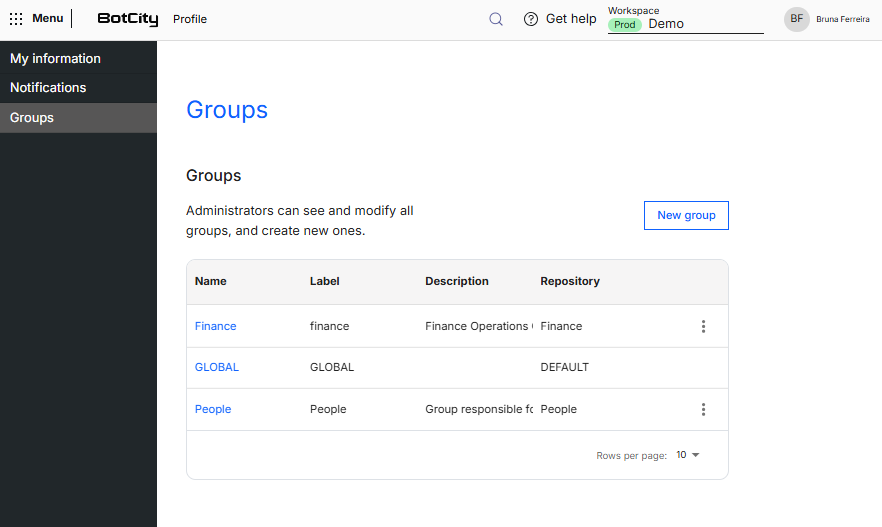
Groups table
The table shows the groups with the following information in columns:
- Name: display name of the group. Click the name to open the group information.
- Label: unique identifier of the group within the workspace.
- Description: free text that explains the purpose of the group, such as the area or team it serves.
- Repository: repository linked to the group, which determines which resources the users of that group can access and operate.
- Actions menu: available in the three-dot icon at the end of each row, with the options to
view,edit, ordeletethe group.
To create a group, click the New group button.
GLOBAL group
Every workspace has a default group with the GLOBAL identifier, which cannot be edited or deleted.
Manage groups and members
Creating groups, editing their data, and adding or removing members follow the same flow as the Organization's Users and Groups menu.
See more at: